

Settings
Every Settings field with its default and values, and the settings file behind them
Open Settings from the sidebar, then pick a section from the list on the left to change a field. Every value saves as soon as you finish with it, and a Reset button appears next to a label whose value you changed from its default.
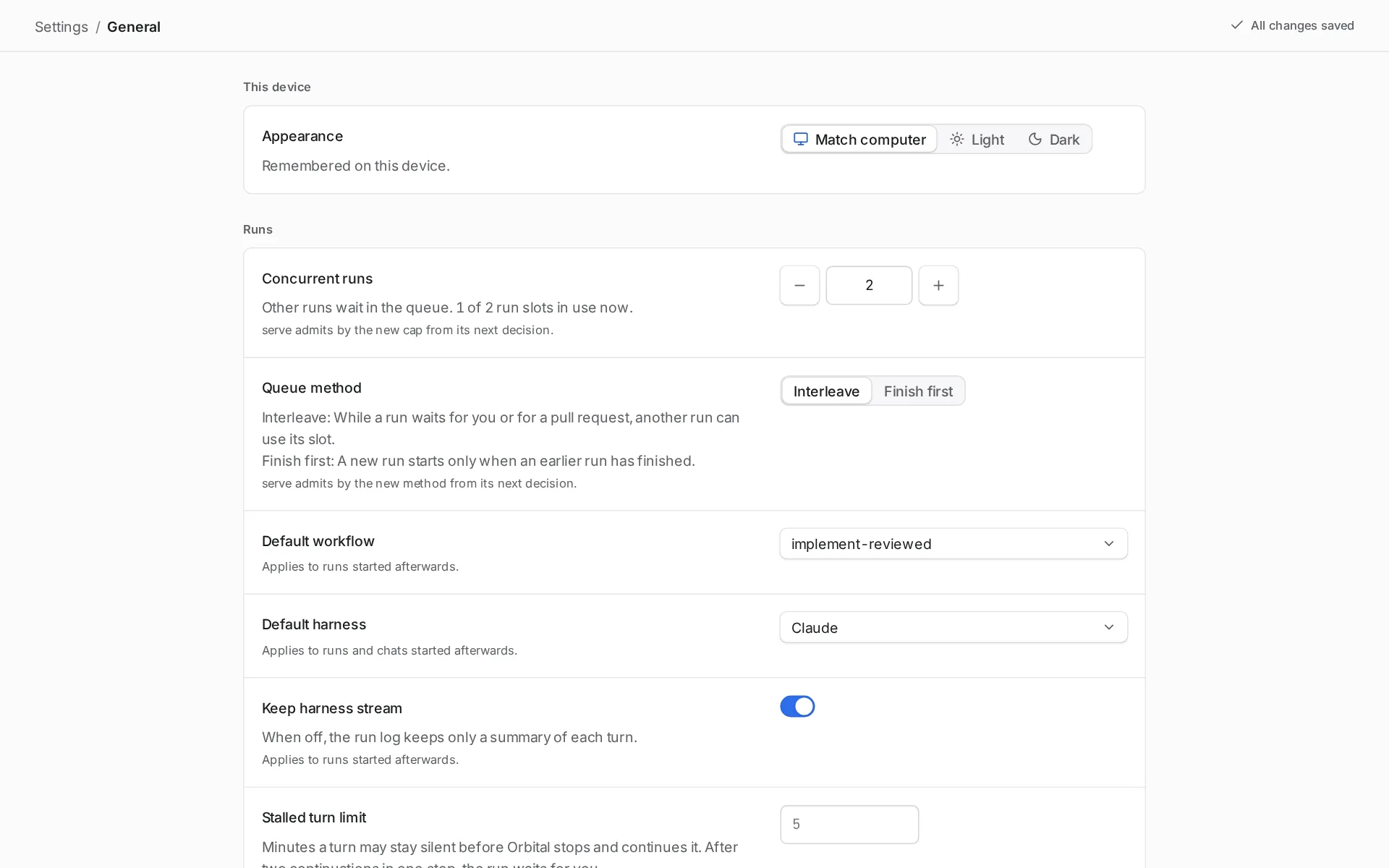
A text field saves when you press Enter or leave the field. Escape puts the field back to its saved value. A line under a field says when the change applies, for example “Applies to runs started afterwards.”
Settings has no Accounts section. Appearance is in Settings > General.
General
Section titled “General”Settings > General holds the appearance on this device and the settings for runs, worktrees and the server. It has four groups: This device, Runs, Worktrees and Serve.
| Field | What it does | Default and values |
|---|---|---|
| Appearance | Whether Orbital looks light or dark. It applies at once and is remembered on this device. | Match computer, which follows your computer’s light or dark setting. Or Light or Dark. |
| Concurrent runs | The most runs that work at the same time. Other runs wait in the queue. The line under it shows how many run slots are in use now. A project can have a lower limit of its own on its page; see the queue. | 2. A whole number from 1 to 16. Use the minus and plus buttons or type a number. |
| Default workflow | The workflow a run uses when you do not choose one. Applies to runs started afterwards. | pursue-goal. Any workflow Orbital can load without a project. |
| Default harness | The harness a run or chat uses when nothing names one. Applies to runs and chats started afterwards. Only harnesses that are turned on are listed. A harness that cannot start is marked, for example “(not installed)”. | Claude. Claude, Codex or OpenCode. |
| Keep harness stream | When on, the run log keeps everything the harness sent. When off, it keeps only a summary of each turn. Applies to runs started afterwards. | On. |
| Stalled turn limit | Minutes a turn may stay silent before Orbital stops it and starts it again in the same session. After two such restarts in one step, the run is Paused, with the badge “Waiting on you”. Applies to runs started afterwards. | 5. A whole number from 1 to 240. Leave it empty for the default. |
| Open worktrees in | The application that opens a run’s worktree. Opening a folder in another application also changes this. | “Let Orbital choose”. Or one of the applications Orbital finds on this computer. |
| Port | The port the server listens on. 0 picks a free port. Takes effect the next time the server starts. If the server was started with --port, that flag overrides this. |
42121. A whole number from 0 to 65535. Leave it empty for the default. |
Harnesses
Section titled “Harnesses”A harness is the coding agent program that runs a step, such as Claude Code or Codex. This section shows whether each harness can start, and sets how Orbital starts it.
Status
Section titled “Status”The Status table in Settings > Harnesses shows what Orbital last found for each harness. Select Check again to check now.
| Field | What it does | Default and values |
|---|---|---|
| Harness | The harness the row is about. | Claude, Codex, OpenCode. |
| Installed | Whether Orbital can start the harness. | “Not checked yet”, “Off”, “Not installed”, “Could not start”, “Stopped by the system”, “Too old” with its version, “Installed”, or “Installed” with its version. |
| Signed in | Whether the harness is signed in to its account. Shown only for an installed harness. | “Signed in”, “Signed out” or “Sign-in not reported”. |
| Checked | The time of the last check. | A time of day. |
When a harness has a problem, a note under the table says what is wrong and how to fix it.
Claude, Codex and OpenCode
Section titled “Claude, Codex and OpenCode”Each harness has its own group with the same fields.
| Field | What it does | Default and values |
|---|---|---|
| Turned on | When off, runs that need this harness stop and are Paused, with the badge “Waiting on you”, and its chats take no new turns. You cannot turn off the default harness. Choose another default first. | On. |
| Program | The program Orbital starts for this harness, in place of the one it finds itself. Applies to runs and chats started afterwards. | Empty. Claude uses “claude on PATH”. Codex uses “codex on PATH”. OpenCode uses “opencode on PATH”. |
| Default model | The model this harness uses when a step does not name one. Applies to runs and chats started afterwards. | “The harness’s own default”. Or a model Orbital knows for this harness. |
| Default effort | The reasoning effort this harness uses when a step does not name one. Applies to runs and chats started afterwards. | “The harness’s own default”. Claude: low, medium, high, xhigh, max. Codex: minimal, low, medium, high, xhigh, max, ultra. OpenCode takes no reasoning effort, so the field is off. |
| Environment variables | Variables Orbital sets when it starts this harness. Select Add a variable, then type a name and a value. Values are hidden once saved. Remove deletes a variable, and Undo brings it back. Applies to runs and chats started afterwards. | None. A name starts with a letter or an underscore and holds only letters, digits and underscores. |
When a harness runs out of quota
Section titled “When a harness runs out of quota”This group names the harness a run moves to when its own harness runs out of quota. The Supervisor, when it is on, moves the run to this harness. Without the Supervisor, the run is Paused, with the badge “Waiting on you”. Switch a run’s harness describes what the switch does.
| Field | What it does | Default and values |
|---|---|---|
| Switch to | The harness to move the run to. | “None”. Or Claude, Codex or OpenCode. |
| On model | The model to use on that harness. You can type here only after you choose a harness. Orbital does not apply it yet: a switched run uses the new harness’s default model. | Empty, which means “The harness’s own default”. |
Settings shows the first fallback only. The settings file can hold a list of fallbacks, tried first to last. See quotaFallbacks in the settings file.
Supervisor
Section titled “Supervisor”The Supervisor is a chat that looks after your runs. This section appears only while the Supervisor experimental feature is on. Read its settings for the full description of every field.
Settings for at the top chooses which supervisor you change: Orbital-wide, or a project’s own supervisor. A project’s supervisor follows the Orbital-wide settings until you change a field.
| Field | What it does | Default and values |
|---|---|---|
| Status | The Supervisor switch turns it on or off. Pause for today stops it acting until the next 07:00. Resume now ends a pause. | See the supervisor page. |
| Watched projects | Watches: the runs it looks after. Only the Orbital-wide supervisor has this group. | “All projects”, or only the projects you pick. |
| What it may do | One choice for each action it can take. | “Do it”, “Ask me first” or “Never”. |
| What it may read | A switch for each connected source. | On or off. |
| What wakes it | A switch for each reason, and Look over runs at work. | “Every hour”, “Every few hours” or “Off”. |
| Who it is | Role: the role the supervisor speaks in. | Any role in the library. |
| Quota fallbacks | The harnesses to move a run to when its harness runs out of quota, tried first to last. | A list you order. |
| Spending | Daily limit and Runs it started, at work at once. | “No limit”, “Tokens a day” or “Estimated cost a day, in USD”. “No cap” or “At most” a number of runs. |
| Notifications | Tell me about, Quiet hours and Desktop notifications. | “Decisions only”, “Decisions and failures” or “Every action”. |
| Reports | When it acts, say and Daily summary. | “Brief” or “Detailed”. “Off” or “Every day at” a time. |
| Notes | Its notes: what it keeps in mind between conversations. | Written by the supervisor. You can change them. |
| Your instructions | For all projects, and one field for each project. | Empty. |
| Housekeeping | Archive finished runs and Keep its activity log. | “Never” or “After” a number of days. |
| Start over | Resets every field to its default, or to the Orbital-wide settings for a project’s supervisor. | A button. |
A role gives a step a persona, model settings and tool access in one choice. Read roles to learn how steps use them.
How the library sections work
Section titled “How the library sections work”Roles, Personas, Model settings and Tool access share one layout. Changes save as you make them.
| Field | What it does | Default and values |
|---|---|---|
| Create | Create role, Create persona, Create model settings or Create tool access opens a form. Type a name, fill in the entry and select Create. Cancel closes the form. | A name cannot be empty, cannot match another entry, and cannot contain {, }, ; or a comma. |
| In the library | Lists every entry. You can rename an entry and change what it holds. | Orbital’s shipped entries, plus your own. |
| “Shipped with Orbital” | A badge on an entry that Orbital ships and you have not changed. | Shown on unchanged shipped entries. |
| “Edited from what shipped with Orbital” | A badge on a shipped entry you changed. | Shown on edited shipped entries. |
| Reset to default | Puts an edited shipped entry back to what Orbital ships. | Shown only on edited shipped entries. |
| Delete | Asks first, then deletes the entry. Steps that name it run without it. You cannot undo deleting your own entry. | On every entry. |
| Deleted defaults | Lists shipped entries you deleted. Restore brings one back. | Shown when you have deleted a shipped entry. |
Orbital adds its shipped entries each time it starts. It never overwrites an entry you edited, your own entries, or a shipped entry you deleted.
Role fields
Section titled “Role fields”| Field | What it does | Default and values |
|---|---|---|
| Persona | The persona the role gives a step. | “None (use the step’s default)”, or a persona from the library. |
| Model settings | The model settings the role gives a step. | “None (use the step’s default)”, or model settings from the library. |
| Tool access | The tool access the role gives a step. | “None (use the step’s default)”, or tool access from the library. |
A role must name at least one of the three. A line under each role says which workflows use it, or “Not used by any workflow”.
Shipped roles
Section titled “Shipped roles”| Role | Persona | Model settings | Tool access |
|---|---|---|---|
| Planner | Planner | Deep thinking | Full access |
| Implementer | Implementer | Balanced | Full access |
| Reviewer | Strict reviewer | Deep thinking | Full access |
| Researcher | Researcher | Balanced | Full access |
| Supervisor | Supervisor | Deep thinking | Supervisor |
Personas
Section titled “Personas”A persona is a prompt that agent turns can use. The section uses the library layout.
| Field | What it does | Default and values |
|---|---|---|
| Name | The name steps and roles use for the persona. | Required. |
| Prompt | The text the agent receives as its persona. | Free text. |
Orbital ships these personas.
| Persona | What its prompt asks for |
|---|---|
| Planner | Plan work before anyone changes code, and say how each change will be checked. |
| Implementer | Make the change the plan describes, and verify it with the repository’s checks. |
| Strict reviewer | Review work it did not write, report defects with evidence, and change nothing. |
| Supervisor | Act as your delivery lead inside Orbital, through Orbital’s MCP tools only. |
| Researcher | Search the code and the web, and report findings with their sources. |
Model settings
Section titled “Model settings”Model settings pick the harness, model and effort a step runs with. Roles pick one, and steps can name one. The section uses the library layout.
| Field | What it does | Default and values |
|---|---|---|
| Harness | The harness the step runs on. | “Any harness”, or a harness. |
| Model | The model the step uses. Shown once you choose a harness. | “Harness default”, or a model Orbital knows for that harness. |
| Effort | The reasoning effort. | “Harness default”, or an effort the harness takes. |
| More | Settings only the chosen harness reads. Claude: “Setting sources” (user, project, local). Codex: “Sandbox” (read-only, workspace-write, danger-full-access) and “Approvals” (never, on-request, untrusted). OpenCode: “Connection” and “Provider”. | “Harness default”, or empty. |
Orbital ships these model settings. Neither names a harness or a model, so any installed harness can run them.
| Model settings | Effort |
|---|---|
| Deep thinking | high |
| Balanced | medium |
Tool access
Section titled “Tool access”Tool access says which kinds of tool a step can use. Roles pick one, and steps can name one. The section uses the library layout.
| Field | What it does | Default and values |
|---|---|---|
| Start from | Sets the switches to a preset. | “Everything”, “Read only”, “Everything except running commands” or “Custom”. |
| Read files | Look at files and search the code. | Switch. |
| Change files | Create, edit and delete files. | Switch. |
| Run commands (tests, git, scripts) | Run programs in a terminal. | Switch. |
| Browse the web | Search and open web pages. | Switch. |
| Use connected services | Call tools from connected MCP services. | Switch. |
| When Orbital adds new kinds of tools later: | What a step gets when Orbital adds a kind of tool. | “allow them” or “block them”. |
The switches sit under the heading A step can. A sentence under them says what a step can and cannot do. With “block them”, at least one switch must be on. With “allow them”, at least one switch must be off. When a harness that is turned on cannot stop a step from using a kind of tool, a warning says so.
Orbital ships these tool access entries.
| Tool access | What a step can do |
|---|---|
| Read only | Read files. |
| Research | Read files and browse the web. |
| Full access | Everything. |
| Supervisor | Read files, browse the web and use connected services. |
GitHub
Section titled “GitHub”This section saves the GitHub token Orbital uses for its GitHub requests. It has two groups: Token and Where serve takes its token from.
| Field | What it does | Default and values |
|---|---|---|
| Saved token | Paste a token to save it. The line under it names the GitHub account and shows the token masked. Remove saved token asks first, then removes it. The server then uses the next source in the list. | “No token is saved in Orbital.” |
| Token sources | The places Orbital looks for a token, in order. The first source with a token is used. Each shows “In use”, “Found, not used” or “Not set”. | 1. Saved token. 2. GH_TOKEN. 3. GITHUB_TOKEN. 4. gh auth login. |
Linear
Section titled “Linear”This section saves the Linear key that Linear trigger rules use to check Linear.
| Field | What it does | Default and values |
|---|---|---|
| Personal API key | Paste a personal API key from Linear. Once it works, the line under it names the Linear user and shows the key masked. Remove saved key asks first, then removes it. Linear rules stop checking Linear until you save a key again. | “No key is saved. Linear rules cannot check Linear until one is.” |
Orbital runs an MCP endpoint so coding agents outside Orbital can read and control your runs. Read connect an MCP client for the steps, and MCP tools for the tools.
| Field | What it does | Default and values |
|---|---|---|
| Turned on | Turns the endpoint on or off. | On. |
| Status | Whether the endpoint accepts connections. | “Listening”, “Checking endpoint”, “Not reachable on its port”, “Status unavailable” or “Off”. |
| Endpoint address | The address clients connect to. Copy copies it. If the usual port was taken when Orbital started, a note says to update registered clients. | Set by the server’s port. |
| Token | The token clients send. Reveal shows it and Hide hides it. Copy copies it. Regenerate makes a new token and disconnects every registered client until you register it again. | Made by Orbital. |
| Register a client | One row for each client: Claude Code, Codex, OpenCode and Generic MCP client. Copy setup copies the command or values to paste. Start a new session of the client to use it. | The token is hidden in the preview until you select Reveal. |
The Tool groups group turns groups of MCP tools on or off.
| Field | What it does | Default and values |
|---|---|---|
| Reading runs and workflows | Lets clients read runs and workflows. | On. |
| Starting runs | Lets clients start runs. | On. |
| Controlling runs | Lets clients control runs. | On. |
| Messaging and answering runs | Lets clients message and answer runs. | On. |
| Archiving | Lets clients archive runs. | Off. |
| Changing Orbital’s settings | Lets clients, and a supervisor, change settings with change_setting. Each change shows in Settings > Recent changes. |
Off. |
Costs sets the prices Orbital uses to estimate what runs cost. Prices are in USD per million tokens. Yours replaces Orbital’s reference price for that exact model name.
| Field | What it does | Default and values |
|---|---|---|
| Model prices | One row for each model you price: the model name, an Input price and an Output price. Add a model price adds a row. Remove deletes a row, and Undo brings it back. | “No prices of your own. Orbital uses its reference prices.” A price is zero or more. |
Command line and skills
Section titled “Command line and skills”This section installs the orbital command and Orbital’s agent skills, so you and your coding agents can use Orbital from a terminal. Read skills to learn what the skills do.
| Field | What it does | Default and values |
|---|---|---|
| orbital command | Lets you, and coding agents such as Claude Code, start and check Orbital runs from a terminal. Only the desktop app can install it. It links /usr/local/bin/orbital to the app. Your Mac may ask for an administrator password. After installing, open a new terminal window and run orbital --help. |
“Not installed.”, “Installed. It runs this app.”, “Installed, but it runs a different copy of Orbital. Reinstall it to use this app.”, or “Installed. Orbital is running from it.” The button reads Install or Reinstall. |
| orbital-create-workflow | A skill that teaches coding agents to design Orbital workflows. | See the skill states below. |
| orbital-delivery-lead | A skill that teaches coding agents to deliver tickets through Orbital runs. | See the skill states below. |
Orbital installs a skill for every project on this computer. Each skill row shows one of these states and offers one action.
| State | Action |
|---|---|
| “Not installed.” | Install. |
| “An update is available.” | Update. |
| “A different copy with this name is installed. Orbital will keep it unless you replace it.” | Replace…. Orbital asks first, then moves the other copy to a backup folder. Keep it leaves it. |
| “Installed.” | None. |
Experimental features
Section titled “Experimental features”These features are still being tried out. They may change or be removed. Each one is off until you turn it on.
| Field | What it does | Default and values |
|---|---|---|
| Supervisor | “A standing chat that watches your runs and steps in when one needs help.” When on, a Supervisor chat is pinned in your chat list, the Supervisor section appears in Settings, a project’s page can add its own supervisor, and the supervisor’s notifications show. Read the supervisor. | Off. |
| Triggers | “Rules that start, pause, stop or message runs when GitHub, Linear or a schedule says so.” When on, Triggers appears in the sidebar, and each project’s page has a Triggers section for its rules. Read triggers. | Off. |
Recent changes
Section titled “Recent changes”Settings > Recent changes lists the newest changes to your settings, newest first. Each line says which setting changed, its old and new value, who or what made the change, and when, to the second. A change to a secret, such as the GitHub token, the Linear key or a harness variable, shows only that it was set, removed or changed, never its value.
A change comes from one of these places:
| Source | What made the change |
|---|---|
| Settings page | A setting changed in the app, the supervisor’s settings and their reset included. A change to a supervisor’s settings is listed under the supervisor’s name, such as “Supervisor: Paused”. |
| Opening a worktree | Opening a run’s folder in an application, which Orbital remembers as Open worktrees in. |
An agent, with the change_setting tool |
An MCP client or a supervisor. See change_setting. |
| Command line | orbital settings set, with the words it was given. |
| A request that did not say who sent it | A script that called PATCH /api/settings, or PATCH or DELETE /api/supervisors/:supervisor/settings, directly. |
| An edit to config.json | A hand edit of the settings file. Orbital notices it the next time it reads the file, such as when it starts. |
Orbital keeps this record with its run history in ~/.orbital/run-history.db, so it stays after a restart. If Orbital stops while it saves a change, the change is still listed with who made it once Orbital starts again.
Settings > About shows the version that is running and where your settings are kept. Its group is called This serve.
| Field | What it does | Default and values |
|---|---|---|
| Version | The Orbital version the server runs. | “Orbital” followed by the version number. |
| Updates | Whether a newer version of Orbital is out, and the command to upgrade. | It names the newer version, says you have the newest one, says it has not checked yet, or says this server does not check. |
| Settings file | The full path of the settings file. You can edit this file by hand. Changing a setting in the app rewrites only that setting’s line. | ~/.orbital/config.json. |
The settings file
Section titled “The settings file”Orbital keeps its settings in ~/.orbital/config.json. The file holds the keys in the table below. The MCP token, the library entries and the Supervisor settings are kept elsewhere.
You can edit the file by hand. Orbital reads it again each time it needs a value, so most edits apply without a restart. Settings > Recent changes lists each hand edit as “An edit to config.json”. The port applies the next time the server starts. Orbital keeps keys it does not know. A key you leave out uses its default.
If the file is not valid JSON, or holds a value Orbital cannot read, Orbital uses its defaults and writes a warning to its log. Settings cannot save changes until you fix the file.
To keep Orbital’s data somewhere else, set the ORBITAL_HOME environment variable to a folder before you start Orbital. Orbital then uses the .orbital folder inside that folder, including its config.json.
The GitHub token and the Linear key are not in this file. Orbital keeps them with its run history in ~/.orbital/run-history.db.
| Key | What it holds | Default and values |
|---|---|---|
maxConcurrentRuns |
Concurrent runs. | 2. A whole number of 1 or more. Settings offers 1 to 16. |
defaultWorkflow |
Default workflow. | "pursue-goal". |
harness |
Default harness. | "claude". "claude", "codex" or "opencode". |
keepHarnessStream |
Keep harness stream. | "full". "full" or "summarised". |
turnStallMinutes |
Stalled turn limit. | 5. A whole number from 1 to 240. |
opener |
Open worktrees in. | Left out, so Orbital chooses. |
port |
Port. | 42121. A whole number from 0 to 65535. |
modelPrices |
Model prices, keyed by model name. Each holds inputPerMillion and outputPerMillion in USD. |
{}. |
harnesses |
One object for each of claude, codex and opencode, with the keys below. |
{}. |
harnesses.<name>.enabled |
Turned on. | true. true or false. |
harnesses.<name>.executable |
Program. | Left out, so Orbital finds the program. |
harnesses.<name>.model |
Default model. | Left out, so the harness uses its own default. |
harnesses.<name>.effort |
Default effort. | Left out, so the harness uses its own default. |
harnesses.<name>.environment |
Environment variables, as name and value pairs. The file holds the values as plain text. | {}. |
mcp.enabled |
MCP endpoint turned on. | true. |
mcp.groups |
MCP tool groups: reading, starting, controlling, messaging, archiving and settings (Changing Orbital’s settings), each true or false. |
true for reading, starting, controlling and messaging. false for archiving and settings. |
features |
Experimental features: Supervisor and Triggers, each true or false. |
Both false. |
quotaFallbacks |
A list of fallbacks, tried first to last. Each holds a harness and an optional model; Orbital does not apply the model yet. Name each fallback once. |
[]. |
This example sets three runs at once, turns Codex off and adds a fallback.
{ "maxConcurrentRuns": 3, "harnesses": { "codex": { "enabled": false } }, "quotaFallbacks": [{ "harness": "opencode" }]}Related
Section titled “Related”- Settings: what each Settings section is for and when to change it
- The orbital command: change settings from a terminal with
orbital settings set - MCP tools: the tools each MCP tool group turns on
- Models and prices: the reference prices that Settings > Costs replaces