

Connect a coding agent
Register Claude Code, Codex, OpenCode or any MCP client with Orbital
Connect Claude Code, Codex, OpenCode or another MCP client to Orbital, so the agent can list, start, follow, message and control your runs from a conversation. Copy your client’s setup from Settings > MCP and run it in a terminal. With your address and token in place of <url> and <token>, it looks like this:
claude mcp remove --scope user orbital >/dev/null 2>&1; claude mcp add --transport http --scope user orbital '<url>' --header 'Authorization: Bearer <token>'codex mcp add orbital --url '<url>' && printf '%s\n' '' '[mcp_servers.orbital.http_headers]' 'Authorization = "Bearer <token>"' >> ~/.codex/config.tomlThis adds the server, then adds the token to ~/.codex/config.toml:
[mcp_servers.orbital.http_headers]Authorization = "Bearer <token>"opencode mcp add orbital --url '<url>' --header 'Authorization=Bearer <token>'Any client that speaks Streamable HTTP works. Give it the address and one header:
URL: <url>Authorization: Bearer <token>Each setup registers Orbital for your user, not one folder. It replaces an earlier Orbital entry, so pasting it again leaves one entry. The Codex setup is the exception, as its tab says.
MCP, the Model Context Protocol, is how coding agents connect to tools. Orbital serves MCP over Streamable HTTP, on the same address as the app, at /mcp. A connected agent works with your runs the same way you do in the app. It can also lead delivery with a supervisor through the orbital-delivery-lead skill.
Connect a client
Section titled “Connect a client”-
Turn the endpoint on.
Open Settings > MCP. Check that Turned on is on. It is on unless you turned it off. Status should say “Listening”.
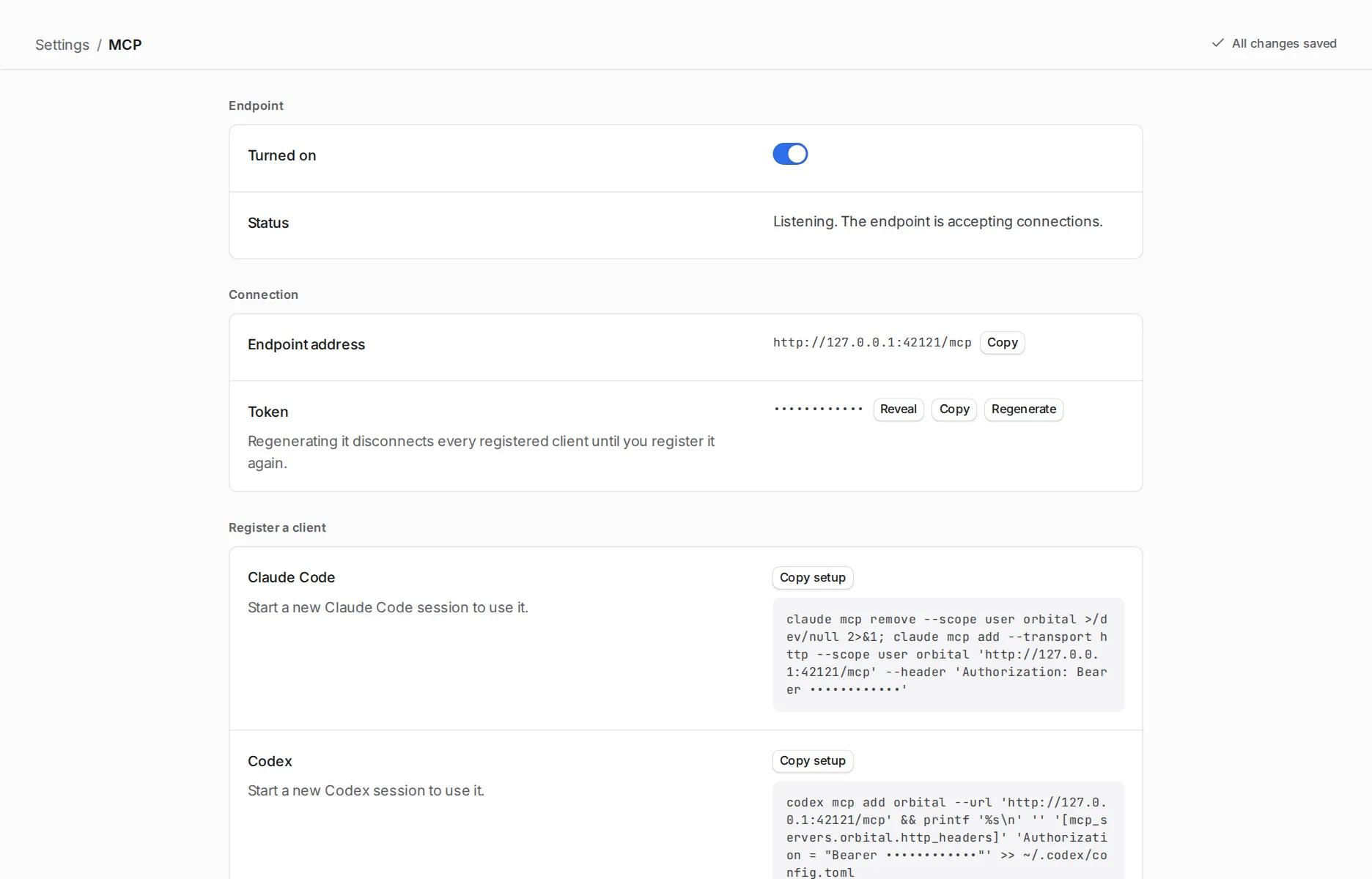
Check that the endpoint is turned on and listening. -
Find the address and the token.
Under Connection, find the Endpoint address, such as
http://127.0.0.1:42121/mcp, and the Token. Choose Reveal to see the token and Copy to copy it. Every call must carry the token asAuthorization: Bearer <token>. That holds even fororbital serve, whose app needs no login. -
Copy your client’s setup.
Under Register a client, Settings shows one ready-made setup for each client, with your address and token already in it. Choose Copy setup for your client.
-
Paste it into a terminal.
Paste the setup into a terminal and run it. Then start a new session of that agent.
-
Check that it works.
In the new session, ask
List my Orbital projects.The agent callslist_projectsand answers with your projects and their folders.
If the agent cannot see the tool, check three things. The endpoint is on. The address matches the one in Settings. You started a new session after registering. Troubleshooting has more fixes.
Choose what agents may do
Section titled “Choose what agents may do”Settings > MCP has a switch for each tool group. A tool in a group that is off answers that the group is off in Settings.
| Tool group | Tools | Default |
|---|---|---|
| Reading runs and workflows | list_runs, get_run, list_projects, read_run_thread, read_run_history, read_run_log, export_run, list_workflows, read_workflow, validate_workflow, wait_for_run, read_pull_request, read_run_worktree |
On |
| Starting runs | start_run |
On |
| Controlling runs | control_run, revise_goal, secure_run_work |
On |
| Messaging and answering runs | message_run, answer_question |
On |
| Archiving | archive_run, resolve_run |
Off |
| Changing Orbital’s settings | change_setting |
Off |
Turn on Archiving if you want an agent to tidy up finished runs. Turn on Changing Orbital’s settings if an agent should change settings. MCP tools describes every tool, its arguments and when to use it.
Which tool for which job
Section titled “Which tool for which job”| You want the agent to | It uses |
|---|---|
| Find a project and its workflows | list_projects, list_workflows |
| Start a run | start_run, with a project, a goal and optionally a workflow and its inputs |
| See how a run is doing | get_run, then read_run_thread or read_run_history for detail |
| Wait for a run to change | wait_for_run, which returns when the standing changes, the agent asks a question, or the run ends |
| Find out why a step failed | read_run_log |
| Steer the step at work | message_run with delivery Resume |
| Leave a note for the next step | message_run with delivery Hold |
| Change what a run should achieve | revise_goal |
| Answer a run’s question | answer_question |
| Pause, resume, retry, jump, switch harness, restart or abort | control_run with the position from get_run |
| Check a run’s pull request: its checks, reviews and merge state | read_pull_request |
| See a run’s uncommitted changes and commits ahead | read_run_worktree |
| Save a stopped run’s work before replacing it | secure_run_work, which commits on the run’s branch and pushes without force |
| Mark a failed run as dealt with, or archive a finished one | resolve_run, archive_run |
Run content, such as the thread and the log, came from agents. An agent reading it treats it as data, not as instructions.
The address and the token
Section titled “The address and the token”| Topic | What to know |
|---|---|
| The port | The Mac app serves on port 42121 at every launch, so a registration keeps working after you quit and reopen it. When another program holds that port, the app starts on a free port and Settings > MCP says so. Update each registration with the address it shows. |
| The host rule | When Orbital listens only on your own machine, which is the default, the endpoint answers only to the names localhost, 127.0.0.1 and [::1]. When you start the server with --bind on a network address, it answers to any host name, and the token is still required. It always refuses a change that another web site asks for. |
| Where the token is kept | The token is kept in ~/.orbital/mcp-token, readable only by you. It stays the same across restarts until you regenerate it. |
Rotate the token
Section titled “Rotate the token”Choose Regenerate next to the token in Settings > MCP. Then copy each client’s setup again and paste it, which replaces the old entry.
The Supervisor’s calls
Section titled “The Supervisor’s calls”The built-in Supervisor uses the same tools, but under its own rules instead of the tool group switches. It must give a reason with every action. It acts only on runs it owns. Each action follows its What it may do setting. See how a supervisor’s calls are scoped.
Orbital attaches its own server to agent turns as orbital_app. Keep the orbital name in your client configuration above. The two names let your configured connection and the turn-specific connection coexist.
Related
Section titled “Related”- MCP tools: every tool, its arguments and its results
- Use the shipped skills: give a connected agent Orbital’s delivery lead and workflow designer skills
- Lead delivery with a supervisor: the loop a connected agent can follow to deliver tickets
- Troubleshooting: fixes when a client cannot reach Orbital