

Implement a feature
Turn a short goal or a ticket into a reviewed, merged pull request
In this example you have Orbital build a small feature and deliver it as a merged pull request. You start one shipped workflow with the feature in plain words, or with the address of the ticket that describes it.
About five minutes to set up. The run then works on its own until the pull request merges.
Before you start
Section titled “Before you start”Both workflows ship with Orbital, so there is nothing to download. You need:
- a project whose primary folder is a Git repository with a GitHub remote you can push to, because the run works in a worktree and delivers a pull request;
- a GitHub token Orbital can use: a
gh auth login, or a token in Settings > GitHub; - a harness that is installed and signed in;
For implement-ticket with a Linear ticket, the agent reads it with the Linear tools your harness has, such as Linear’s MCP server.
The steps run with Full access. pursue-goal also runs with permissions="full", so its agent is never asked before it changes files or runs commands. implement-ticket uses auto-accept. Permissions explains what each one asks you.
1. Choose a workflow
Section titled “1. Choose a workflow”| Use | When |
|---|---|
pursue-goal |
You can say what you want in a few sentences, and there is no ticket. |
implement-ticket |
The work is written up in a GitHub or Linear issue. |
Both work in a worktree, review their own work and verification, open a pull request, and repair it until it merges.
2. Start the run
Section titled “2. Start the run”Follow the part for the workflow you chose.
Deliver a goal with pursue-goal
Section titled “Deliver a goal with pursue-goal”-
Choose New task, pick the project and choose the
pursue-goalworkflow.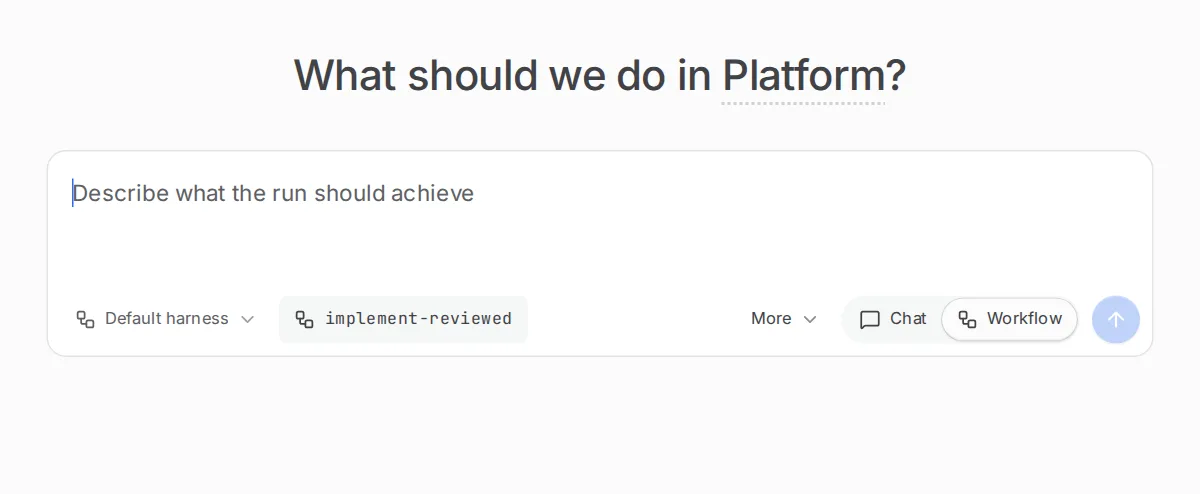
Pick the workflow, then write the goal in the box. -
Write the goal. Say what should change, how you will know it works, and any rule the result must follow. For example:
Add a "Copy link" button to each invoice row. Clicking it copies theinvoice's public address. Add a unit test for the address format.Follow the conventions in CONTRIBUTING.md. -
Choose Start run.
Run orbital run start with your project’s id and the goal. The orbital command lists every flag.
orbital run start --workflow pursue-goal --project proj_r3tQMqBPBB5p \ --goal "Add a Copy link button to each invoice row. Clicking it copies the invoice's public address. Add a unit test for the address format."
What the run does:
| Step | What it does |
|---|---|
| create_worktree | Makes a worktree on a new branch. |
| implement | Changes the code and commits. |
| validate | Checks the work against every point of the goal, using the change and verification. If something is missing, it sends feedback back to implement. This loop runs at most 20 times. |
| delivery | Opens the pull request and waits for it to merge, repairing CI, conflicts and review comments. |
| cleanup | Removes the worktree once nothing in it would be lost. |
Implementation goes straight to validation. A rejected validation returns its feedback to the next implementation round; a pass starts pull request delivery. There is no separate checks or prerequisite gate.
Deliver a ticket with implement-ticket
Section titled “Deliver a ticket with implement-ticket”-
Choose New task, pick the project and choose the
implement-ticketworkflow. -
Fill in Ticket URL, such as
https://github.com/acme/app/issues/628. -
Write a goal, or leave the ticket to speak for itself.
-
Choose Start run.
Give the ticket’s address as the ticket_url input.
orbital run start --workflow implement-ticket --project proj_r3tQMqBPBB5p \ --input ticket_url=https://github.com/acme/app/issues/628
The first step reads the ticket and writes the scope that every later step works from. Then the run plans, implements, and has the change reviewed against the ticket and verification. A rejected review revises the plan and the implementation, and the review runs again. Once the review passes, the run delivers the pull request the same way as pursue-goal. It completes the ticket after the merge.
3. Follow the run
Section titled “3. Follow the run”| Where | What it shows |
|---|---|
| The Session tab | Each step and the agent’s work. |
| The dock’s Changes tab | The diff so far. |
| The dock’s Pull requests section | The pull request, once it is open. |
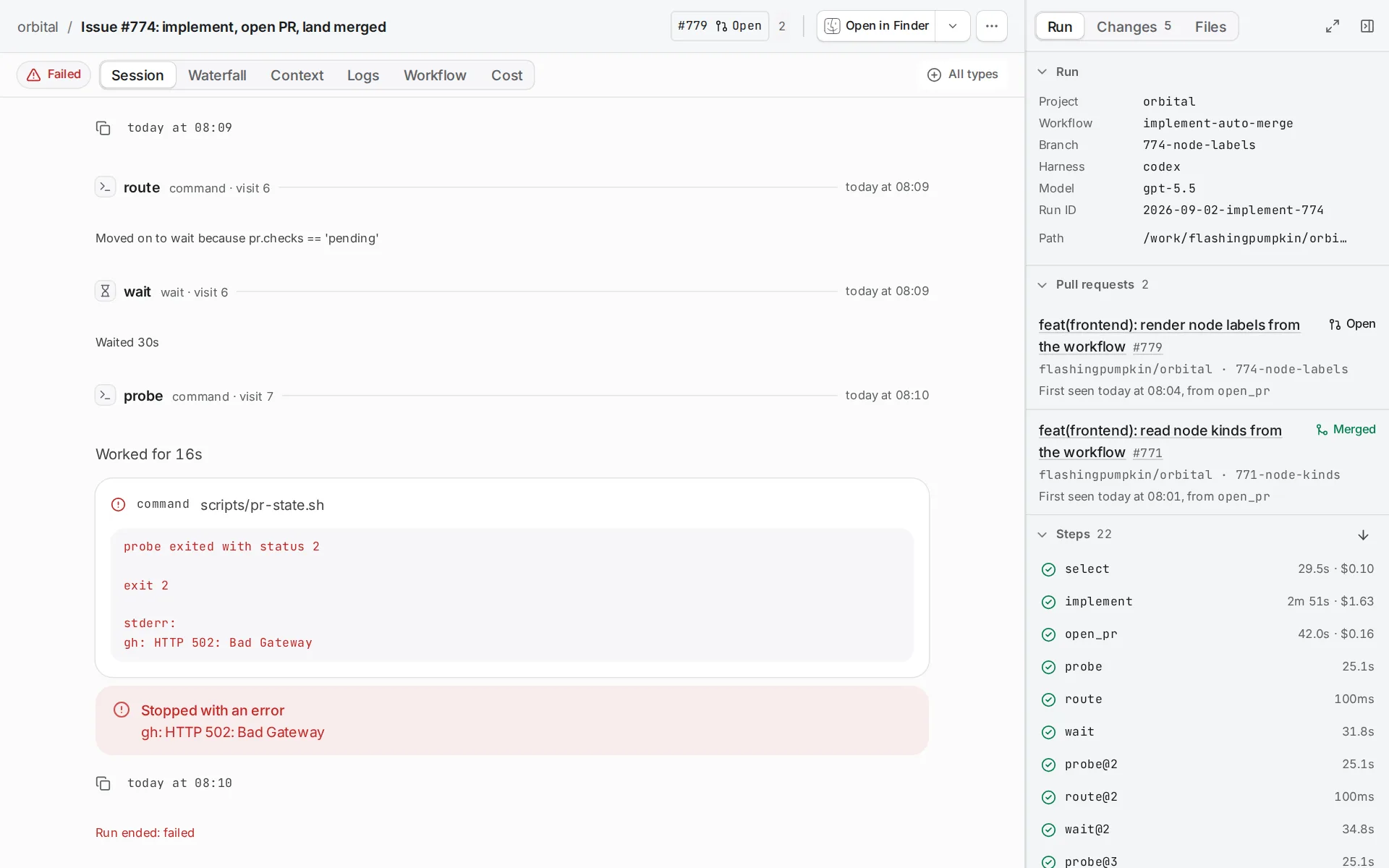
To steer the run, write in the composer. To change what the run should do, send it a message with the new requirement. See Message a run.
4. Review the pull request
Section titled “4. Review the pull request”While the pull request waits for review, the run waits at a gate, “The pull request is waiting for review or merge”. It takes no run slot. Review the pull request as you normally would. You do not need to merge it: once your branch rules allow, GitHub merges it, because Orbital turned on auto-merge. Orbital looks at the pull request once a minute and carries on by itself.

What you get
Section titled “What you get”The run ends Succeeded when the pull request merges. It ends Failed when someone closes the pull request without merging. See standings.
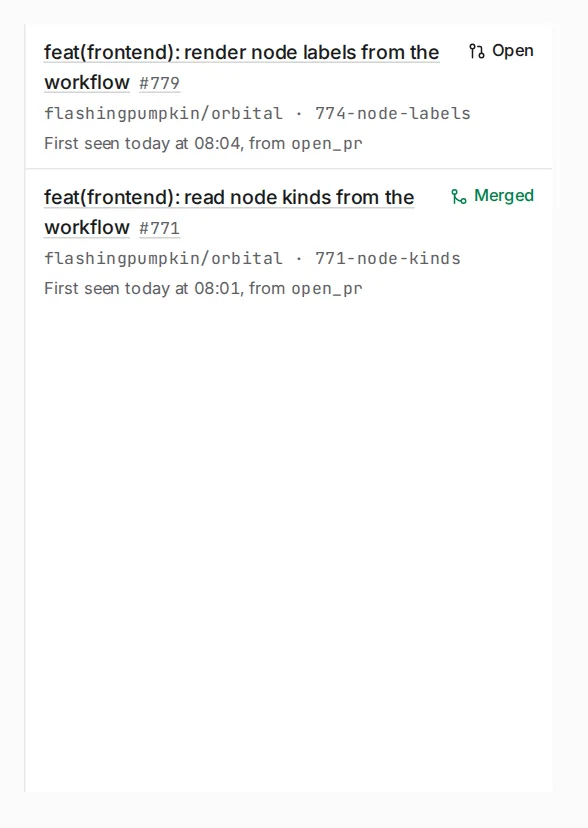
Once the publish step ends, Orbital turns on auto-merge for the pull request itself, with your GitHub token. The agent never runs gh for it, so this works on every harness and permission setting. When the repository does not allow auto-merge, a rule blocks it, or the token lacks permission, the run’s history says so and the run carries on. Then merge that pull request yourself. Turn auto-merge off explains how to stop Orbital asking.
Related
Section titled “Related”- Worktrees and delivery: how the run makes a worktree, opens the pull request and merges it
- Shipped workflows: every step of
pursue-goalandimplement-ticket - Lead delivery with a supervisor: have an agent start and follow such runs for you
- Deliver an epic: deliver many tickets in one run