

Research report
Research a question on the web and write a short report with sources
In this example you turn a question into a short written report with sources. One step of the research-report workflow researches the question on the web and lists what it found. A second step writes the report from those findings alone.
About five minutes to set up.
digraph research_report {  graph [version="1", entry="research", description="Research a question on the web and write a short report with sources"]
  research [role="Researcher", tool_access="Research", prompt_file="prompts/research-report/research.md", outputs="findings:text"]  write [role="Researcher", tool_access="Research", prompt_file="prompts/research-report/write.md"]  done [shape="Msquare", outcome="success"]
  research -> write  write -> done}
Before you start
Section titled “Before you start”You need a signed-in harness and the workflow: download the archive.
The workflow touches no code. Neither step can change a file or run a command: both have the Research tool access, which allows reading files and browsing the web and nothing else.
1. Add the workflow
Section titled “1. Add the workflow”-
Unpack the archive into your workflow library,
~/.orbital/workflows/. Keep every relative path. -
Check it:
Terminal window orbital validate ~/.orbital/workflows/research-report.dot
Every project now offers research-report. The archive holds the workflow above and its two prompts:
Research this question: {{ inputs.goal }}
Search the web and read at least three independent sources. Prefer primary sources, such as official documentation, standards, papers or the organisation's own pages, over summaries of them.
Do not change, create or delete any file.
Return `findings`: a list of facts. Give each fact its source's title and address. Mark each fact as agreed by several sources, stated by one source, or disputed. Note what you could not find out.Write a short report that answers this question: {{ inputs.goal }}
Use only these findings: {{ context.findings }}
Write in plain language, in short sentences. Put the answer first, in two or three sentences. Then give the details under short headings. Say where the sources disagree and what nobody could confirm. End with a numbered list of sources, each with its title and address.
Do not change, create or delete any file. The report is the run's final answer, so end with it and nothing else.2. Make a place for it to work
Section titled “2. Make a place for it to work”Every run belongs to a project, and a step starts in the project’s primary folder. Any project works, because the workflow reads no project files. The project does not need to be a Git repository, unless you run it with Codex, which needs one. See plain folders and Git.
If you have no project yet, make one:
-
Make a folder such as
~/research. -
In Orbital, open Projects, choose New project and name it
Research. -
Choose Add folder and pick
~/research. It shows as a Plain folder.
3. Start the run
Section titled “3. Start the run”-
Choose New task, pick any project and choose the
research-reportworkflow. -
Write the question as the goal. For example:
What are the main differences between the EU AI Act's obligations forproviders and for deployers of high-risk AI systems? -
Choose a harness in the harness picker, and choose Start run.
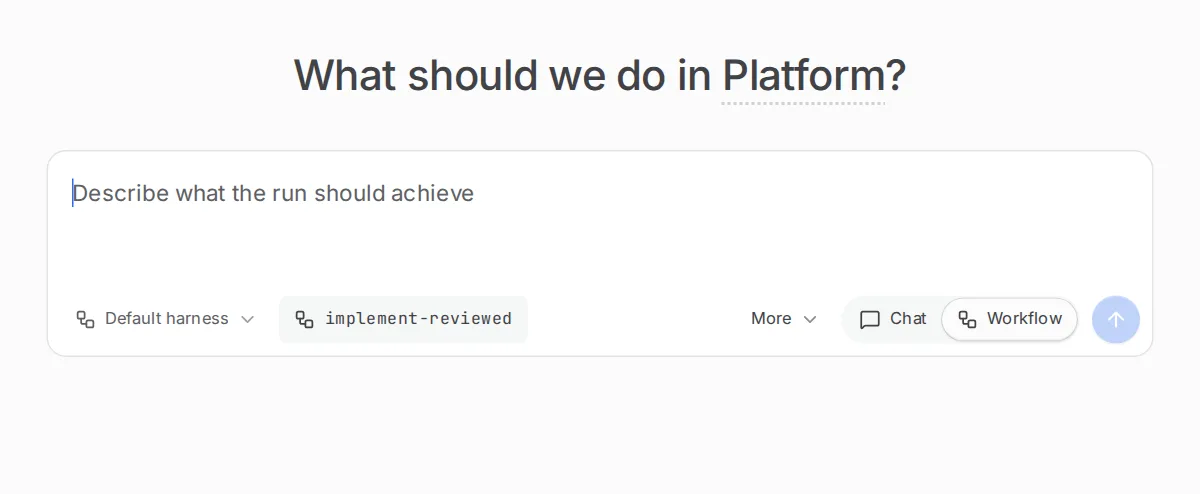
The harness picker sits beside the workflow picker.
4. Read the report
Section titled “4. Read the report”The research step’s findings appear in the Context tab as findings. Each fact comes with its source and whether sources agree.
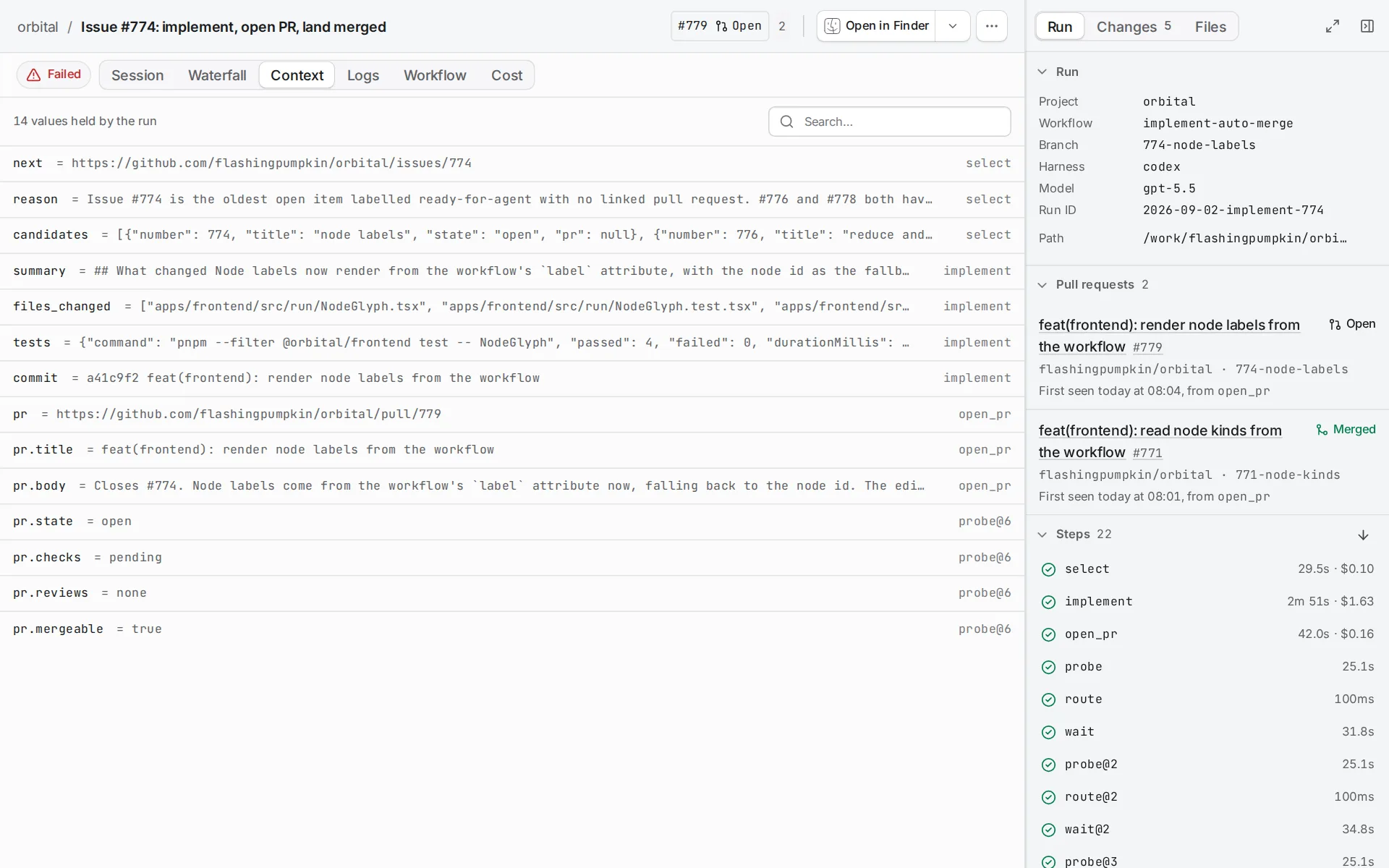
The report is the write step’s reply: the last message in the Session tab, above “Run ended: success”. It gives the answer first, then the details, then a numbered list of sources.
Make it yours
Section titled “Make it yours”- Ask for a different shape of report by editing
write.md, for example a one-page brief for a manager. - Add a review step with the Reviewer role that checks each fact in the report against its source. Add branches shows how to send a rejected report back.
- Start it every Monday with a Schedule trigger.
Related
Section titled “Related”- Pass context between steps: how
findingsreaches the write step - Add branches: send a rejected report back for another try
- Triage issues: another workflow that changes no files