

Triggers
Rules that start, stop, pause or message runs when something happens
A trigger rule acts on your runs when something happens: a pull request opens, a Linear issue moves, or a time of day comes round. You write the rule once, and it can start a run, or stop, pause or message the runs already working on that item.
Rules belong to a project. They are never part of a workflow file.
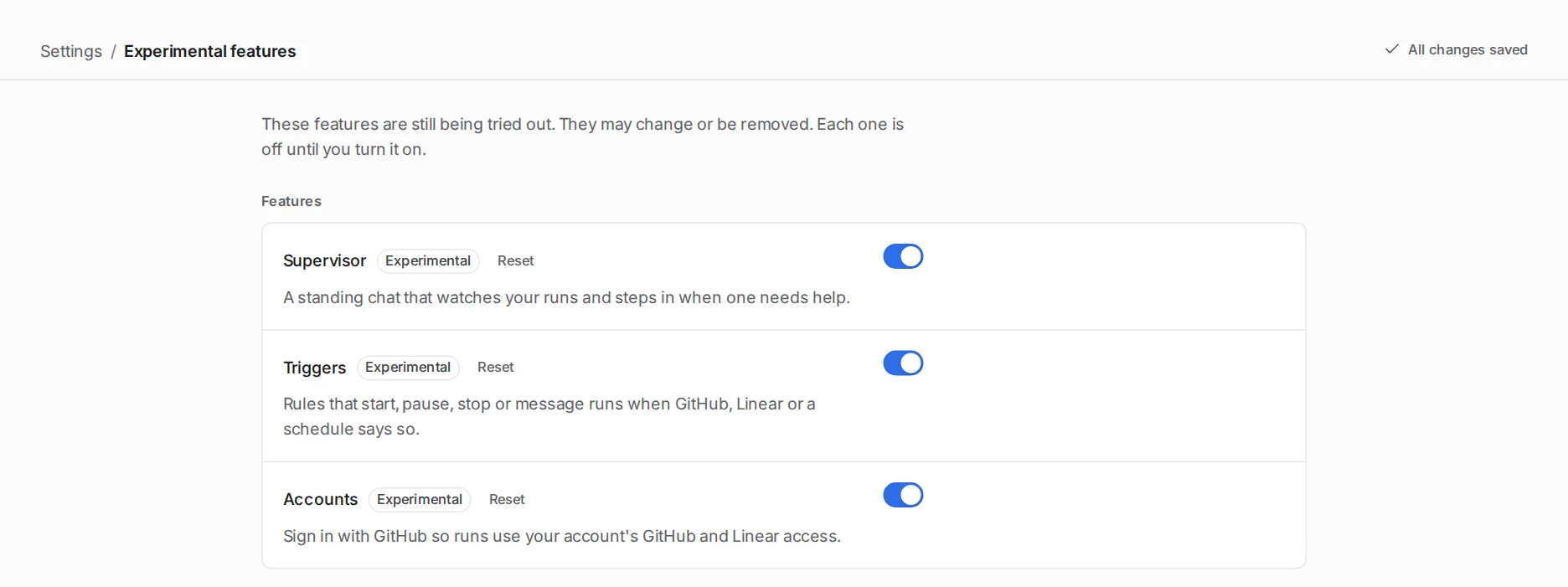
Turn triggers on
Section titled “Turn triggers on”-
Open the experimental features.
Open Settings > Experimental features.
-
Turn on Triggers.
Turn on Triggers. Its switch reads “Rules that start, pause, stop or message runs when GitHub, Linear or a schedule says so.”
-
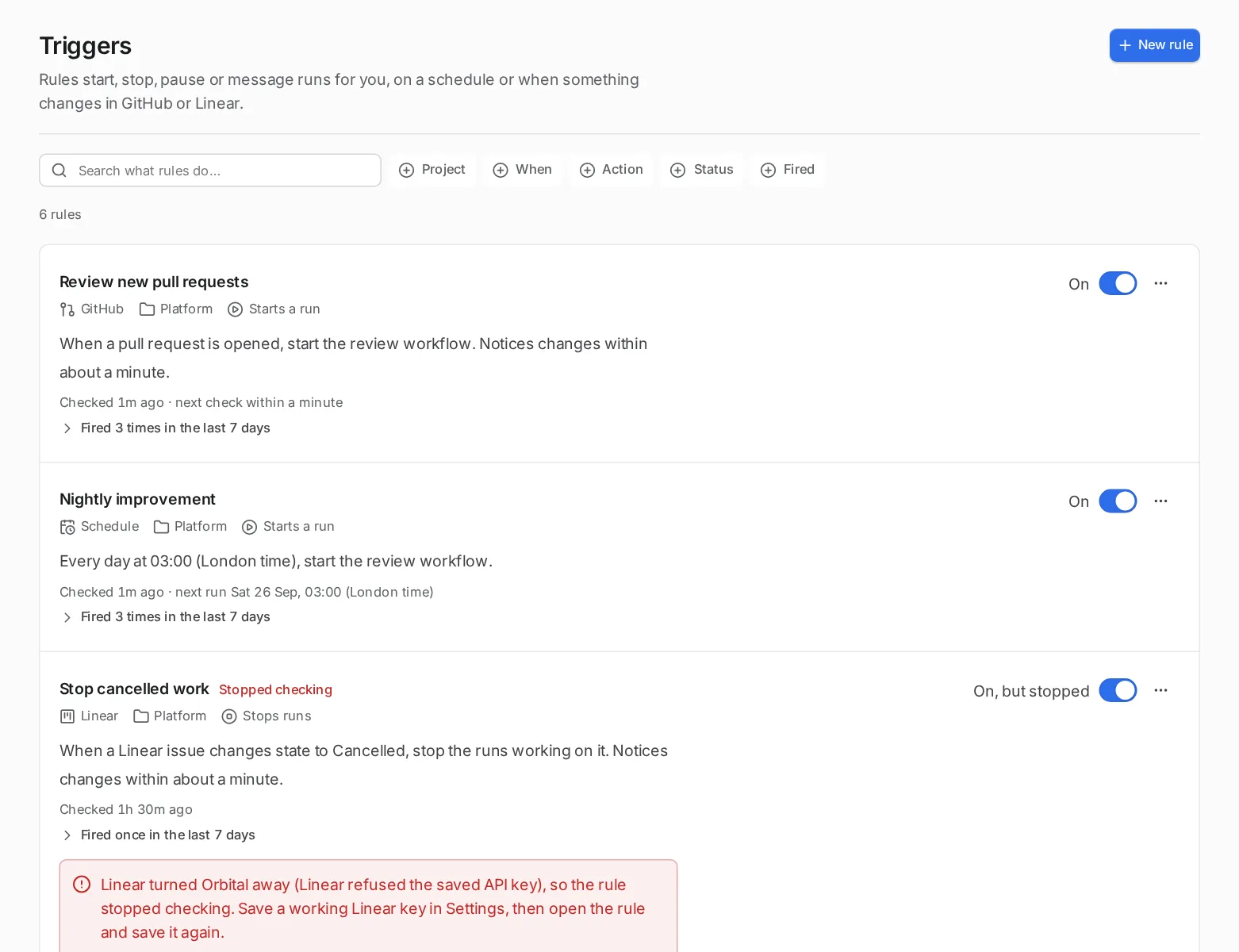
Find your rules.
Triggers now appears in the sidebar. Each project’s page also gets a section for its trigger rules.
While the feature is off, Orbital checks nothing and the Triggers page says “Triggers are turned off”. Orbital keeps your rules, and when you turn the feature back on, each rule carries on from where it left off.
What can set a rule off
Section titled “What can set a rule off”Each rule has one source, and the source says what event the rule waits for.
| Source | When | What it needs |
|---|---|---|
| Schedule | “At set times, such as every weekday morning.” Under “How often?”, pick a preset, choose “Pick days and a time” and select the days and time, or write a cron expression. It uses the time zone of the machine that runs Orbital. | Nothing. |
| GitHub | “When a pull request or issue changes”: opened, closed, reopened, labelled, unlabelled, assigned, unassigned, or a review requested. Choose issues, pull requests or both. | A GitHub token; see Settings. |
| Linear | “When a Linear issue changes”: created, moved to another state, handed to someone else, a label added or removed. | A Linear key in Settings > Linear. |
Orbital checks each source on a schedule, not by webhooks. You choose how soon it notices a change: “Within about a minute (recommended)”, within five or fifteen minutes, or within an hour.
What a rule does
Section titled “What a rule does”Each rule has one action.
| Action | What it does |
|---|---|
| Starts a run | “Orbital starts a workflow and hands it a goal.” Choose the workflow, and optionally the harness and model. |
| Stops runs | “Stops the runs already working on this item.” |
| Pauses runs | “Pauses the runs working on this item so you can look.” |
| Messages runs | “Sends the runs working on this item a note.” |
Stop, pause and message act only on runs a trigger started for the same pull request or issue. “A schedule can only start runs.”
The goal of a started run is a template that can use the values the event carries:
| Source | Values |
|---|---|
| Schedule | {{ date }}, {{ time }} |
| GitHub | {{ url }}, {{ number }}, {{ title }}, {{ author }}, {{ repository }}, {{ head_branch }}, {{ base_branch }}, {{ event }} |
| Linear | {{ identifier }}, {{ url }}, {{ title }}, {{ team }}, {{ state }}, {{ assignee }}, {{ event }} |
For example, Review {{ url }}: {{ title }}.
Conditions
Section titled “Conditions”Add conditions under “Only if” to narrow a rule down, so it acts only on what matters.
| Part | What it does |
|---|---|
| Value | What the condition looks at, such as the author, a label or the target branch. |
| Comparison | “is any of”, “is none of” or “contains”. |
| “and” or “or” | Combines the conditions in one group. |
| “Or when…” | Adds another group. Any group that matches sets the rule off. |
Quick reference
Section titled “Quick reference”| You want to | Source | Action |
|---|---|---|
| Review every new pull request | GitHub, a pull request is opened | Starts a run |
| Improve the codebase every weekday morning | Schedule | Starts a run |
| Stop a run when its Linear issue is cancelled | Linear, an issue moves to another state | Stops runs |
| Look at a run before it goes further | GitHub or Linear | Pauses runs |
| Tell a working run that its item changed | GitHub or Linear | Messages runs |
Related
Section titled “Related”- Make a trigger rule: create, test and follow a rule.
- Review pull requests: a complete rule that reviews every new pull request.
- Settings: where Orbital finds your GitHub token.
- Troubleshooting: fixes for a rule that does not fire.