

Start a run
Give a project a goal, pick a workflow and start a run
You start a run from the Start page: you pick a project, write a goal and choose a workflow. The run then carries out that one workflow for that one project, towards that goal.
Before you start
Section titled “Before you start”You need a project and a harness that is set up. A run whose harness is missing stops and waits on you.
Start a run from the app
Section titled “Start a run from the app”-
Open the Start page.
Choose New task in the sidebar.
-
Check the project.
The project shows at the top. Choose it to pick another, or press ⌘K.
-
Leave the switch on Workflow.
The switch sits under the text box. Set to Chat, it starts a chat instead.
-
Write the goal.
In the text box that reads “Describe what the run should achieve”, type what the run should achieve.
-
Choose a workflow and fill in its inputs.
The strip offers up to three workflows: the ones this project runs most, then the default. Choose a workflow lists every workflow the project offers, with its description. If the workflow has inputs, fill them in. For example,
implement-ticketasks for a “Ticket URL”. -
Pick a harness and model, if you want.
Default harness follows the workflow and your settings. Steps whose role or model settings name their own harness keep that harness whatever you pick.
-
Choose Start run.
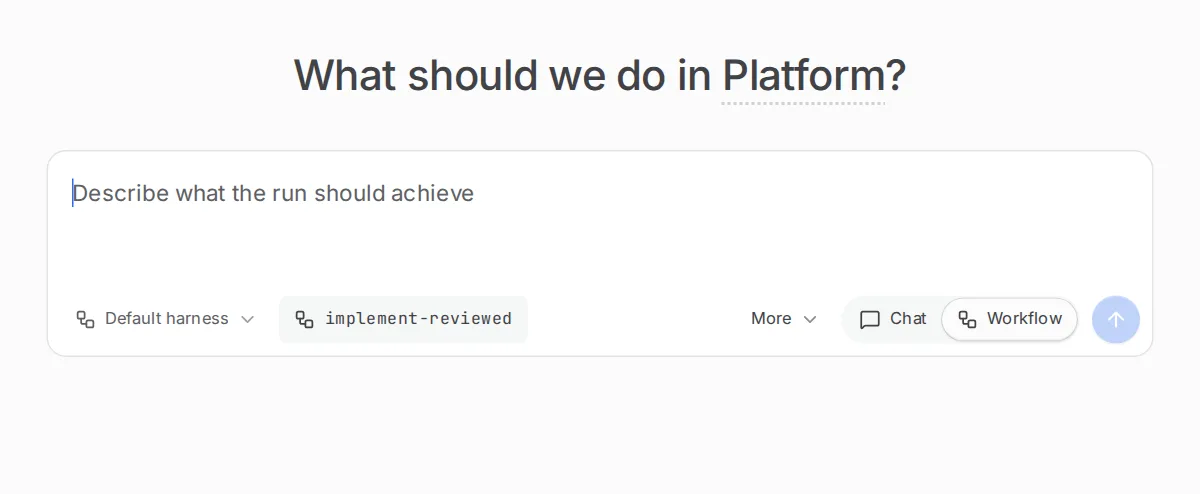
The goal box, with the workflow and harness pickers beneath it.
If you choose no workflow
Section titled “If you choose no workflow”The run uses the workflow the project ran last. If the project has never run one, it uses the Default workflow in Settings.
What happens next
Section titled “What happens next”The new run joins the queue and starts when a run slot is free. Follow it on the run page.
Other ways to start a run
Section titled “Other ways to start a run”You can also start a run without opening the app.
| From | How |
|---|---|
| A terminal | orbital run start |
| A coding agent | Over MCP |
| An event or a schedule | A trigger |
Related
Section titled “Related”- Runs: what a run is and the standings it moves through.
- Watch a run: follow the run you started.
- The run queue: when a queued run starts.
- Permissions: what a run asks you before its agent acts, on each harness.
- Start your first run: a guided first run for new users.