

Chats
Talk to one coding agent in its own worktree, with no workflow
You start a chat to talk to one coding agent in a project, with no workflow behind it. The agent works in a worktree of its own, and you can attach files to your messages.
Use a chat for work you do not repeat, such as a question, a quick fix or an explanation. Use a run when you want the same process every time.
Start a chat
Section titled “Start a chat”-
Open the Start page.
Choose New task in the sidebar.
-
Switch to chat.
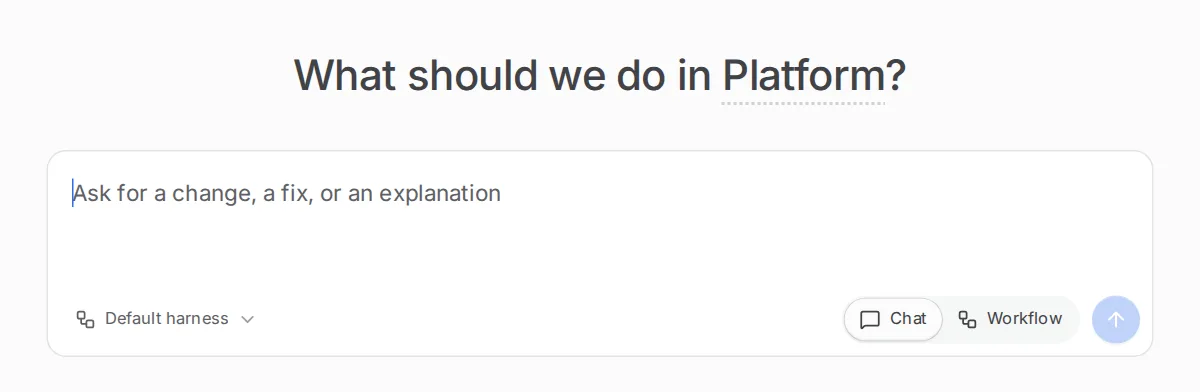
Set the switch under the text box to Chat.
-
Write your first message.
Type it in the box that reads “Ask for a change, a fix, or an explanation”. You can also pick a harness and model.
-
Start the chat.
Choose Start chat. The chat appears under Recent chats in the sidebar.
Where a chat works
Section titled “Where a chat works”Each chat gets a worktree of every repository folder in its project, on a branch named after the chat. The agent works in the primary folder’s worktree, so nothing it does touches your own checkout.
A chat takes no run slot, and its agent’s permission requests are accepted for it. It can use Orbital’s own MCP tools, unless its tool access leaves out connected services.
Talk to the agent
Section titled “Talk to the agent”Each message starts a turn. While the agent is answering, a new message steers it, where the harness allows. Choose Interrupt to stop the answer but keep the session, so your next message carries on the same conversation.
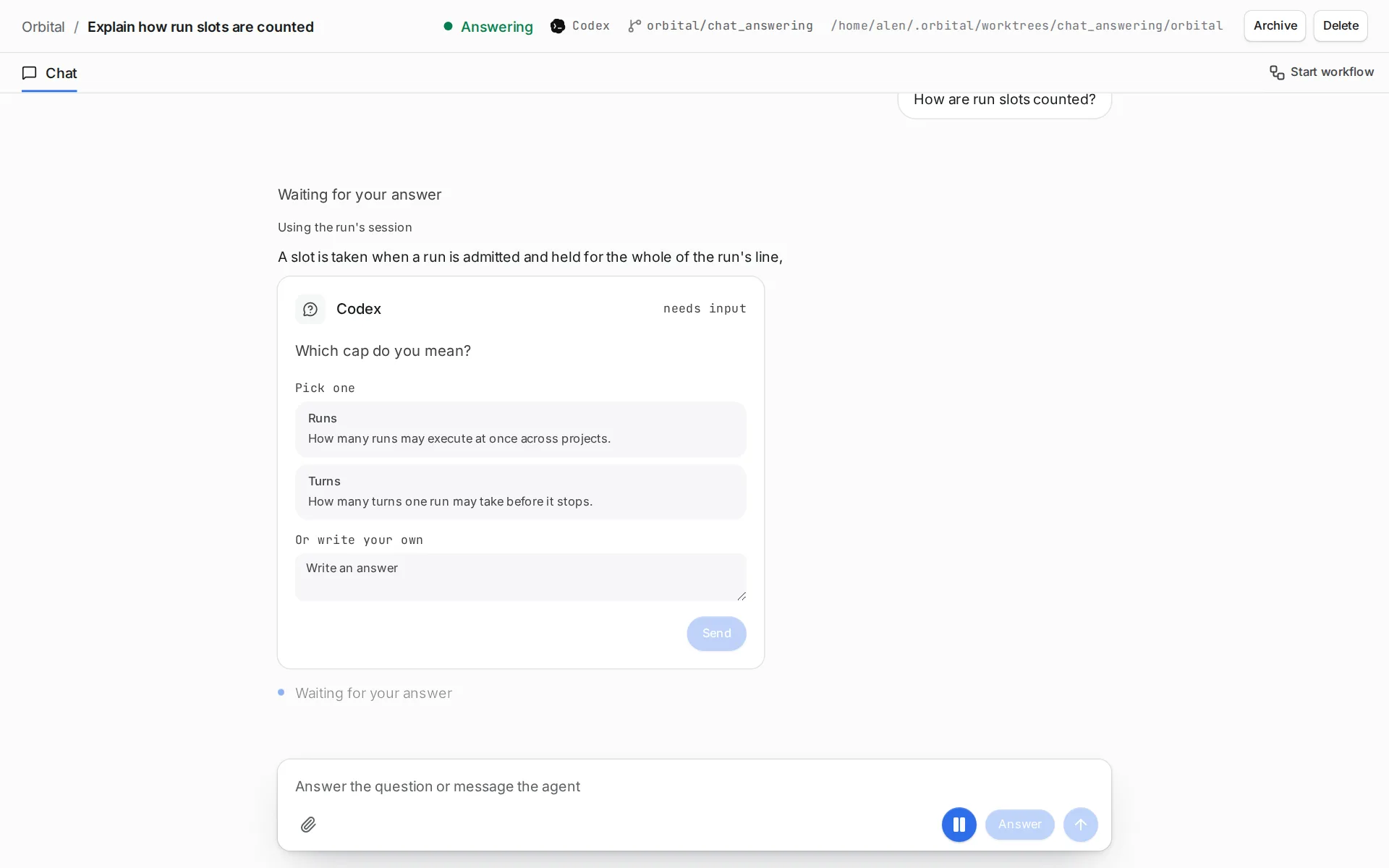
The agent can ask you a question with options to choose from.
Attach files
Section titled “Attach files”Attach files to a chat message with the attach control, or paste an image. You can attach images (PNG, JPEG, GIF, WebP), PDFs, text files and other documents.
| Limit | Value |
|---|---|
| Files per message | 100 |
| Size of one image | 10 MB |
| Images per message, in total | 80 MB |
| Size of any other file | 50 MB |
Orbital shrinks an image that is too large before it sends it. Each harness receives some kinds of file directly, and gets the rest as a file path it can read.
| Harness | Receives directly |
|---|---|
| Claude Code | Images and PDFs |
| Codex | Images |
| OpenCode | Images, PDFs and text files |
Orbital keeps attachments in ~/.orbital/attachments/. Runs have no attach control, so attach files in a chat.
Start a workflow from a chat
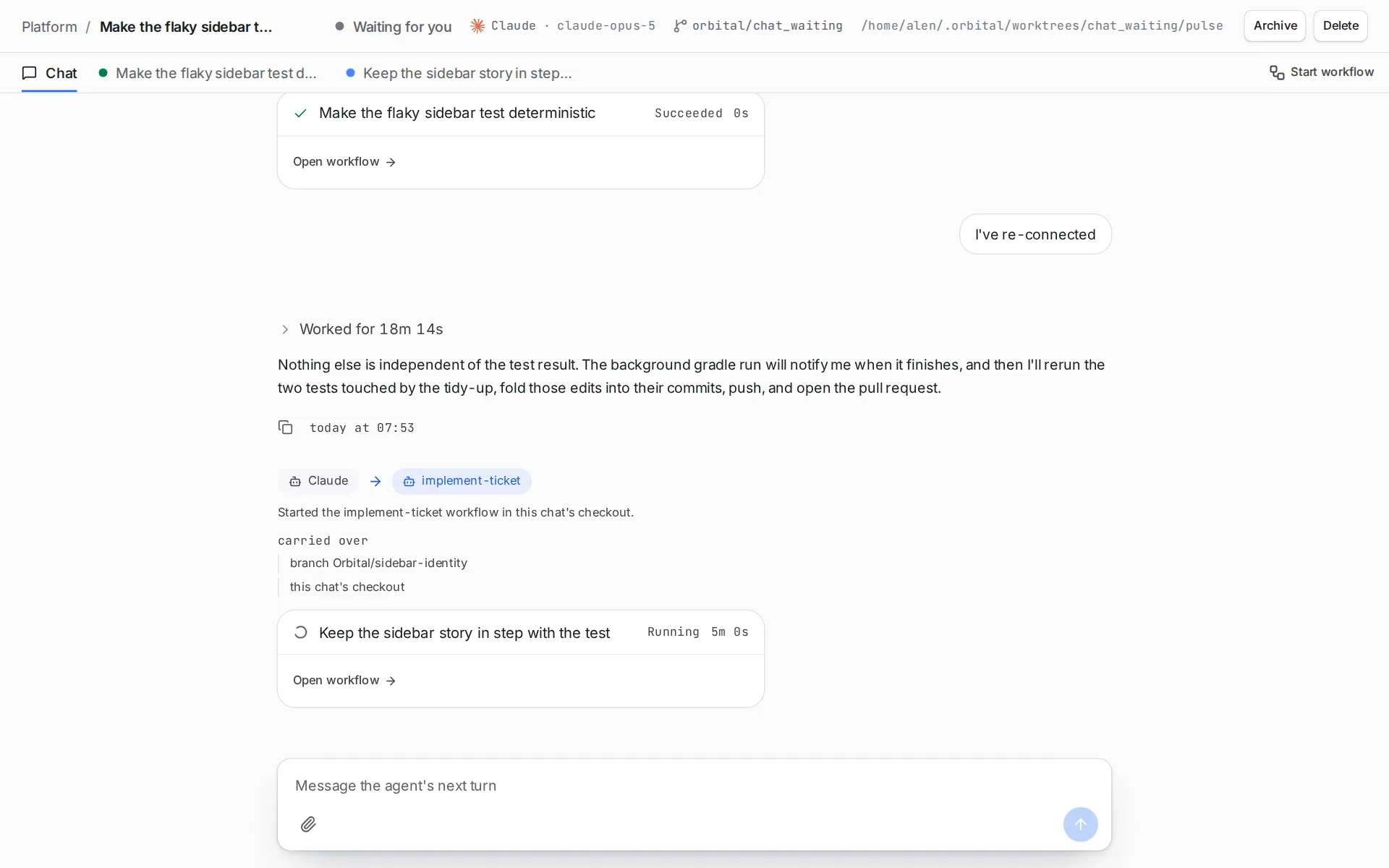
Section titled “Start a workflow from a chat”Open the chat’s Start workflow tab and choose a workflow. The run works in the chat’s worktree and shows as a tab of the chat, not in the runs list. You can keep chatting while it runs.
Archive a chat
Section titled “Archive a chat”Archive a chat when you are done with it. Archiving removes its worktree and branch, and keeps the conversation.
After a restart
Section titled “After a restart”A chat that was answering when Orbital restarted goes back to waiting, with a note that the answer failed. Nothing resumes by itself. Send a message to carry on.
The Supervisor chat
Section titled “The Supervisor chat”With the Supervisor feature on, a Supervisor chat is pinned at the top of the chat list. You cannot archive or delete it. See The Supervisor.
Choosing a chat or a run
Section titled “Choosing a chat or a run”| Chat | Run | |
|---|---|---|
| Behind it | No workflow. You steer each turn. | A workflow, the same process every time. |
| Where it works | A worktree of its own, on a branch named after the chat. | A worktree when its workflow makes one, otherwise your own folders. See Worktrees and delivery. |
| Run slot | Takes none. | Holds one while it works. See The run queue. |
| Attachments | Yes. | No attach control. |
| After a restart | Goes back to waiting. Send a message to carry on. | Carries on where it was, unless you paused it. See Durability after restarts. |
You can have both: start a workflow from a chat, and the run works in the chat’s worktree.
Related
Section titled “Related”- Runs: when to use a run instead of a chat.
- The Supervisor: the pinned chat that looks after your runs.
- Worktrees and delivery: how worktrees keep your checkout safe.
- Harnesses and models: the agents a chat can use.