

Install Orbital
Install the Mac app or the orbital command, then sign in to a harness
You install Orbital, then sign in to at least one harness, the coding agent that does the work: Claude Code, Codex or OpenCode. At the end, Settings > Harnesses shows a harness ready to take a run.
About 5 minutes.
Before you start
Section titled “Before you start”On a Mac, you need nothing else. Orbital.app starts its own server, updates itself and needs neither npm nor Node.
On Linux or Windows, you install the orbital command with npm and run orbital serve. You need Node 24.19 or newer and git, and an invitation to the npm package during the beta.
1. Install Orbital
Section titled “1. Install Orbital”-
Download the disk image for your Mac.
These addresses always serve the newest release: Apple Silicon or Intel.
-
Drag Orbital to Applications.
Open the disk image and drag Orbital to the Applications folder.
-
Open Orbital.
Open it from Applications or the Dock. The first launch asks you to set up a project.
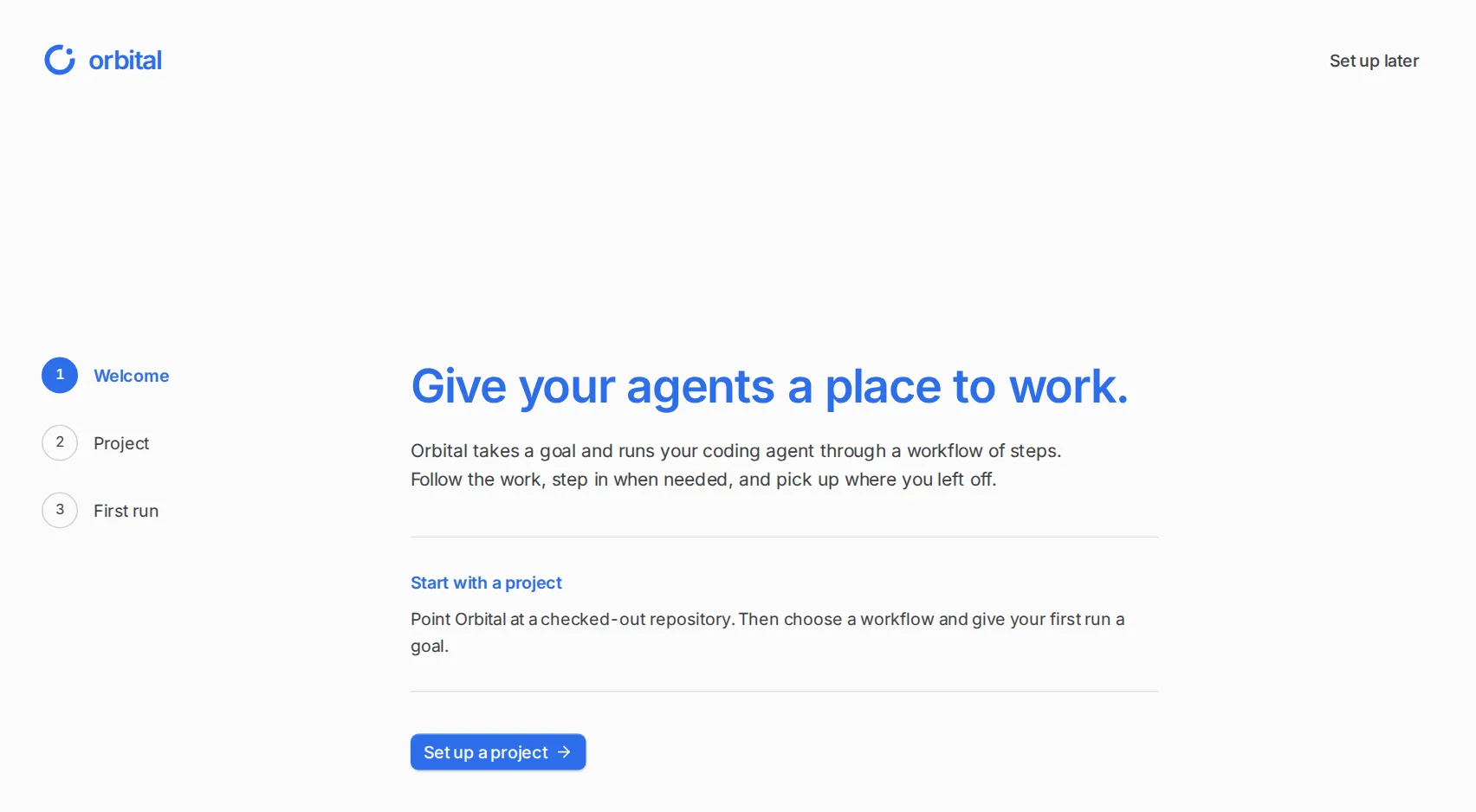
The first launch walks you through adding a project.
The app is signed and notarised. It reads your login shell’s PATH, so it finds git, claude, codex and opencode where your terminal finds them. It serves on port 42121, or on a free port when another program holds that one.
The Mac app carries the orbital command. To use it from a terminal:
-
Open the command line settings.
Open Settings > Command line and skills.
-
Install the command.
Under The orbital command, choose Install. You can also choose Orbital > Install Command Line Tool from the menu bar.
-
Give your password if asked.
Enter your administrator password if your Mac asks for it.
-
Check the command.
Open a new terminal and run
orbital --help.
This links /usr/local/bin/orbital to the command inside the app. After the app updates, the command runs the new release without another install. orbital run start then starts runs in the open app. The orbital command explains every command.
npm access is by invitation during the beta. The Mac app is the main way to get Orbital, and npm releases are on hold. To ask for access, contact the Orbital team through runorbital.dev and give your GitHub account name.
Use npm on Linux or Windows, or on a Mac without the app. You need Node 24.19 or newer and git. Check them:
node --versiongit --versionThe package is @flashingpumpkin/orbital on GitHub Packages, which needs a token even to read it. Once your invitation gives your GitHub account read access:
-
Create a token.
Create a classic personal access token with only the
read:packagesscope. -
Add the registry to npm.
Add these two lines to
~/.npmrc, with your token in place of<token>:~/.npmrc @flashingpumpkin:registry=https://npm.pkg.github.com//npm.pkg.github.com/:_authToken=<token> -
Install and check.
Terminal window npm install --global @flashingpumpkin/orbitalorbital --version -
Start the server.
Terminal window orbital serveThe server prints its address,
http://127.0.0.1:42121/unless you change the port, and opens it in your browser. It listens only on your own machine.orbital appopens the same app in a window of its own instead. The orbital command lists the flags.
With pnpm, allow Orbital’s storage dependency to build: pnpm add --global --allow-build=better-sqlite3 @flashingpumpkin/orbital.
This registry token only downloads the package. Orbital never reads it. Workflows that read GitHub use a separate GitHub token; see Settings.
2. Install and sign in to a harness
Section titled “2. Install and sign in to a harness”Orbital runs the harnesses you install yourself, and ships none of them. Install at least one. Sign in before you start Orbital, because a running server does not see credentials you export later.
Install it with npm install -g @anthropic-ai/claude-code@latest. Orbital works with version 2.1.280 or newer.
To sign in, run claude and follow the login. Leave ANTHROPIC_API_KEY unset to use your subscription.
The Claude Code setup guide covers installing it on your system.
Install it with npm install -g @openai/codex@latest. Orbital works with version 0.156.0 or newer.
To sign in, run codex login.
The Codex guide covers installing it on your system.
Install it with npm install -g opencode-ai@latest. Orbital works with version 1.18.0 or newer.
To sign in, run opencode auth login for your provider.
The OpenCode guide covers installing it on your system.
3. Check that Orbital finds the harness
Section titled “3. Check that Orbital finds the harness”Check the harness in a terminal first: claude --version, codex --version or opencode --version. Then open Settings > Harnesses in Orbital. The status table shows whether each harness is installed, whether it is new enough and whether it is signed in.
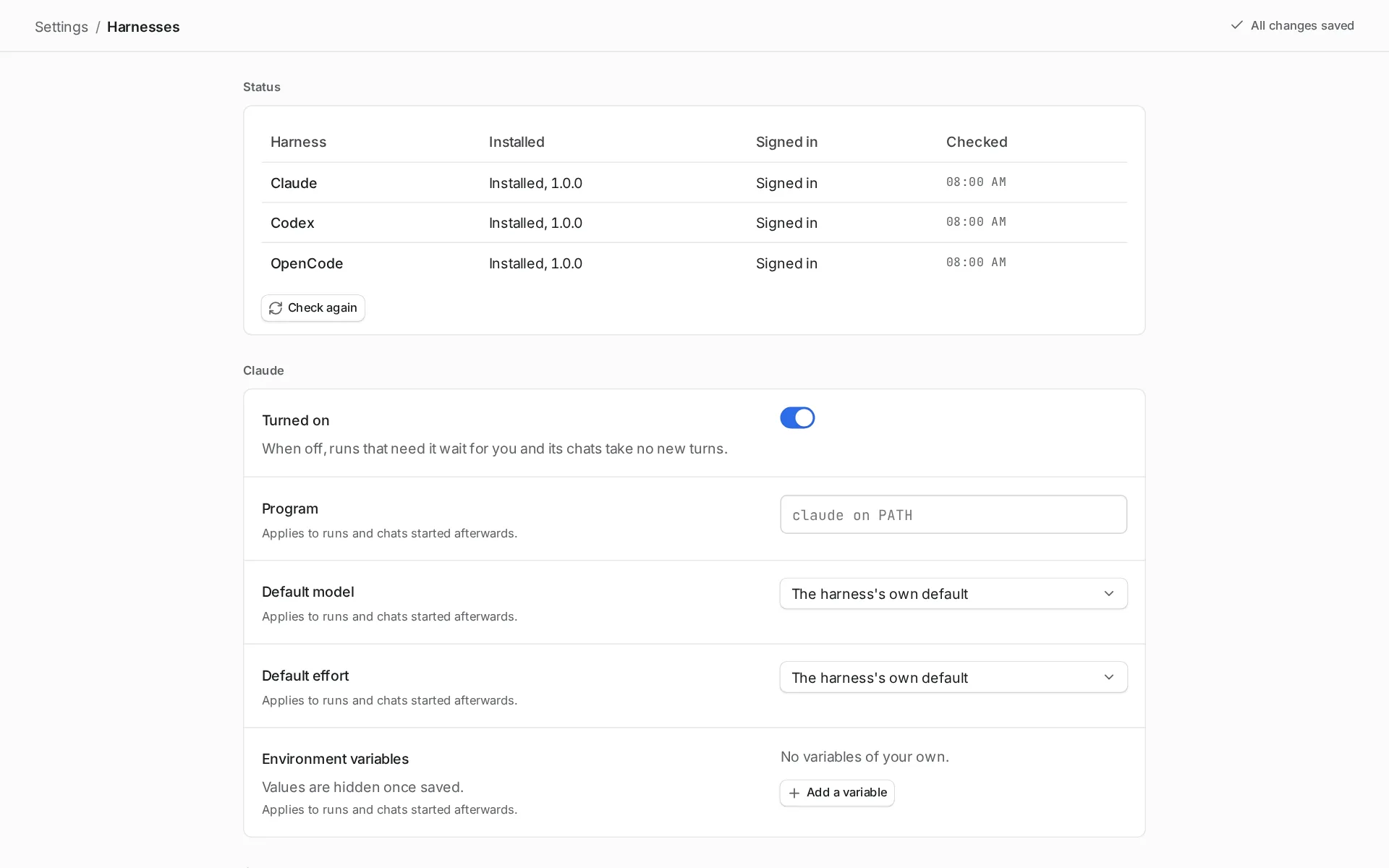
Orbital looks for each harness in this order:
- The program set under Program in Settings > Harnesses.
claude,codexoropencodeon thePATHof your login shell. The Mac app reads thatPATHfrom your shell when it opens, so Orbital finds any harness you can start in a terminal.
A harness Orbital cannot find reads “Not installed”, with the command to install it. Install it, then choose Check again. Harnesses and models explains more.
Upgrade Orbital
Section titled “Upgrade Orbital”The app checks for a new release when it starts and every hour. It downloads an update in the background and says “Orbital <new version> is downloading”. When the update is ready, choose Restart to update, or it installs the next time you quit. Settings > About shows the version you are running, the last check and its result, and a Check for updates button. Orbital updates itself only from the Applications folder. Opened from the disk image, it says “Move Orbital to Applications to get updates”.
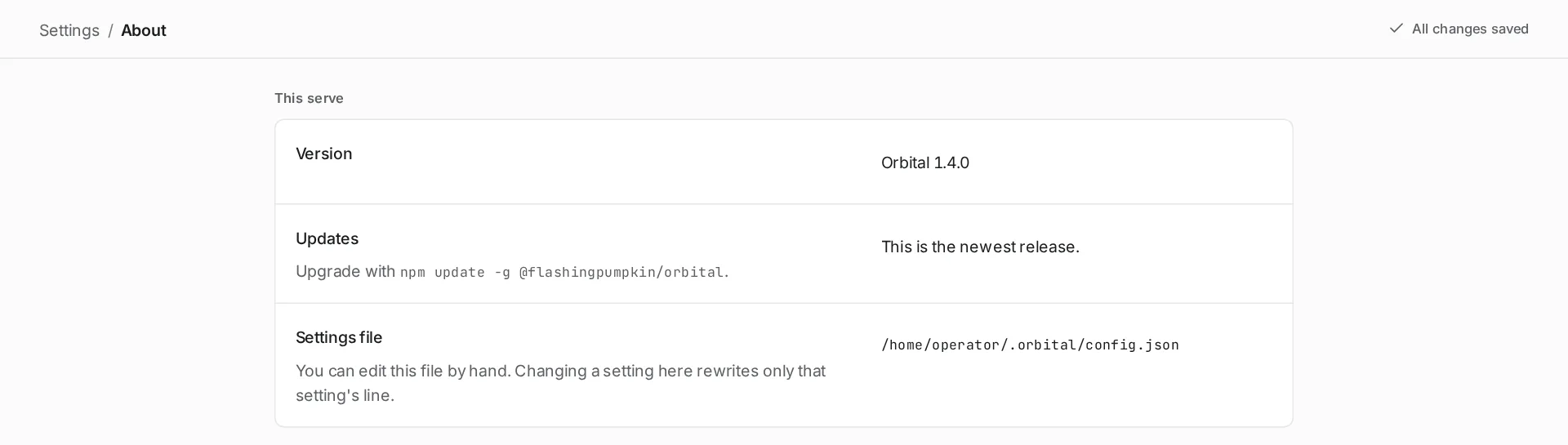
The orbital command installed from the Mac app is a link to the command inside the app. It updates with the app, and runs the new release without another install.
The npm package checks for a newer release when the server starts and once an hour. In a terminal, orbital serve asks before it starts:
Orbital <new version> is available. You are running <your version>.Update before starting? [Y/n]A server that is already running shows “Orbital <new version> is available.” with an Update and restart button. Runs that are working carry on by themselves after the restart. You can also run npm update --global @flashingpumpkin/orbital and restart the server.
Your data in ~/.orbital survives upgrades and uninstalling.
Next steps
Section titled “Next steps”- Start your first run: add a project and run
explain-repo. - Harnesses and models: how Orbital picks and starts each harness.
- Command line: what each subcommand does.
- Troubleshooting: fixes when the app or a harness will not start.