

Create a project
Add a project and its folders, then set its run limit and actions
Create a project for each piece of work you hand to agents, such as a product with a web app and an API. A project is a name and the folders a run works in. Start by choosing Projects in the sidebar.
On first launch, Orbital opens a setup wizard that adds your first project for you. Start your first run walks through it. Use the steps below for every project after that.
Before you start
Section titled “Before you start”- Install Orbital. See Install Orbital.
- Know where each folder lives on the machine that runs Orbital. A folder can be a Git repository or a plain folder. Plain folders and Git says when you need a repository.
Create a project and add folders
Section titled “Create a project and add folders”-
Open Projects.
Choose Projects in the sidebar.
-
Make the project.
Choose New project and give it a name, such as
Platform. -
Add a folder.
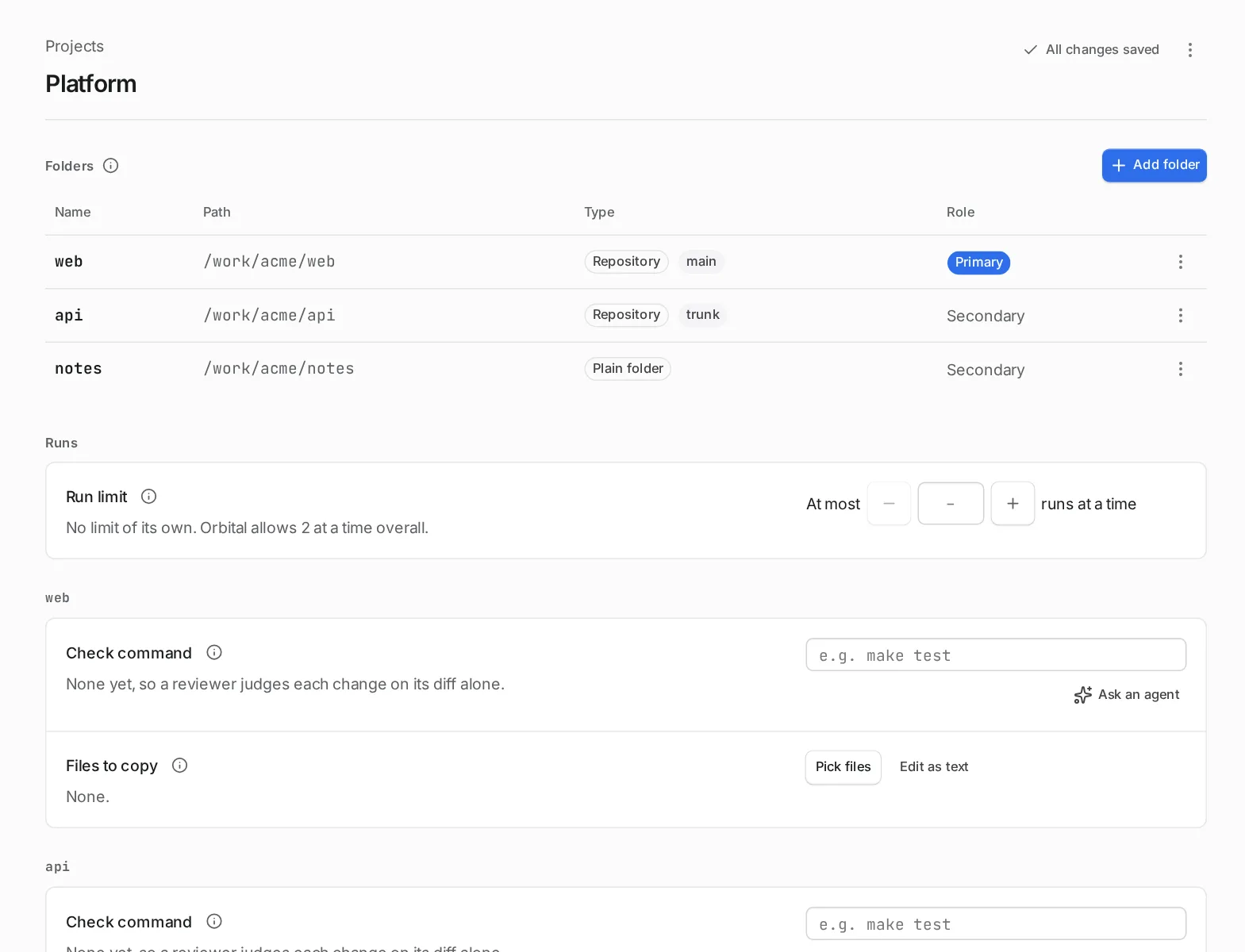
Open the project and choose Add folder. Browse the machine that runs Orbital, or type the folder’s absolute path.
-
Name the folder, if you want.
Give the folder a short name: lowercase letters, digits and underscores. Leave it blank to use the folder’s own name.
-
Add the other folders.
Choose Add folder beside the folder list for each further folder. The first folder you add is the primary folder, where each agent step starts.
Limit runs at a time
Section titled “Limit runs at a time”A project can limit how many of its runs work at once. On the project’s page, find Run limit under Runs. It reads, for example, “At most 2 runs at a time”. Choose − or +, or type a number and press Enter. Each change saves at once. Leave it empty for no limit of its own.
When a project reaches its limit, its next runs wait, and other projects’ runs go first. The run queue explains how the limit works with the one in Settings.
Add custom actions
Section titled “Add custom actions”Custom actions are commands and links you add to a project for its runs. They appear in each run’s Run actions menu.
-
Add the action.
On the project’s page, choose Add action.
-
Name it.
Give it a Key, such as
build, and a Label, such asBuild. -
Choose its kind.
Pick a Kind from the table below, and fill in its command or URL template.
| Kind | What it holds | Example |
|---|---|---|
| Command | A command. It runs on the machine that runs Orbital, in the run’s folder you choose. | pnpm build |
| Link | A URL template. | https://example.com/{path} |
Saving an action runs nothing.
Related
Section titled “Related”- Projects and folders: what folders, roles and project settings mean
- Start a run: give the new project its first goal
- The run queue: how project limits and the Settings limit work together