

Build with AI
Give agents and chat assistants Orbital's docs, its MCP endpoint and its skills
You can hand Orbital to an AI tool in three ways: give an assistant the docs as Markdown, connect a coding agent to Orbital’s MCP endpoint, or install the skills Orbital ships. The quickest start is to give your assistant the docs index:
https://docs.beta.runorbital.dev/llms.txtGive an assistant the docs
Section titled “Give an assistant the docs”Every page of these docs is also published as plain Markdown, for assistants to read.
| File | What it holds |
|---|---|
llms.txt |
An index of every page, with absolute links, grouped by tab: Docs, Examples and Reference. |
llms-full.txt |
Every page in one file. |
| A page’s Markdown copy | One page. Add .md to the page’s URL without its trailing slash, such as /runs/start-a-run.md. The home page is /index.md. |
Each Markdown copy starts with a line that points to llms.txt, so an assistant that reads one page can find the rest. Every page also advertises its copy with <link rel="alternate" type="text/markdown">, for tools that look for it.
The Copy page button
Section titled “The Copy page button”Every page has a Copy page button at the top. It copies the page’s Markdown, ready to paste into a chat. Its menu has more:
| Item | What it does |
|---|---|
| View as Markdown | Opens the page’s Markdown copy. |
| Open in GitHub | Opens the page’s source file. |
| Open in ChatGPT, Open in Claude, Open in T3 Chat, Open in Cursor | Opens the assistant with the prompt “Read the page’s .md URL, I want to ask questions about it.” |
Connect a coding agent over MCP
Section titled “Connect a coding agent over MCP”MCP, the Model Context Protocol, is how coding agents connect to tools. Orbital serves MCP over Streamable HTTP, on the same address as the app, at /mcp. A coding agent such as Claude Code, Codex or OpenCode that connects to it can do what you do in the app. It can list, start, follow, message and control runs, and read and validate workflows. It can also read where a run’s pull request stands and what its worktree holds, and secure a run’s work, without gh or git on the machine.
The endpoint is on by default. Every call must carry a token, even for orbital serve. Settings > MCP shows the address and the token, and gives each client a ready-made setup to paste into a terminal. Connect a coding agent shows the steps.
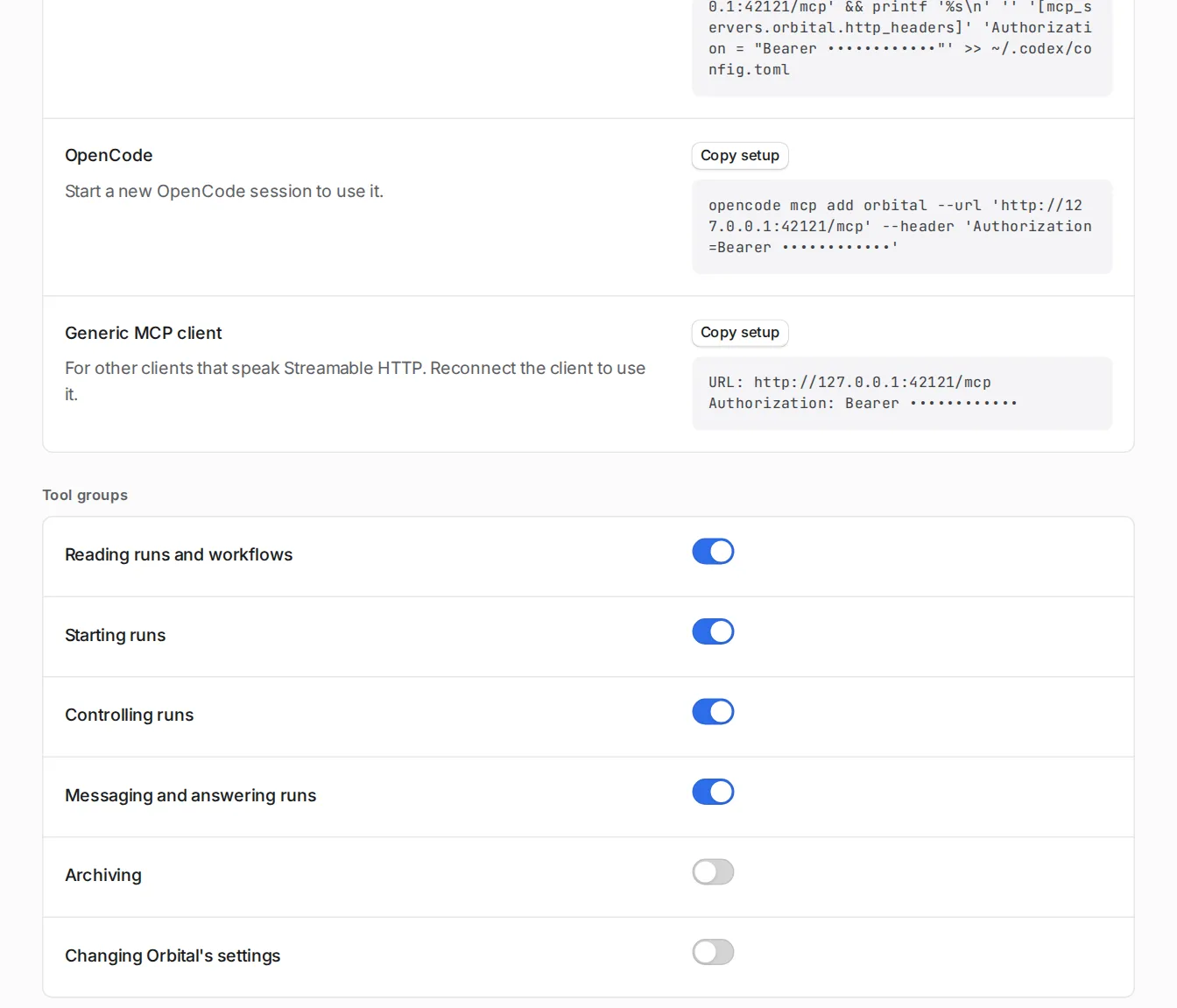
Each tool group has a switch. Reading, starting, controlling, messaging and answering are on by default. Archiving and changing Orbital’s settings are off until you turn them on. MCP tools describes every tool.
This endpoint is for agents outside Orbital and for the built-in Supervisor. The agents inside a run use a separate MCP server of their own.
Install the shipped skills
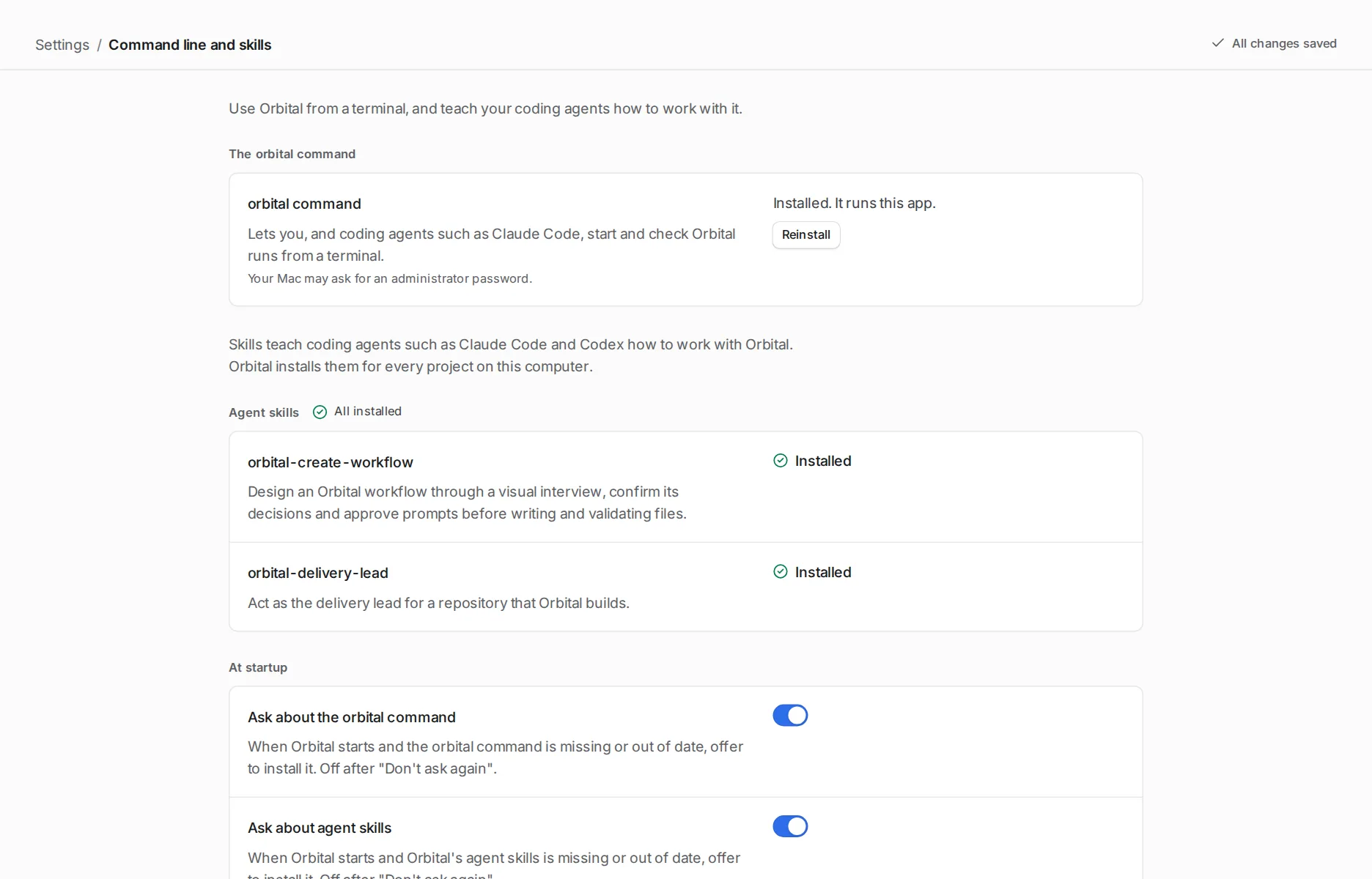
Section titled “Install the shipped skills”A skill is a folder of instructions an agent loads when a task matches it. Orbital ships two:
| Skill | What it does |
|---|---|
orbital-delivery-lead |
Delivers tickets and epics through Orbital runs, as a delivery lead. It refines tickets, starts runs, checks in on them, unsticks them and closes what they deliver. It needs the MCP endpoint connected. |
orbital-create-workflow |
Designs a new Orbital workflow with you, one decision at a time. Then it writes the files and validates them. |
Install them from Settings > Command line and skills, or with orbital skill install. They work for every project on your machine. Use the shipped skills explains how.
Choosing a route
Section titled “Choosing a route”| You want | Use |
|---|---|
| An assistant that answers questions about Orbital | llms.txt, llms-full.txt or a page’s Markdown copy |
| A coding agent that starts, follows and steers your runs | The MCP endpoint |
| A coding agent that delivers tickets or designs workflows the way Orbital expects | The shipped skills, with the MCP endpoint for delivery |
Related
Section titled “Related”- Connect a coding agent: register Claude Code, Codex, OpenCode or another client.
- Use the shipped skills: install the skills and ask agents to use them.
- MCP tools: every tool, its arguments and its results.
- Lead delivery with a supervisor: the loop the delivery lead skill follows.