

Workflows
A workflow is one file of steps and edges that Orbital runs
You describe the work a run does as a workflow: one DOT file that Orbital loads, validates and runs. The smallest complete one has a graph attribute line, one agent and one terminal:
digraph hello { graph [version="1", entry="hello"] hello [tool_access="Read only", prompt="Reply with one sentence explaining the goal: {{ inputs.goal }}."] done [shape="Msquare"] hello -> done}A workflow declares a version, an entry node, the nodes themselves and the edges between them. Write your first workflow walks through this one.
Keep the file in your project’s .orbital/ folder. Give every node a stable ID, because the run transcript, visit counts and manual jumps all address nodes by ID. Write each prompt for someone arriving without prior conversation: state the expected result and the allowed actions.
Why DOT?
Section titled “Why DOT?”DOT writes nodes and edges directly, so the file has the same shape as the workflow. Graphviz can draw a diagram from the same definition that Orbital runs. You can review changes to that file in Git.
Orbital is loosely based on the StrongDM Attractor specification. Its DOT rationale describes these benefits. Orbital has its own supported syntax and does not promise full Attractor compatibility. The workflow language may evolve; DOT is the format to use today.
Where Orbital looks for a workflow
Section titled “Where Orbital looks for a workflow”Orbital searches these places in order and takes the first match:
| Order | Place |
|---|---|
| 1 | Custom workflows saved in the browser. |
| 2 | The .orbital/ folder of the project’s primary folder. |
| 3 | The .orbital/ folder of each remaining folder. |
| 4 | Your library, ~/.orbital/workflows/. |
| 5 | The workflows shipped with Orbital. |
Because the first match wins, a custom workflow named hello shadows a file named hello.dot. Use a distinct name while experimenting. Pass an explicit path to orbital validate when you diagnose a collision.
Shipped workflows
Section titled “Shipped workflows”Orbital ships eight workflows. They appear in the new-run menu of every project. A workflow of the same name in any other place takes a shipped one over.
| Workflow | What it does | What it needs |
|---|---|---|
explain-repo |
Reads the project’s primary folder in one step that only reads, and explains the repository. No worktree, no pull request. | An optional goal |
implement-ticket |
Plans, implements and reviews one ticket, then delivers it to merge. | A ticket URL, as ticket_url |
implement-epic |
Delivers an epic’s leaf tickets one at a time, then closes the epic. | An epic URL, as ticket_url |
implement-epic-with-panel |
Delivers an epic the same way, with a panel of parallel reviewers. | An epic URL, as ticket_url |
improve-codebase |
Finds and delivers one worthwhile improvement, then stops. | An optional goal |
reduce-complexity |
Simplifies the function most worth simplifying. | An optional goal |
pursue-goal |
Implements and validates a goal in a loop, then delivers it. | A goal in plain words |
port-project |
Ports an application to a new stack, one proved slice per pull request. | A goal naming the source repository and the target stack |
Shipped workflows describes each one, with its diagram.
The Workflows page
Section titled “The Workflows page”Click Workflows in the sidebar to list every workflow the selected project offers. A badge says where each one comes from.
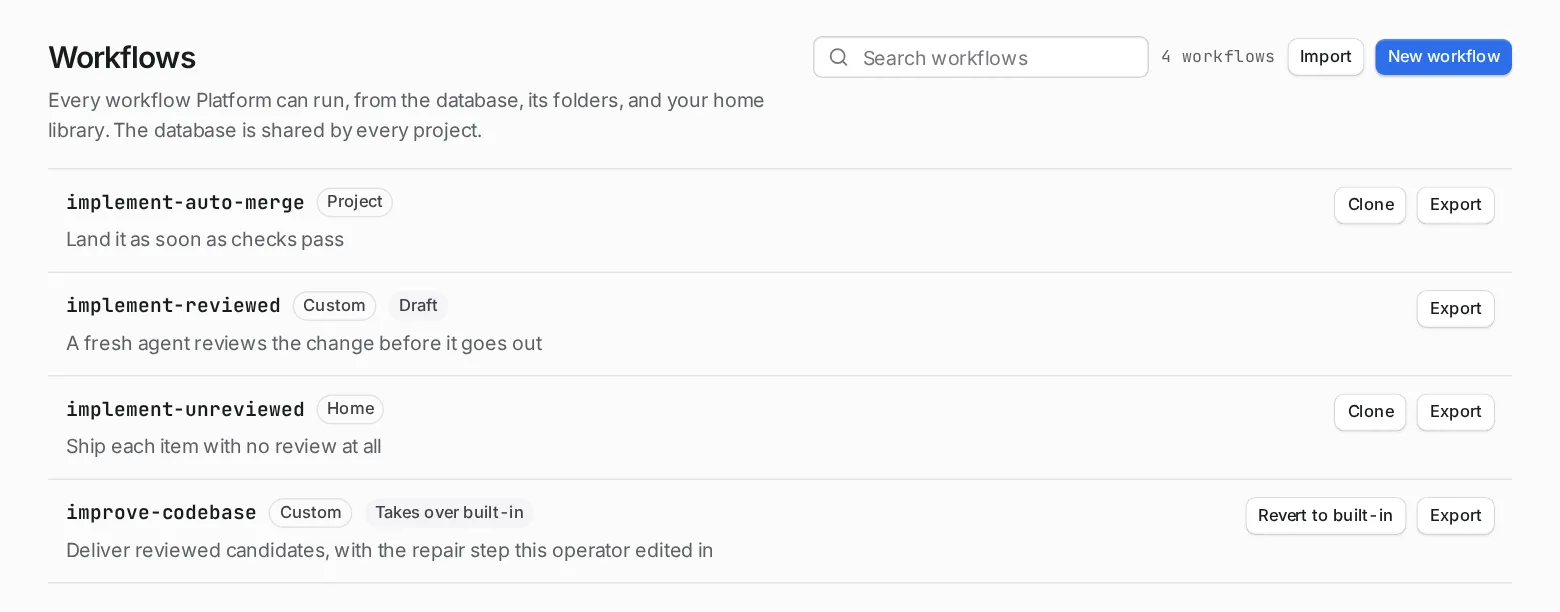
| Badge | Where it lives | Can you edit it here? |
|---|---|---|
| Custom | Saved in Orbital from this page. | Yes. |
| Project | The .orbital/ folder of one of the project’s folders. |
No. Edit the file. |
| Home | Your library, ~/.orbital/workflows/. |
No. Edit the file. |
| Shipped | Comes with Orbital. | Yes. Saving stores a Custom copy. |
A Custom copy of a shipped workflow shows Takes over built-in. Reverting it deletes your copy, and the shipped workflow is back. Orbital never changes the file it ships, so a later release still reaches every name you have not taken over.
On this page you can create a workflow, import one, clone one, export one as a file, and open one in the editor. Export writes one self-contained file with the prompts inlined.
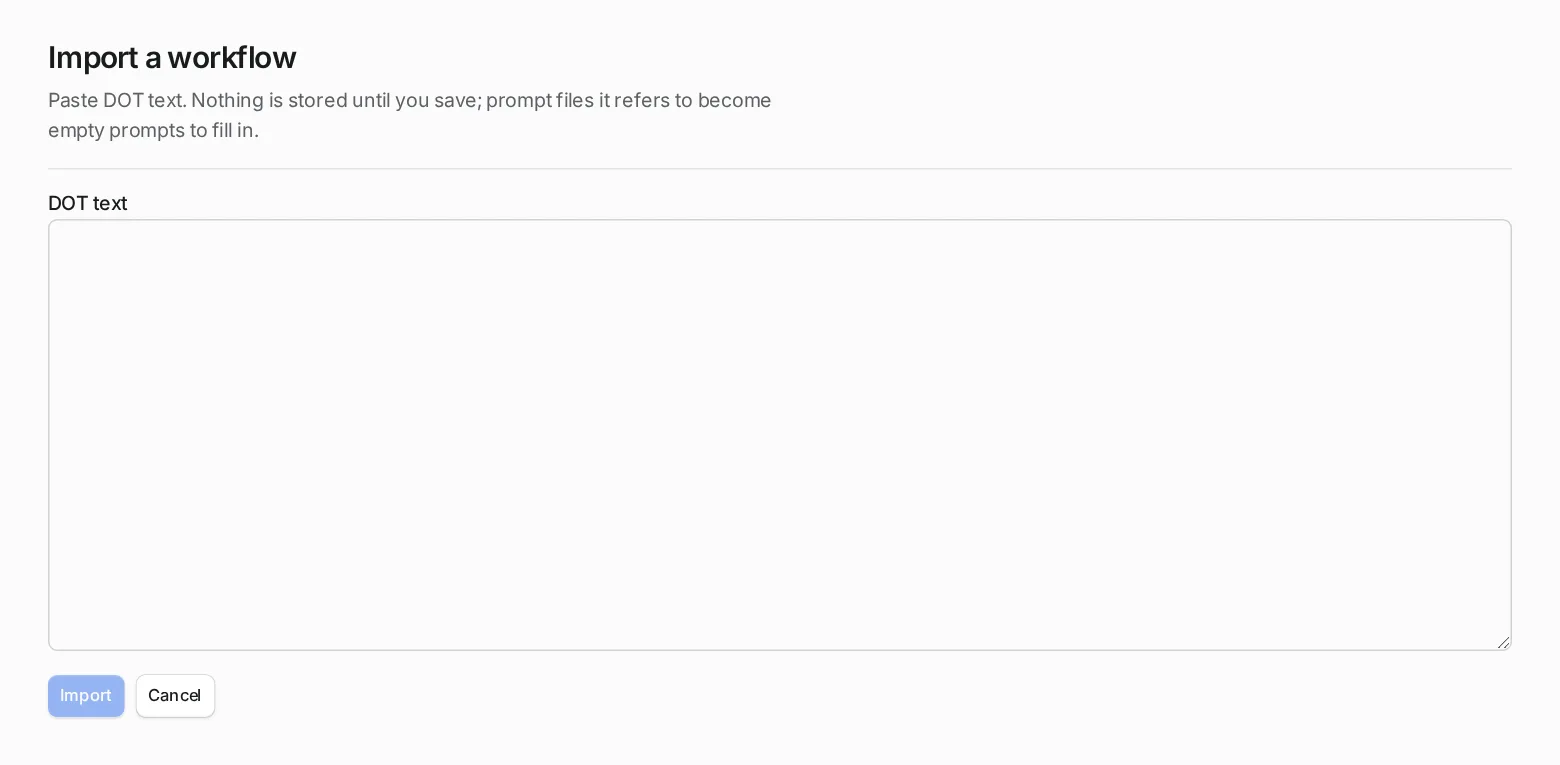
Import opens a box where you paste DOT text. Nothing is stored until you save. Prompt files the text refers to become empty prompts for you to fill in.
The editor
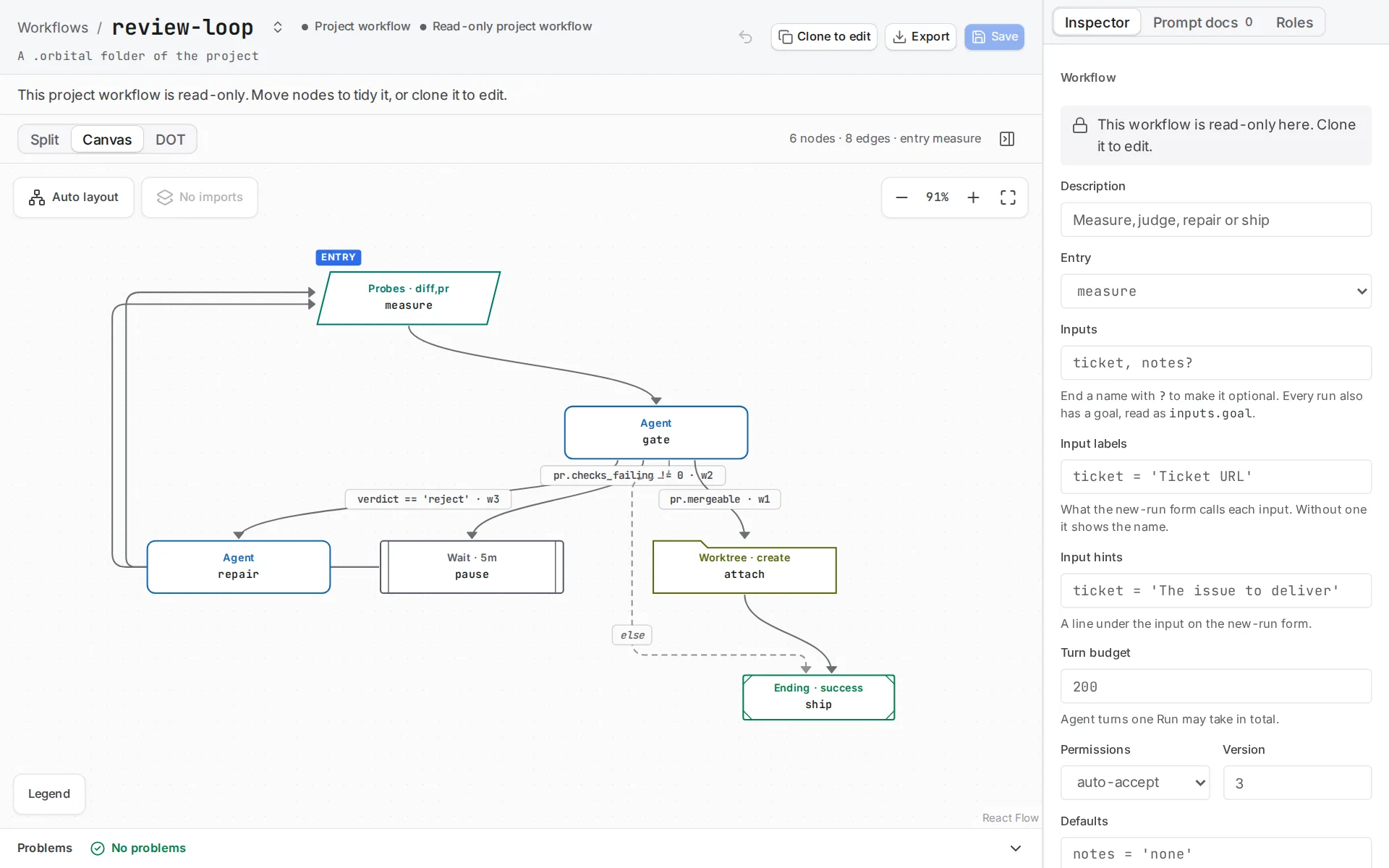
Section titled “The editor”The editor draws the workflow and validates it as you edit. The Problems bar at the bottom lists what validation found. The Inspector on the right holds the workflow’s description, entry, inputs, turn budget and permissions.
Move around the canvas with a two-finger swipe, or drag an empty area. Pinch or hold ⌘ while scrolling to zoom.
Work in progress is kept as a Draft, even while it is not valid yet. A Draft cannot be run. It becomes a Custom workflow once you save it as a valid workflow. The browser workflow library also creates and edits custom workflows, and saving validates them. Inspect the selected workflow before you start a run.
Declared inputs
Section titled “Declared inputs”inputs="work,notes?" requires work and makes notes optional. goal is built in. Starting a run requires the goal and every required input. So a workflow states what it needs, and you do not have to remember it.
input_labels and input_hints explain an input on the new-run form, for example input_labels="ticket_url='Ticket URL'". Without them, the form shows the input’s name. Pass context between steps covers what happens to those values once the run starts.
Validate before you run
Section titled “Validate before you run”Validation reads the file, resolves imports and prompt files, and checks routing without calling an agent.
orbital validate .orbital/hello.dotFix errors before you add more nodes. Warnings identify unreachable nodes, unused inputs and other suspicious but loadable declarations.
Add one decision at a time. A choice output with two explicit weighted routes is easier to inspect than a prompt that silently decides whether to publish. Validate again after you edit imports and prompt files, because those are separate files that the workflow only names.
Choosing where to keep a workflow
Section titled “Choosing where to keep a workflow”| You want | Keep it |
|---|---|
| The workflow beside the code it works on, reviewed in Git | The .orbital/ folder of the project’s folder |
| The workflow in every project | Your library, ~/.orbital/workflows/ |
| To build it in the app, without files | A Custom workflow, from the Workflows page |
| A changed shipped workflow | A Custom copy of it. Revert to get the shipped one back. |
Related
Section titled “Related”- Write your first workflow: copy the smallest complete workflow and change it.
- Node types: the kinds of step a workflow is made of.
- How Orbital works: how a run carries out a workflow one step at a time.
- Shipped workflows: each shipped workflow with its diagram.
- The orbital command:
orbital validateand the other commands.