

Use the shipped skills
Install Orbital's two agent skills and ask coding agents to use them
Install Orbital’s two skills so your coding agent can deliver tickets through Orbital runs and design workflows with you. From a terminal, run:
orbital skill installA skill is a folder of instructions an agent, such as Claude Code or Codex, loads when a task matches it. Orbital ships these two:
| Skill | What it is for | When an agent uses it |
|---|---|---|
orbital-delivery-lead |
Delivering tickets and epics through Orbital runs, as a delivery lead. | You ask it to deliver tickets with Orbital, to start or watch runs, or to act as delivery lead. |
orbital-create-workflow |
Designing a new Orbital workflow with you, one decision at a time. | You ask it to turn a process into a workflow, or to design or change one. |
Install them
Section titled “Install them”-
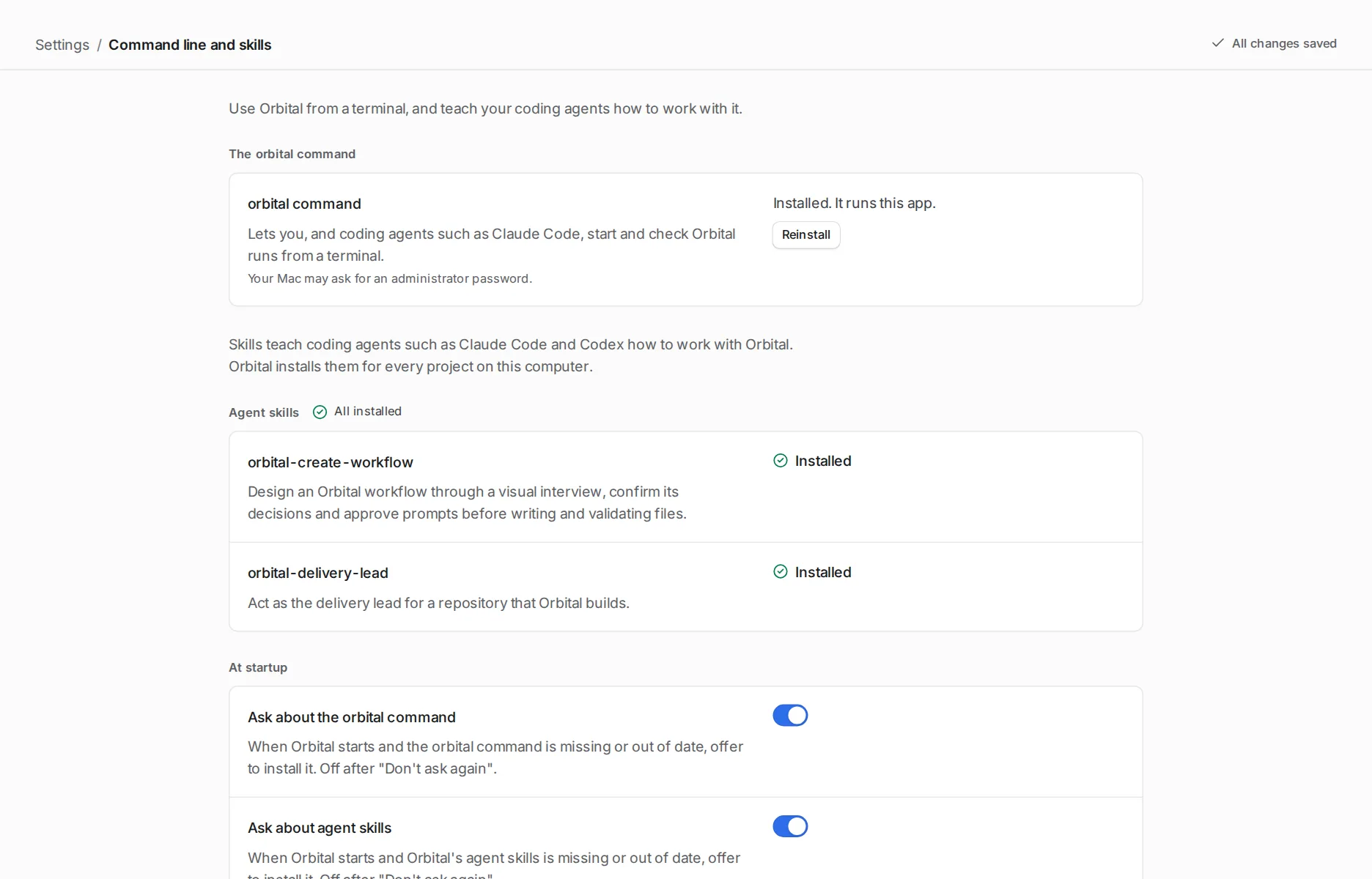
Open the skills settings.
Open Settings > Command line and skills.
-
Install each skill.
Under Agent skills, choose Install next to each skill. Choose Update when a newer version ships.
orbital skill installThe command installs every shipped skill and reports on each one:
| Report | What it means |
|---|---|
| Installed | The skill was not there, and now is. |
| Updated | The skill now matches the version this release ships. |
| Already up to date | Nothing changed. |
| Kept | Your copy differs, so Orbital left it alone. |
| Replaced | With --replace, Orbital installed its own and names the backup of yours. |
| Could not install | Something went wrong, and the report gives the reason. |
The command exits with an error when a skill could not be installed. See orbital skill install.
Where they go
Section titled “Where they go”Each skill is copied to ~/.agents/skills/<name> and linked from ~/.claude/skills/<name>. Claude Code finds it through the link. Other agents that read skills from ~/.agents/skills find the copy. The skills work for every project on your machine.
When a different copy is there
Section titled “When a different copy is there”Orbital never overwrites a copy you changed. When the installed copy, or the link, differs from the skill Orbital ships, Orbital keeps it and says so. In Settings the skill reads “A different copy with this name is installed. Orbital will keep it unless you replace it.”
To replace it, choose Replace… in Settings and confirm, or run:
orbital skill install --replace orbital-delivery-leadOrbital moves your copy to a dated backup under ~/.agents/skill-backups or ~/.claude/skill-backups, then installs its own.
orbital-delivery-lead
Section titled “orbital-delivery-lead”The delivery lead refines tickets until they are true and worth building, and starts Orbital runs on them. It checks in on the runs, unsticks them without losing work, and verifies and closes what they deliver. It uses Orbital’s MCP tools, and gh and git. Lead delivery with a supervisor describes the loop it follows. The skill adds rules of its own for keeping delivery safe.
It needs Orbital’s MCP endpoint connected to the agent. See Connect a coding agent. Without MCP, it falls back to Orbital’s HTTP API.
Ask it, for example:
Use the orbital-delivery-lead skill to deliver the open sub-issues ofhttps://github.com/acme/shop/issues/400 with Orbital, one run per ticket.Refine each ticket against main first. Check in every 30 minutes.It comes with goal templates for one ticket and for several tickets in order. Each template carries the rules a run’s validate step needs: commit every round, check every “done when” item, and a blocker is never a pass.
orbital-create-workflow
Section titled “orbital-create-workflow”The workflow designer turns a process you run by hand into an Orbital workflow. It interviews you one decision at a time, with a recommendation for each. It covers the goal and inputs, the unit of work, whether the workflow ends or runs on, and what each step may do. It also covers parallel work, failures and retries, and waits.
It draws the workflow as it grows and asks you to confirm the design. It asks you to approve each prompt before it writes it. Then it writes the files and validates them without running them.
It carries the complete workflow format and worked examples, so it needs nothing else.
Ask it, for example:
Use the orbital-create-workflow skill. Every Monday I read our opensupport tickets, group them by product area and write a summary for theteam. Turn that into an Orbital workflow.Check the result yourself before you run it. For a workflow saved in your library as <name>.dot:
orbital validate ~/.orbital/workflows/<name>.dotSave the finished workflow in a repository’s .orbital/ folder or in your library, ~/.orbital/workflows/. It then appears in the new-run menu. Workflows explains where Orbital looks.
Related
Section titled “Related”- Connect a coding agent: give the delivery lead the tools it needs
- Command line: install skills and validate workflows from a terminal
- Settings reference: the fields in Command line and skills
- Write your first workflow: check what the workflow designer writes