

Use different models
Run different steps on different harnesses, models and efforts
Run cheap steps on a small model and expensive steps on a large one by giving each step its own Model settings. Name the settings on the workflow, then pick one per step:
digraph ship { graph [ version="1", entry="implement", model_settings="Balanced { effort: medium; } Codex review { harness: codex; model: gpt-6-sol; effort: high; }" ] implement [model_settings="Balanced", prompt="Implement this goal: {{ inputs.goal }}"] review [model_settings="Codex review", prompt="Review the change. Report what you find. Do not change files."] done [shape="Msquare"] implement -> review review -> done}A step can also get its Model settings through a Role, which brings a Persona and Tool access too. Roles and tool access defines these, and Give steps a role shows how to pick them in the editor.
Orbital works out the harness, model, effort, connection and provider separately for every step. So a step that changes only its effort keeps the model it would have had.
Before you start
Section titled “Before you start”- Sign in to each harness you want to use. Follow Install Orbital before you try a model.
Name models in Model settings
Section titled “Name models in Model settings”The library holds named Model settings in Settings > Model settings. Each can set a harness, a model and an effort. Give a step one of them, directly or through its Role.
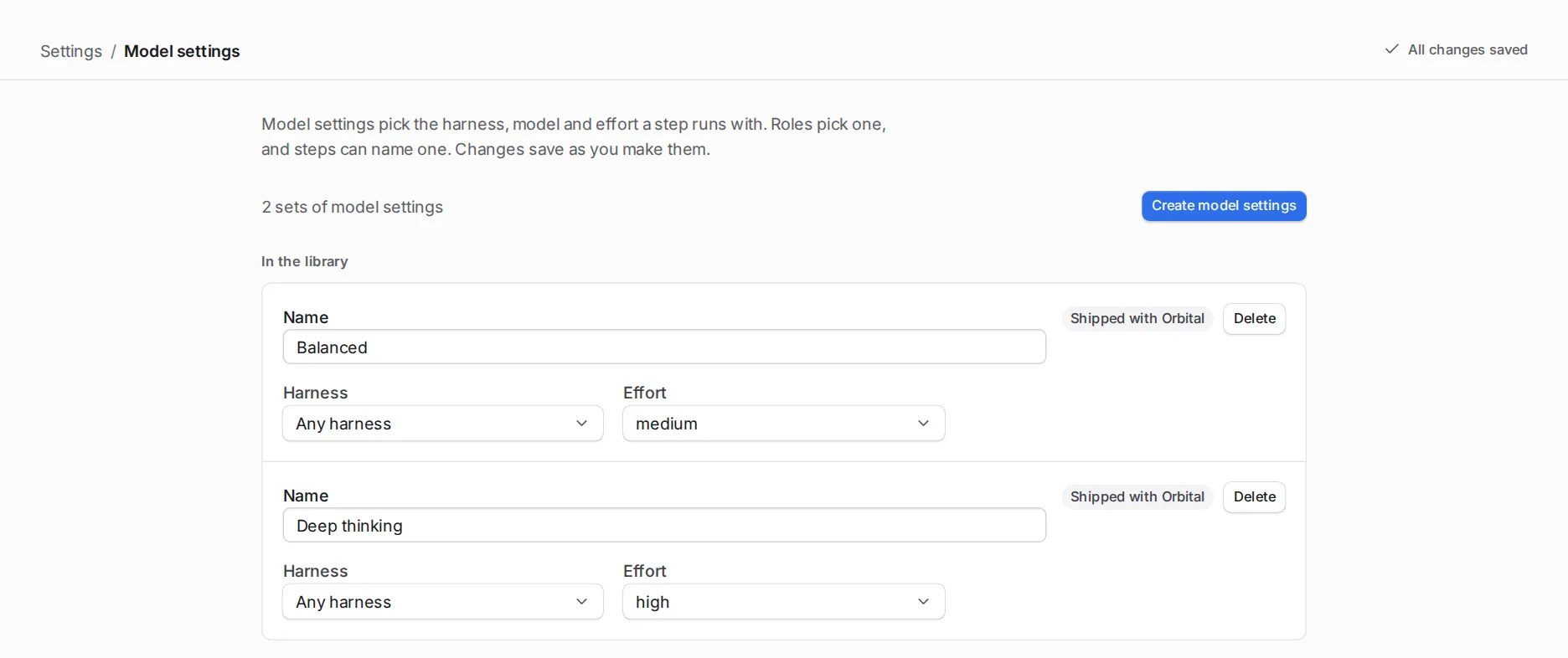
The harness names are claude, codex and opencode. Effort accepts minimal, low, medium, high, xhigh, max and ultra, but each harness accepts only some of them. Orbital refuses a harness and effort that do not go together before any turn starts, so a run does not fail halfway through.
Pick a model for the run
Section titled “Pick a model for the run”The harness and model picker in the new-run composer starts at Default harness, which follows the workflow and your settings. Pick a harness’s default model, such as “Codex default model”, to make that the run’s harness. Or pick a model by name. Which harness a step uses explains which steps follow the run’s harness.
Choosing a model sets the workflow’s default for that harness. A step’s own model, its Model settings and its Role still come first. Changing the harness clears the model you chose.
The picker shows each model’s reference price in USD per million input and output tokens, when Orbital knows it. A model in the picker is a suggestion: your sign-in decides whether you can use it. Models and prices lists every suggested model and its price, and explains how Orbital estimates a run’s cost.
Resolution order
Section titled “Resolution order”Orbital decides each setting on its own, and the most specific choice wins:
- what a step sets itself
- the Model settings it names
- its Role
- what an import placeholder chooses for it
- the model stylesheet
- the workflow’s choices
- the run’s choice and the harness default
A setting for one harness, such as codex_model, beats a plain one, such as model. Attributes gives the exact order.
Harness-specific attributes such as claude_model, codex_effort and opencode_provider work on workflows, agent steps, Model settings blocks and stylesheet rules. Orbital checks their names and values even when the step runs on another harness. So a typo shows up when you validate the workflow, not on the turn that needs it. Attributes lists them all.
The settings inside an imported workflow apply when you run that workflow on its own. They never become defaults for the workflow that imports it. Put shared settings in the parent workflow, or choose them on the placeholder. See Reuse a workflow.
See which model a run used
Section titled “See which model a run used”The run page names the harness and the model the latest turn reported. They appear in the footer under the composer, beside the workflow, the branch and the pull request. Where the composer is not on screen, such as on an ended run, the header names them instead.
Before a turn reports a model, the page shows the model the turn asked for, marked “(configured)”, or “Model not known yet”. A run that used several models shows the latest with a count of the others. The transcript records the settings each turn ran with. It is the fastest way to check that your settings did what you meant.
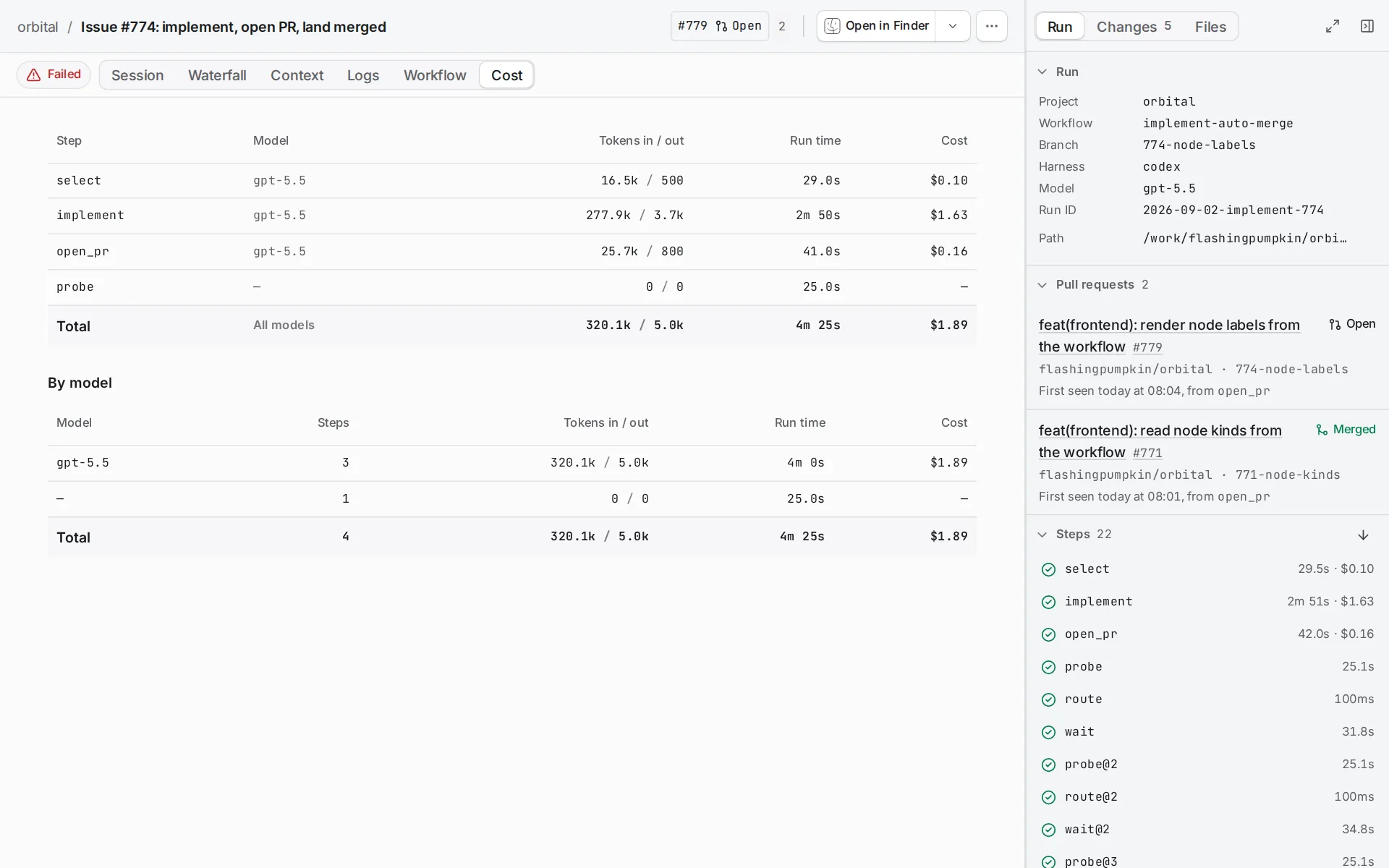
The Tokens by model table on the run’s Cost tab lists each model the run used.
Change harness during a run
Section titled “Change harness during a run”You can move a stopped run to another harness and retry its step there. Switch a run’s harness describes how, what carries over, and what the quota fallback does.
Advanced: profiles and the model stylesheet
Section titled “Advanced: profiles and the model stylesheet”Workflows written before roles existed may use profiles and a model stylesheet. Both still work. In the editor they sit under More and Advanced, where you edit them as text. For new workflows, prefer Model settings and Roles, which the editor offers as pickers. Attributes gives the syntax.
Related
Section titled “Related”- Give steps a role: pick Model settings and Roles in the editor
- Roles and tool access: the building blocks and what ships
- Harnesses and models: which harness a step uses
- Switch a run’s harness: move a stopped run to another harness
- Models and prices: suggested models and how cost is estimated
- Attributes: the exact resolution order