

Supervisor
A standing chat that watches your runs and steps in when one needs help
You turn on the Supervisor to have a chat that looks after your runs while you are away. It acts as your delivery lead inside Orbital: when a run needs help, it steps in, it asks you about what it cannot decide, and it tells you what happened. A watcher wakes it, and it acts within the limits you set.
This page describes the built-in Supervisor. To run a delivery lead from a coding agent instead, or to learn the loop a delivery lead follows, see Lead delivery with a supervisor.
Orbital attaches its own MCP server to chats as orbital_app. On Claude, load its tools with ToolSearch, for example select:mcp__orbital_app__list_runs. This server is separate from an orbital server you register in your own agent configuration.
Turn it on
Section titled “Turn it on”-
Open the experimental features.
Open Settings > Experimental features.
-
Turn on the Supervisor.
Turn on the Supervisor switch. It reads “A standing chat that watches your runs and steps in when one needs help.”
-
Open its chat.
A chat named Supervisor now appears, pinned at the top of your chat list. It is never archived.
While the feature is off, no part of the Supervisor runs or shows.
What it watches
Section titled “What it watches”Orbital keeps a record of every run. A built-in watcher reads that record, and the watcher spends no model tokens. It wakes the Supervisor only for these reasons:
| Reason | What counts |
|---|---|
| Needs a decision | A run stops by itself and is Paused, with the badge “Waiting on you”. A run at a gate, such as one waiting for a pull request review, does not count, because that is your process working. |
| Failed | A run ends Failed. |
| Out of quota | A harness runs out of quota. |
| Refused tools | A step keeps trying tools its tool access refuses: three refused calls in one step. |
The watcher also wakes the Supervisor to look over runs that are still going, every hour unless you change it. It also wakes the Supervisor when you approve or decline something it asked about, and for a daily summary if you turn that on.
The watcher looks at the record every 15 seconds. The same reason wakes the Supervisor only once. If the app was closed, the watcher catches up when you open it again. A restart neither repeats a wake-up nor loses one.
Orbital retries a turn that stalls by itself, twice in one step, and wakes the Supervisor only when that does not help. A run stops, and the watcher wakes the Supervisor, in three cases: Orbital gives up on a stalled turn, a step reaches its visit limit, or the working folder cannot be used.
Your runs already handle some problems themselves, so the Supervisor leaves them alone: failing checks, merge conflicts and review changes that the delivery workflow repairs, and closing tickets. A run that waits days for a person to review its pull request is normal. The Supervisor does not chase it.
What it will and will not do
Section titled “What it will and will not do”The Supervisor acts only inside Orbital. It never acts in your delivery process.
| It can | It does not |
|---|---|
| Send a running step a message, or answer its question | Comment on, review, approve or merge pull requests |
| Pause, resume, retry, jump, skip a wait, restart or abort a run | Turn on auto-merge |
| Revise a run’s goal | Ping reviewers |
| Move a run to another harness | Post in Slack or anywhere else |
| Commit a run’s uncommitted work on the run’s own branch and push it, never with force and never to main | Create, edit, comment on or close tickets |
| Start runs | |
| Archive runs | |
| Check what a run delivered |
It follows these safety rules:
- It secures a run’s work before it aborts the run, and aborts only a run that holds no unpushed work.
- It never deletes a branch that holds work nobody has pushed.
- It does what you asked and no more.
Each action appears in the run’s thread as coming from the Supervisor, with its reason. A short line also appears in the Supervisor chat, for example “Supervisor paused run …”. To have an action undone, ask in the chat.
When something outside Orbital needs doing, the Supervisor drafts the text and you send it. When the same problem keeps coming back, it drafts a change to your workflow for you to review in the editor. If the problem is in Orbital itself, it drafts a bug report for you to send.
The Supervisor can read connected sources, such as your tracker or GitHub, to answer a real question. It never writes through them.
How its calls are scoped
Section titled “How its calls are scoped”The Supervisor acts through Orbital’s own MCP tools, the same ones a coding agent uses. Its tool access, Supervisor, allows reading, the web and those tools, and nothing else. It cannot change files or run commands. Orbital checks every call it makes against these rules:
- It must give a reason with every action. The reason is recorded on the run and in its chat.
- It acts only on runs it owns.
- Each action follows What it may do: Do it, Ask me first or Never.
- It stops acting when it is off, paused for today, or over its daily limit.
MCP tools lists every rule.
Talk to it
Section titled “Talk to it”Open the pinned Supervisor chat and write to it as you would to a delivery lead. For example:
- “Start the triggers epic.”
- “Why is this run stuck?”
- “What landed today?”
You can attach files, as in any chat.
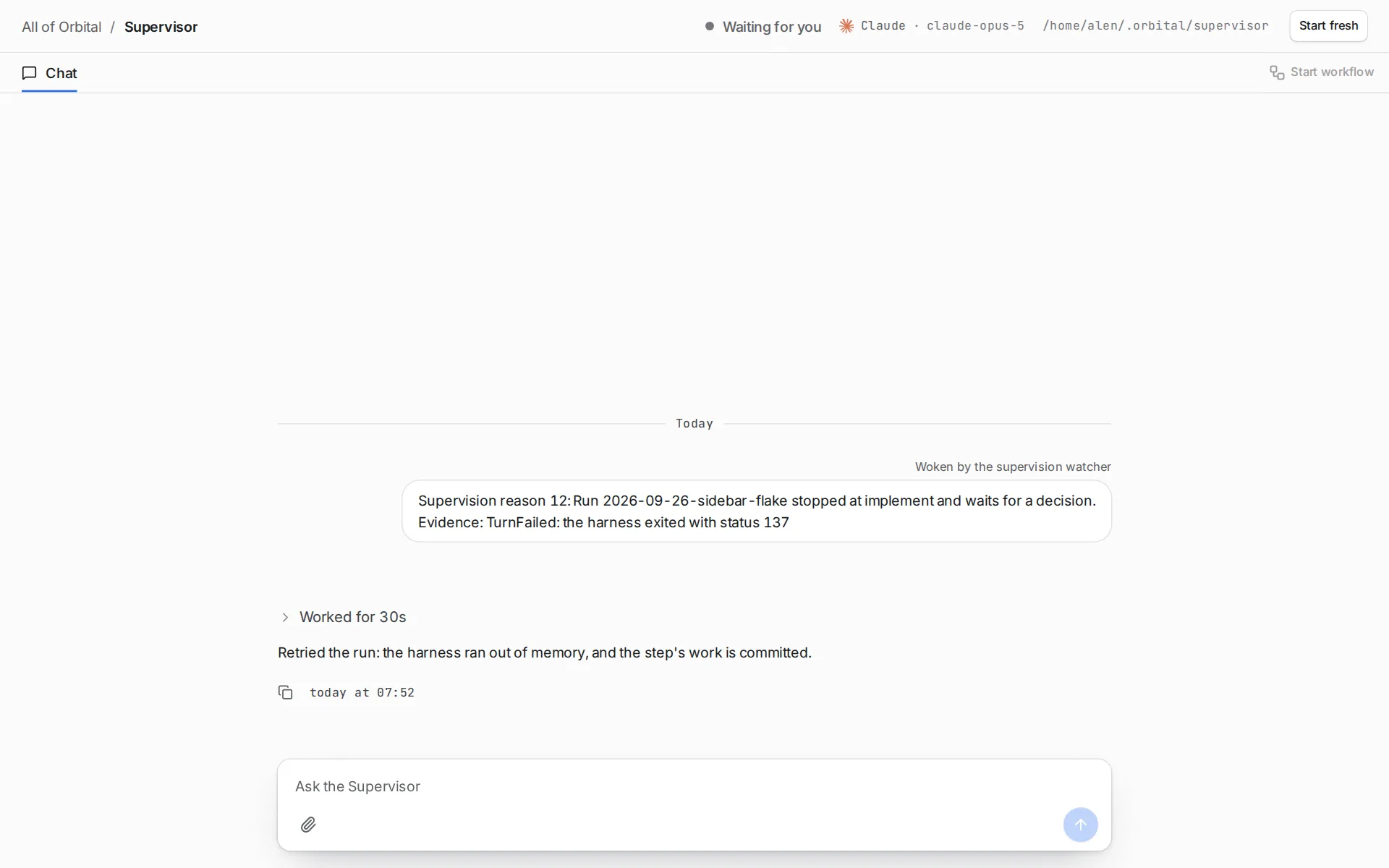
When an action is set to Ask me first, the Supervisor asks before it acts. A card appears in the chat, marked “Waiting for you”. It says what the Supervisor wants to do, where and why. Choose Approve to let it act once, or Decline to refuse. Either way, the Supervisor carries on with your answer. If desktop notifications are on, a notification opens the chat at that card.
Start it fresh
Section titled “Start it fresh”The Supervisor carries on one session from turn to turn, so an old conclusion can linger. Choose Start fresh in its chat header while it is waiting. The chat keeps its messages, and the next turn begins a new session. Its notes carry over.
The Supervisor tries Orbital’s tools before it says they are unavailable. If a turn cannot connect to Orbital, or Orbital refuses the connection, the chat shows it. Before the next turn, Orbital checks its own tools again, even after a restart, and tells the Supervisor whether they answered.
A supervisor for one project
Section titled “A supervisor for one project”A project can have a Supervisor of its own. Open the project’s page and choose Add supervisor. Its pinned chat is named “Supervisor · “ followed by the project’s name. It reads only that project.
Each run has one owner. If the run’s project has its own Supervisor, that Supervisor looks after the run. Otherwise the Orbital-wide Supervisor does. A project’s Supervisor can hand a matter, or a single run, to the Orbital-wide Supervisor. The run records the handover.
To stop, choose Remove supervisor on the project’s page. Its runs go back to the Orbital-wide Supervisor. Its chat is archived, and its history stays readable.
You can still act on any run yourself.
Its settings
Section titled “Its settings”Open Settings > Supervisor. Each change saves as you make it.
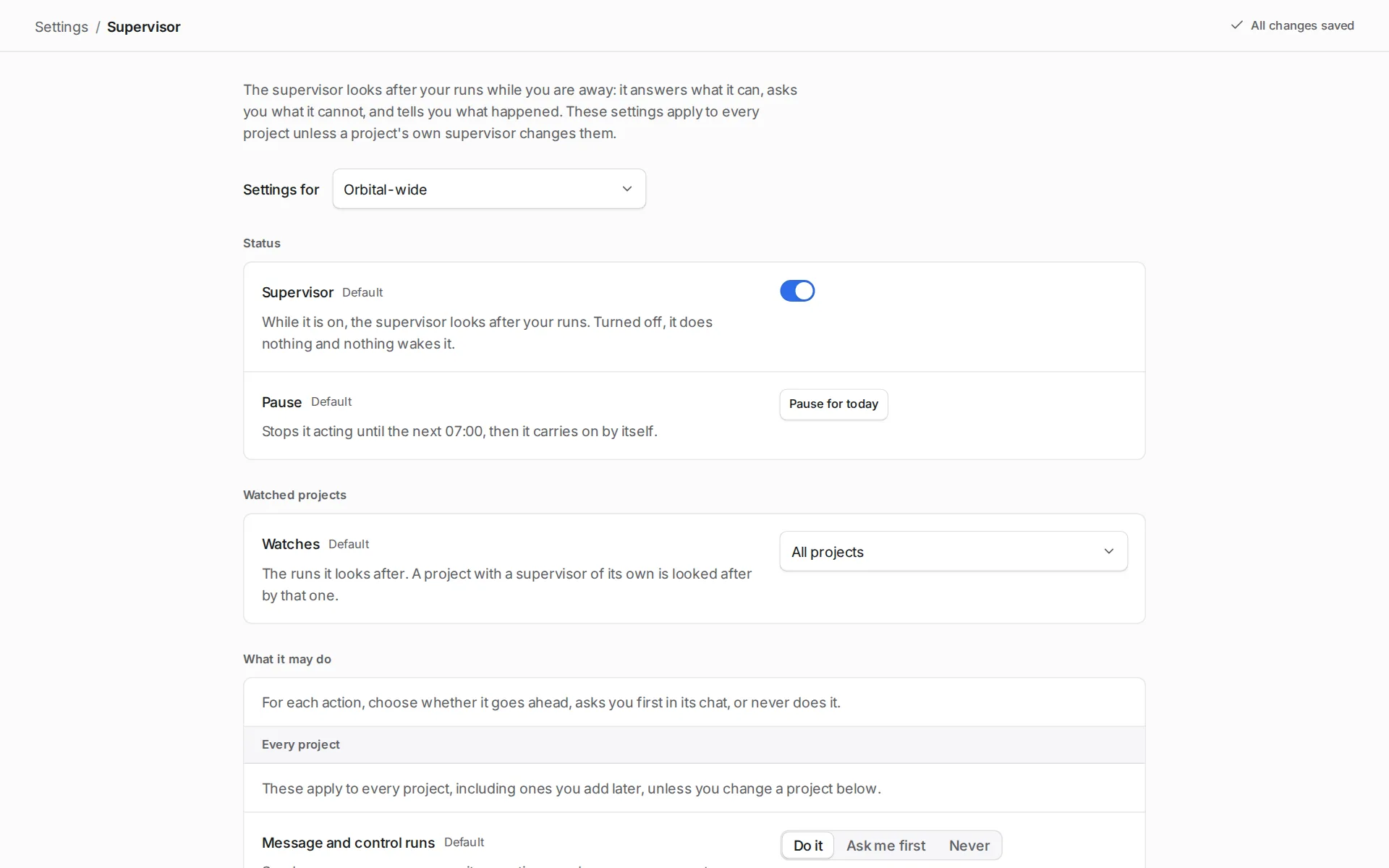
A picker at the top chooses which Supervisor you change: Orbital-wide, or a project’s own Supervisor. A project’s Supervisor follows the Orbital-wide settings until you change a field. Such a field shows “Same as Orbital-wide”. A changed field has a button to go back to the Orbital-wide value.
The page shows these groups, in this order:
| Group | What you can set |
|---|---|
| Status | The Supervisor switch turns it on or off. Pause for today stops it acting until the next 07:00. |
| Watched projects | Watches: All projects, or “Only the projects I pick”. Only the Orbital-wide Supervisor has this group. |
| What it may do | For each action: Do it, Ask me first or Never. Every action starts at Do it. |
| What it may read | A switch for each connected source. |
| What wakes it | A switch for each of the four reasons, and Look over runs at work: Every hour, Every few hours or Off. |
| Who it is | Role. The Supervisor role sets its persona, model and tool access. See Give steps a role. |
| Quota fallbacks | Move a run to: the harnesses to move a run to when its harness runs out of quota, tried first to last. See The fallback harness. |
| Spending | Daily limit: No limit, tokens a day, or an estimated cost a day in USD. It counts only the Supervisor’s own turns. Runs it started, at work at once: No cap, or at most a number you choose. |
| Notifications | Tell me about: Decisions only, Decisions and failures, or Every action. Quiet hours: during these hours you only hear about decisions it needs from you. Desktop notifications: On or Off. |
| Reports | When it acts, say: Brief says what it did, Detailed also says why. Daily summary: Off, or every day at a time you choose. |
| Notes | What the Supervisor keeps in mind between conversations. It writes them itself. You can change or clear them. |
| Your instructions | For all projects, and one field for each project. |
| Housekeeping | Archive finished runs: Never, or after a number of days. Keep its activity log: how many days to keep it. |
| Start over | Resets every field to its default. For a project’s Supervisor, it resets to the Orbital-wide settings. |
The actions under What it may do are these:
| Action |
|---|
| Message and control runs |
| Save and push a run’s work to its own branch |
| Switch a run’s harness |
| Start runs |
| Archive runs |
When the Supervisor reaches its daily limit, it stops acting for the rest of the day. It says so once in its chat.
The fallback harness
Section titled “The fallback harness”When a run’s harness runs out of quota, the Supervisor can move the run to the first harness in its Quota fallbacks list that can take it. The run continues in place and keeps its work. A fallback whose harness is not installed or not signed in shows as unavailable, and the Supervisor skips it. Switch a run’s harness describes the switch, where to set the list, and why the fallback’s On model is not applied yet.
Choosing how to switch it off
Section titled “Choosing how to switch it off”Choose the lightest option that does what you need. The options run from lightest to heaviest.
| Option | How | What happens |
|---|---|---|
| Stop one kind of action | Under What it may do, set that action to Never. | It no longer takes that action. |
| Pause it for the day | Under Status, choose Pause for today. | It carries on by itself at 07:00, or when you choose Resume now. |
| Turn the Supervisor off | Under Status, turn off the Supervisor switch. | It takes no actions and nothing wakes it. You can still talk to it in its chat. |
| Remove a project’s own Supervisor | On the project’s page, choose Remove supervisor. | Its runs go back to the Orbital-wide Supervisor. |
| Turn off the feature | Open Settings > Experimental features and turn off Supervisor. | No part of the Supervisor runs or shows. Orbital keeps its settings for when you turn it back on. |
Related
Section titled “Related”- Lead delivery with a supervisor: the loop a delivery lead follows, and how to run it.
- MCP tools: every rule Orbital applies to the Supervisor’s calls.
- Switch a run’s harness: how a quota fallback moves a run.
- Chats: how the Supervisor’s chat works like any other chat.
- Troubleshooting: fixes when the Supervisor does not act.