

Projects and folders
A project is a name and the folders its runs work in
You add a project to tell Orbital where your runs work. A project is a name and the folders a run works in. A folder can be a Git repository, or a plain folder that is not one, such as research reports. A project can hold several folders, such as a web app and its API. Every run belongs to one project.
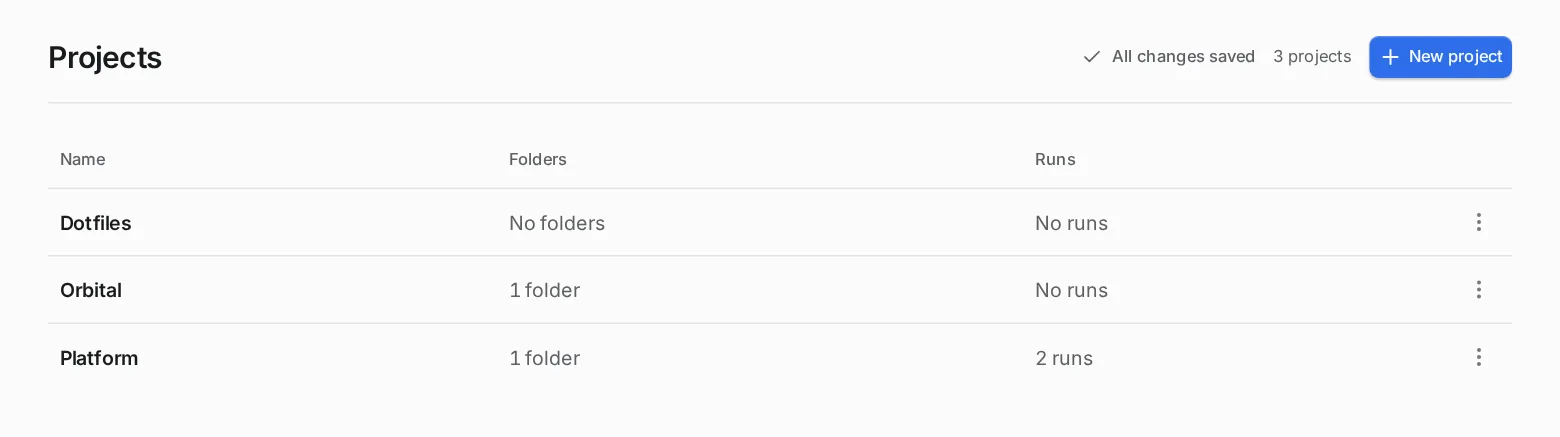
The Projects page lists your projects in a table, with each project’s folders and runs. Its row menu has Rename and Delete. Create a project shows how to make one.
Folders
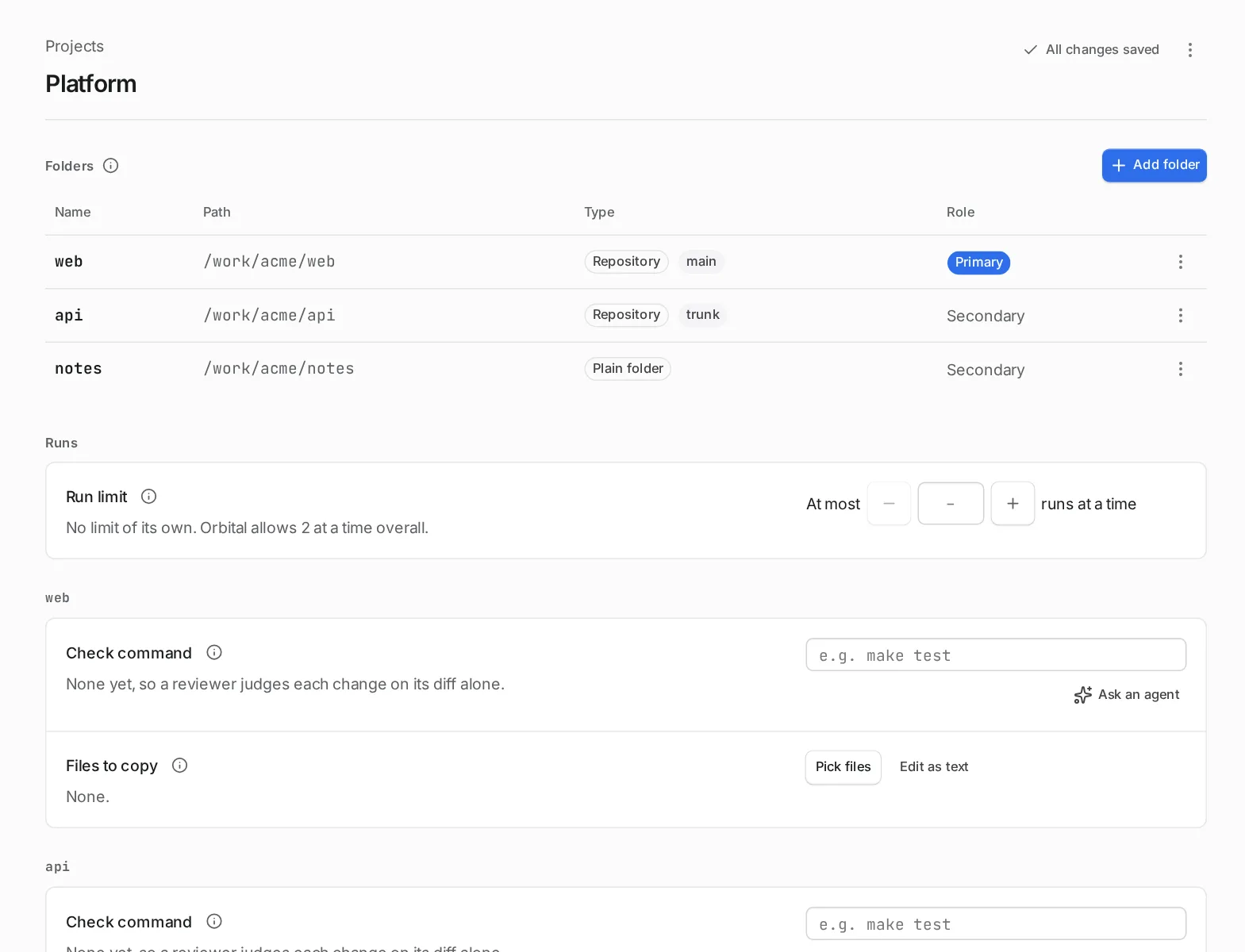
Section titled “Folders”The project’s page lists its folders first, with their name, path, type and role.
| Column | Values |
|---|---|
| Type | “Repository”, with its base branch, or “Plain folder” for a folder that is not a Git repository. |
| Role | “Primary” or “Secondary”. |
The first folder you add is the primary folder. Each agent step starts in it: it is the step’s working directory. The other folders are open to the agent as additional folders it can read and change.
A folder’s menu has Make primary, Rename, Change path and Remove. When you remove the primary folder, another folder takes its place. Runs already under way keep the folders they started with.
If you move or rename a folder on disk, use Change path to point the project at where it is now. Runs already under way follow it: each step reads the folder from the project when it starts, and their worktrees are repaired to find the repository in its new place. A step that needs a folder that no longer exists waits for you, so you can update the folder’s path and resume the run.
A workflow that makes a worktree makes one for each repository folder, all on the same branch name. Plain folders are used where they are. Worktrees and delivery explains this.
Project settings
Section titled “Project settings”The project’s settings sit below the folders, in groups.
| Group | What it holds |
|---|---|
| Runs | The run limit and the project’s own supervisor. |
| One group per folder, headed by its name | For a repository, the files to copy into new worktrees. |
The settings save as you change them. The page header says “All changes saved” once they have. An info button beside a label explains the setting.
Plain folders and Git
Section titled “Plain folders and Git”A project does not need a Git repository. Plain folders work with Claude Code and OpenCode. Codex is the exception: it refuses to start in a folder that is not a Git repository. So a step on Codex needs its primary folder to be one.
A workflow that changes code also needs a Git repository, because it works in a worktree. A worktree is a copy of a repository on a branch of its own. The shipped workflows that deliver a pull request need one for that reason, and so do the examples that make a worktree. A workflow that only reads or writes files runs in a plain folder. Examples are explain-repo and the research example.
Runs at a time
Section titled “Runs at a time”A project can limit how many of its runs work at once, with Run limit under Runs on its page. When a project reaches its limit, its next runs wait, and other projects’ runs go first. Create a project shows how to set it.
Custom actions
Section titled “Custom actions”Custom actions are commands and links you add to a project for its runs. They appear in each run’s Run actions menu. A command runs on the machine that runs Orbital, in the run’s folder you choose. A link opens a URL template. Create a project shows how to add one.
Choose a project
Section titled “Choose a project”The project selector at the top of the sidebar chooses “All projects” or one project. The runs list, the Workflows page and the new-run composer follow it. Search with “Search projects…”.
Workflows a project offers
Section titled “Workflows a project offers”A project offers these workflows:
- the workflows in the
.orbital/folder of each of its folders - your library in
~/.orbital/workflows/ - the Custom workflows you saved in Orbital
- the shipped workflows
Workflows explains which one wins when two share a name.
More on projects
Section titled “More on projects”With the Triggers feature on, a project’s page also holds its trigger rules. With the Supervisor feature on, a project can have its own supervisor.
Quick reference
Section titled “Quick reference”| You want to | Use |
|---|---|
| Choose where agent steps start | Make primary in a folder’s menu |
| Copy files into new worktrees of a repository | The folder’s files to copy |
| Limit how many of the project’s runs work at once | Run limit under Runs |
| Add a command or link to every run | Custom actions |
| Run on Codex, or deliver code | A Git repository as the primary folder |
Related
Section titled “Related”- Create a project: add a project, its folders, a run limit and custom actions.
- Worktrees and delivery: how code workflows use worktrees and open pull requests.
- The run queue: how project limits work with the limit in Settings.