

Troubleshooting
Find the fix for a symptom, or report a bug with the right files
Find the symptom in the contents list and apply the fix under it. Each fix says what causes the problem and what to do.
To check that Orbital and your harness work at all, run explain-repo as in Start your first run. It only reads.
Install and harnesses
Section titled “Install and harnesses”A harness is the coding agent program that runs a step, such as Claude Code, Codex or OpenCode.
Installation fails
Section titled “Installation fails”A 401 or 403 from GitHub Packages points at your setup. Check the registry entry, and check that your own classic token has the read:packages scope. A 404 can mean your account lacks package access, or that the scope points at the wrong registry. npm access is by invitation during the beta. Install Orbital says how to ask.
If the server cannot load better-sqlite3 after a pnpm install, repeat the install with --allow-build=better-sqlite3. If pnpm has no global bin directory, run pnpm setup and open a new shell. Then follow Install Orbital.
The first turn fails
Section titled “The first turn fails”Read the command or harness named in the failure. Check its version and login in the shell that starts the server. The server does not inherit credentials exported after it started. Restart it after you change environment variables, then retry the stopped step. If authentication succeeds but model discovery fails, check the selected model and provider.
A harness is missing or switched off
Section titled “A harness is missing or switched off”A step does not fail when its harness is not installed, not signed in, not set up or turned off. The run stops on that step and names the cause. The run is Paused, and its badge reads “Waiting on you”.
-
Read the status table.
Open Settings > Harnesses and find the harness the step uses.
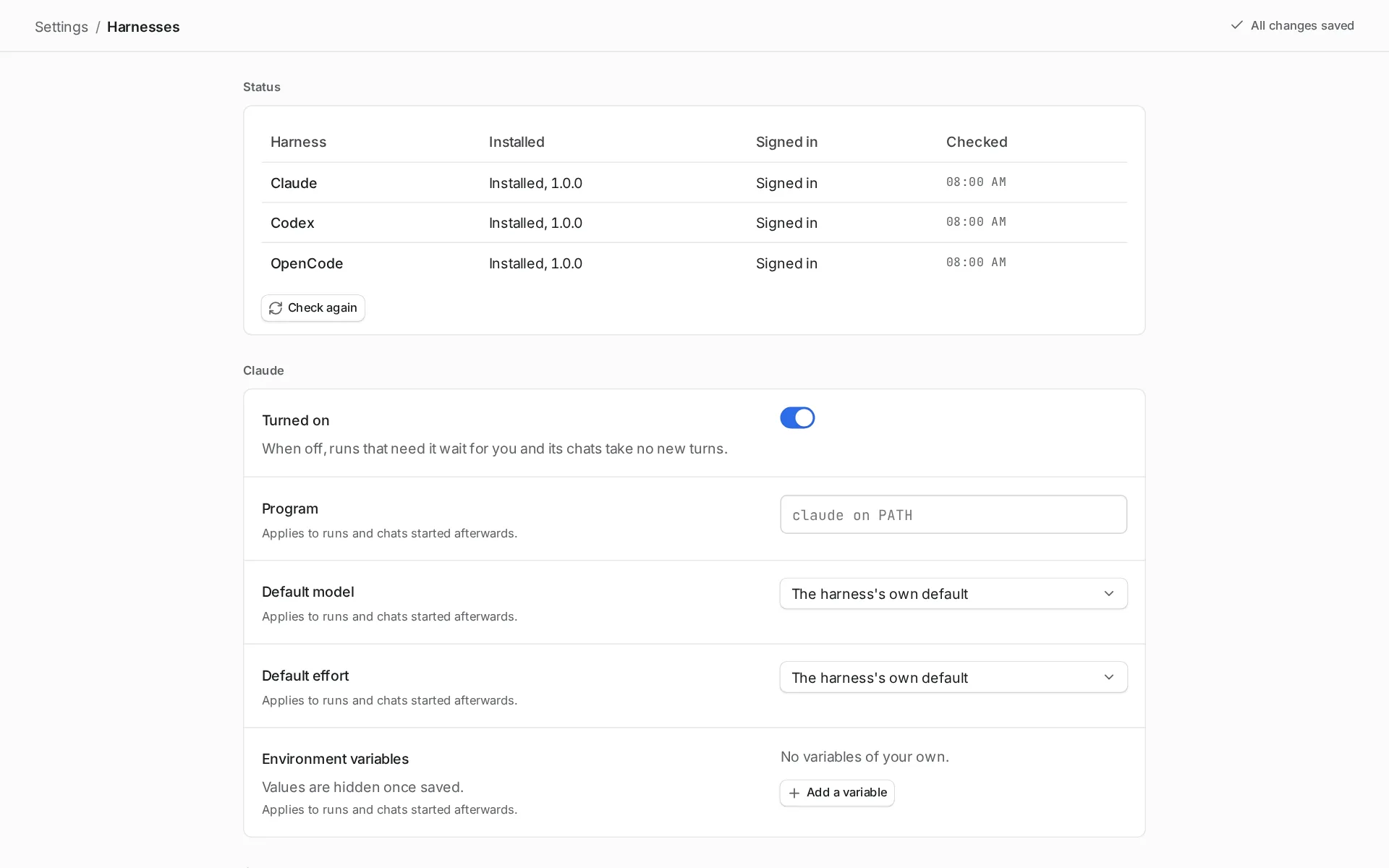
The status table says whether each harness is installed and signed in. -
Install the harness if it says “Not installed”.
Install it in the shell that starts Orbital, or set its Program to the full path. The Mac app reads your login shell’s
PATH. Restart the app after you change it. -
Sign in if it says “Signed out”.
Run
claude,codex loginoropencode auth login. -
Turn it on if it says “Off”.
Turn Turned on back on.
-
Check again and resume.
Choose Check again. Then open the run and choose Resume.
To carry on with another harness instead, switch the run’s harness.
A Codex step on Linux can also stop because Codex’s sandbox needs bubblewrap. Install your distribution’s bubblewrap package, then resume.
A harness ran out of quota
Section titled “A harness ran out of quota”The step stops with an “out of quota” reason. The reason names the harness and, when known, when the quota resets. Wait and choose Resume, or switch the run’s harness. That page also explains how the Supervisor can switch it for you.
Codex rejects the working folder
Section titled “Codex rejects the working folder”Codex needs a Git repository. Other harnesses work in a plain folder. See plain folders and Git.
Open the project’s page and check the primary folder. Its Type must be “Repository”. To use a plain folder with Codex, run git init in it first, then retry the failed step.
Runs and workflows
Section titled “Runs and workflows”Validation rejects the workflow
Section titled “Validation rejects the workflow”Run orbital validate with the explicit saved file path. Then match the error:
| Error | What to do |
|---|---|
| Missing entry | Give the ID of a declared node. |
| Unknown attributes | Look for retired syntax or a typo. |
| Missing prompt file or import | Put the companion file at the path relative to the file that names it. |
| Read before production | Add an earlier producer on every incoming path. Do not fabricate a default. |
For choice routing, give each conditioned edge a distinct weight. Cover every accepted choice, or provide a fallback. See node types and add branches.
Starting reports missing inputs
Section titled “Starting reports missing inputs”Fill in the goal and every required workflow input on the new-run page. Optional inputs end in a question mark in the declaration.
If the workflow is not the one you expected, check for a custom workflow that shadows a file of the same name. Confirm that the project includes the folder that holds the workflow.
A run appears stopped
Section titled “A run appears stopped”A server restart does not stop a run. The next start carries on every run you did not pause, from its last finished activity. A run that stays Paused was either paused by you, or stopped by itself and shows the badge “Waiting on you”.
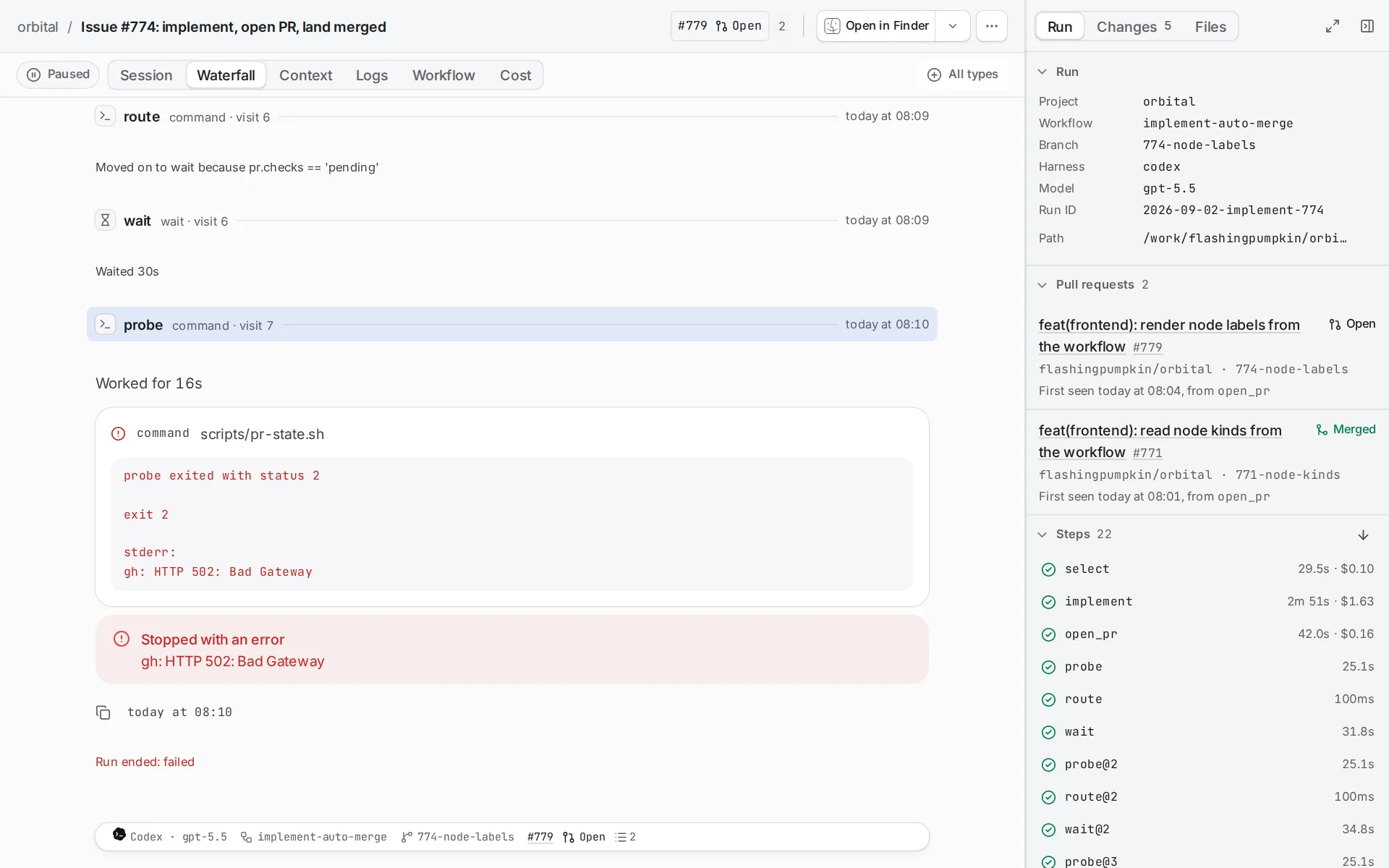
Open the transcript to find the last active step. Then choose one:
| Action | What it does |
|---|---|
| Resume | Carries the step on in its session when it can. |
| Retry | Starts the step again in a new session. |
Neither is the same as starting an unrelated run. See how Orbital works.
A run whose harness ran out of quota is Paused too. The Supervisor can switch its harness for you.
A failed step does not take its fallback
Section titled “A failed step does not take its fallback”That is intentional. A failed step takes only a matching conditioned edge. With no matching failure route, the run is Paused, with the badge “Waiting on you”. Add an explicit failure route if recovery belongs in the workflow. Otherwise resolve the cause and retry. A failed terminal ends the run and records a terminal failure.
A probe that keeps retrying is still inside its step. Check GitHub authentication, repository access and the diagnostic before you change workflow edges.
A step cannot stop a process
Section titled “A step cannot stop a process”That is intentional. Every process a step starts can signal only the processes it started itself. So no step can stop the Orbital server or another run.
| System | What the step sees |
|---|---|
| Linux | The step runs in its own process namespace through bubblewrap. ps and pgrep see only the step’s processes, and kill answers No such process for any other. |
| macOS | A sandbox profile refuses the signal, and kill answers Operation not permitted. |
The step’s output, in the run’s transcript, shows what was refused. Record the PID of anything a step starts, and stop it by that PID.
A worktree remains after cleanup
Section titled “A worktree remains after cleanup”Inspect worktree.status and the cleanup step. Orbital keeps all checkouts if removal could lose work. Commit and push the changes you need, or complete the right pull request action, then retry cleanup. Do not delete the directory to make a run look successful. Worktrees and delivery says when Orbital removes a worktree and when it keeps one.
MCP, triggers and the Supervisor
Section titled “MCP, triggers and the Supervisor”An MCP client cannot reach Orbital
Section titled “An MCP client cannot reach Orbital”First check that Turned on is on in Settings > MCP, and that Status says “Listening”. While the endpoint is off, /mcp answers 404.
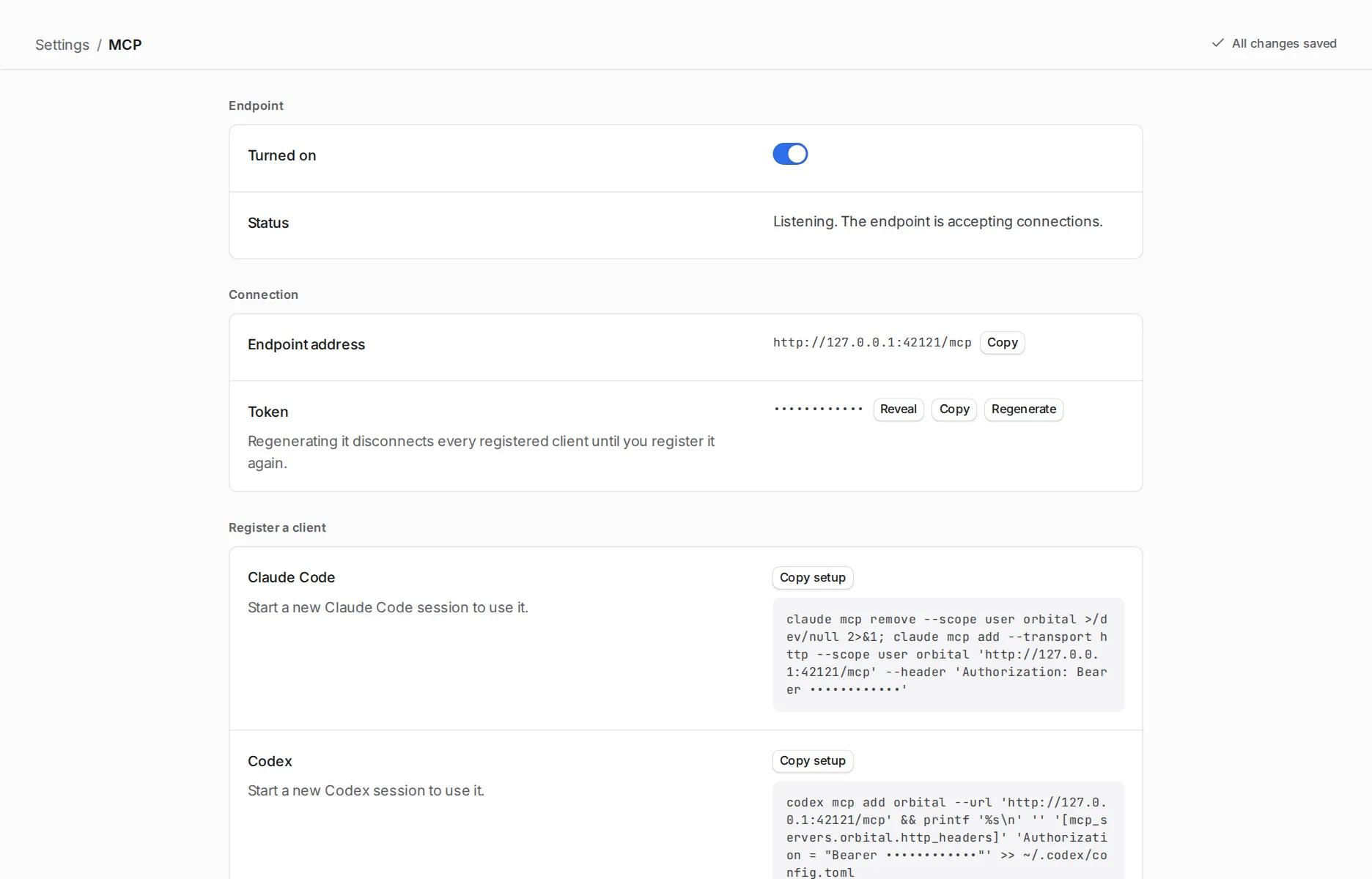
Then match what the client reports:
| The client reports | Cause and fix |
|---|---|
| 401 | The token is missing or old. Copy the client’s setup from Settings > MCP again, paste it, and start a new session. Regenerating the token makes every old registration fail. |
| 403 “this server does not answer to that host” | The client used a host name other than localhost, 127.0.0.1 or [::1], while Orbital listens only on your machine. Use the address Settings shows. |
| A tool’s group “is off in Settings” | Turn that tool group on in Settings > MCP. |
The Mac app moves to a free port when port 42121 is taken. Settings > MCP then says so. Register the new address.
A trigger rule does nothing
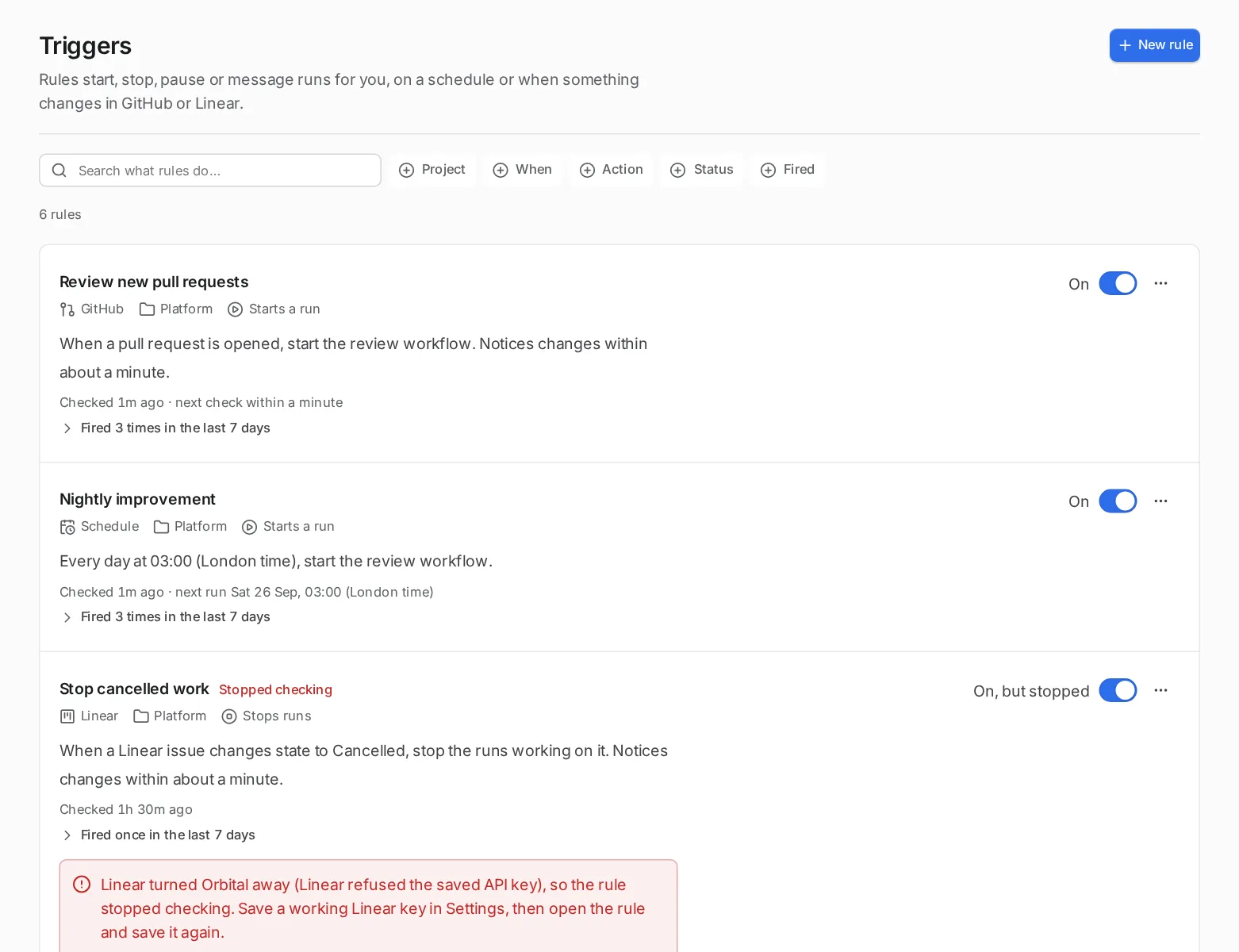
Section titled “A trigger rule does nothing”- Check that Triggers is on in Settings > Experimental features.
- Open Triggers and read the rule’s line. A rule that cannot check its source says why, for example that GitHub or Linear refused the saved token. Fix the token in Settings > GitHub or Settings > Linear. Then open the rule and save it again.
- Stop, pause and message rules act only on runs that a trigger started for the same item.
- Choose Try it and save to see what the rule would have done over the last seven days.
The Supervisor does not act
Section titled “The Supervisor does not act”- Check that Supervisor is on in Settings > Experimental features. Then check that its Status in Settings > Supervisor is on and not paused for today.
- Check “What it may do”. An action set to “Never” is refused. An action set to “Ask me first” waits for your approval in its chat.
- Check “Spending”. At its daily limit it stops acting for the day, and says so once in its chat.
- A run at a gate does not wake it. That is your process working.
Reporting a bug
Section titled “Reporting a bug”Send two files with the report:
| File | Where to find it |
|---|---|
| The server’s log | ~/.orbital/logs/server/orbital.log. In the desktop app, Help > Show Logs opens its folder. |
| The export of the run that went wrong | Open the run, then choose Download run JSON from its Run actions menu (⋯). |
Leave out the macOS system log. It holds the operating system’s messages and none of Orbital’s server or engine activity.
Related
Section titled “Related”- Install Orbital: install the app or the command and sign in to a harness
- Harnesses and models: how a step picks its harness and what each status means
- Switch a run’s harness: carry a paused run on with another harness
- Pause, stop or resolve a run: resume, retry or end a run that stopped
- Error handling: failure routes, fallbacks and repair budgets
- Connect a coding agent: register a client and choose its tool groups
- Make a trigger rule: set up a rule and try it before you save
- Supervisor: what the Supervisor watches and what it may do
- Settings: where each switch named on this page lives