

Reuse a workflow
Move a shared sequence of steps into its own workflow file and import it
When several workflows share a sequence of steps, move the sequence into its own workflow file and import it. One node with an import attribute stands in for the whole file.
ticket [import="subgraphs/ticket.dot"]How a sub workflow works
Section titled “How a sub workflow works”A sub workflow is an ordinary workflow file that another workflow imports. It has its own version, entry and terminals, so you can validate and run it on its own before any parent depends on it. It has to be a complete workflow, not a fragment.
The node that names it is a placeholder. Before validation, Orbital replaces the placeholder with the imported workflow, so the editor, the validator and the run all see one flattened workflow.
- Imported step IDs take the placeholder’s name as a prefix, so
ticket.reviewis the importedreviewstep. - Edges into the placeholder reach the imported entry.
- The imported terminals become exits, and the placeholder’s outgoing edges replace them.
- Outputs and probe fact names keep their original names. That is what lets a parent condition read a value the sub workflow produced.
With one exit, the parent can use a bare outgoing edge. With several, each outgoing edge names one with exit, and every exit is bound exactly once. The parent’s edge out of the placeholder carries only exit and loop_restart. Conditions, weights and repair budgets belong on the edges inside the imported workflow.
Relative imports and prompt files resolve from the file that names them. The import placeholder reference gives the rest of the rules.
Share settings with the steps inside
Section titled “Share settings with the steps inside”A placeholder can carry role, persona, model_settings and tool_access. Each applies to every step inside that does not choose its own, and a step’s own choice always wins. Give steps a role explains how.
A placeholder cannot override the prompts of the steps inside. The imported workflow’s own workflow-level settings describe its standalone use and do not become parent defaults. Put shared configuration on the placeholder or in the parent workflow.
Before you start
Section titled “Before you start”You need the epic example, unpacked into ~/.orbital/workflows/ with every relative path intact. It holds the parent and the sub workflow shown below.
1. Write the sub workflow
Section titled “1. Write the sub workflow”This one implements and reviews a single piece of work. Its two terminals, delivered and rejected, become the exits the parent binds.
digraph ticket {  graph [version="1", entry="implement", description="Implement and locally review one sub ticket"]
  implement [prompt="Implement the current work described below. Satisfy only its requirements. {{ current_work }}", outputs="implementation_summary:text"]  review [prompt="Review the implementation against the current work described below. Choose pass when it satisfies the work, or reject when it does not. {{ current_work }}", outputs="verdict:choice"]  delivered [shape="Msquare", outcome="success"]  rejected [shape="Msquare", outcome="failed", label="Five reviews rejected the same sub ticket"]
  implement -> review  review -> delivered [condition="verdict == 'pass'", weight="3", repair_budget="sub_ticket", repair_round="reset"]  review -> implement [condition="verdict == 'reject'", weight="2", repair_budget="sub_ticket", repair_round="retry"]  review -> rejected  review -> rejected [condition="verdict == 'reject'", weight="1", repair_budget="sub_ticket", repair_round="exhausted"]}
It reads {{ current_work }} rather than a declared input, so the parent decides what one piece of work is. Any parent that sets current work can use it.
2. Validate it alone
Section titled “2. Validate it alone”orbital validate ~/.orbital/workflows/subgraphs/ticket.dot3. Add a placeholder to the parent
Section titled “3. Add a placeholder to the parent”ticket [import="subgraphs/ticket.dot"] is the placeholder. The path is relative to the parent, because relative imports resolve from the file that names them.
digraph epic {  graph [version="1", entry="select", inputs="work", description="Work through an epic one sub ticket at a time", max_visits="200"]
  select [prompt="Read the epic at {{ inputs.work }} and every sub ticket under it. Choose the next unfinished sub ticket and report it as the current work. Choose ticket while one remains, or none once every sub ticket is finished.", outputs="current_work:work,remaining:choice"]  ticket [import="subgraphs/ticket.dot"]  finished [shape="Msquare", outcome="success"]  stalled [shape="Msquare", outcome="failed", label="A sub ticket could not be delivered"]
  select -> ticket [condition="remaining == 'ticket'", weight="2"]  select -> finished [condition="remaining == 'none'", weight="1"]  ticket -> select [exit="delivered", loop_restart="true"]  ticket -> stalled [exit="rejected"]}
4. Bind every exit
Section titled “4. Bind every exit”Each edge leaving the placeholder names the exit it binds. Here delivered returns to the select step, and rejected ends the run.
5. Validate the parent
Section titled “5. Validate the parent”orbital validate ~/.orbital/workflows/epic.dotOrbital replaces the placeholder with the imported workflow and prefixes every imported node ID, so the flattened workflow contains ticket.implement and ticket.review.
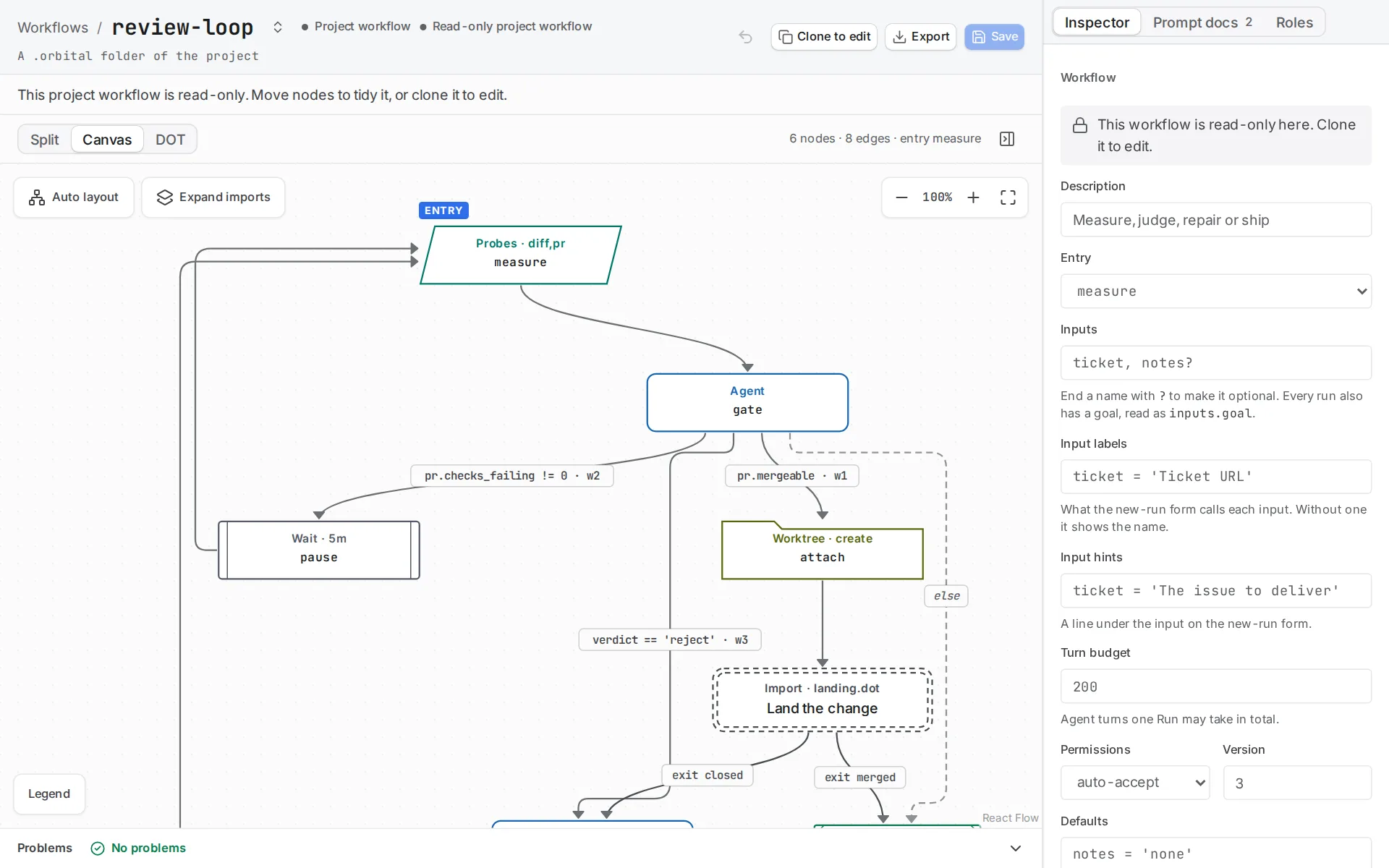
The editor draws the placeholder as one import node, with each exit on its own edge. Choose Expand imports to see a flat, read-only view with each import expanded, and Show authored workflow to return.
Share it
Section titled “Share it”Include every imported file and prompt file, and keep their relative paths. The epic example shows the layout. The ticket workflow is a parent with two sub workflows and twelve prompt files, shipped as one archive.
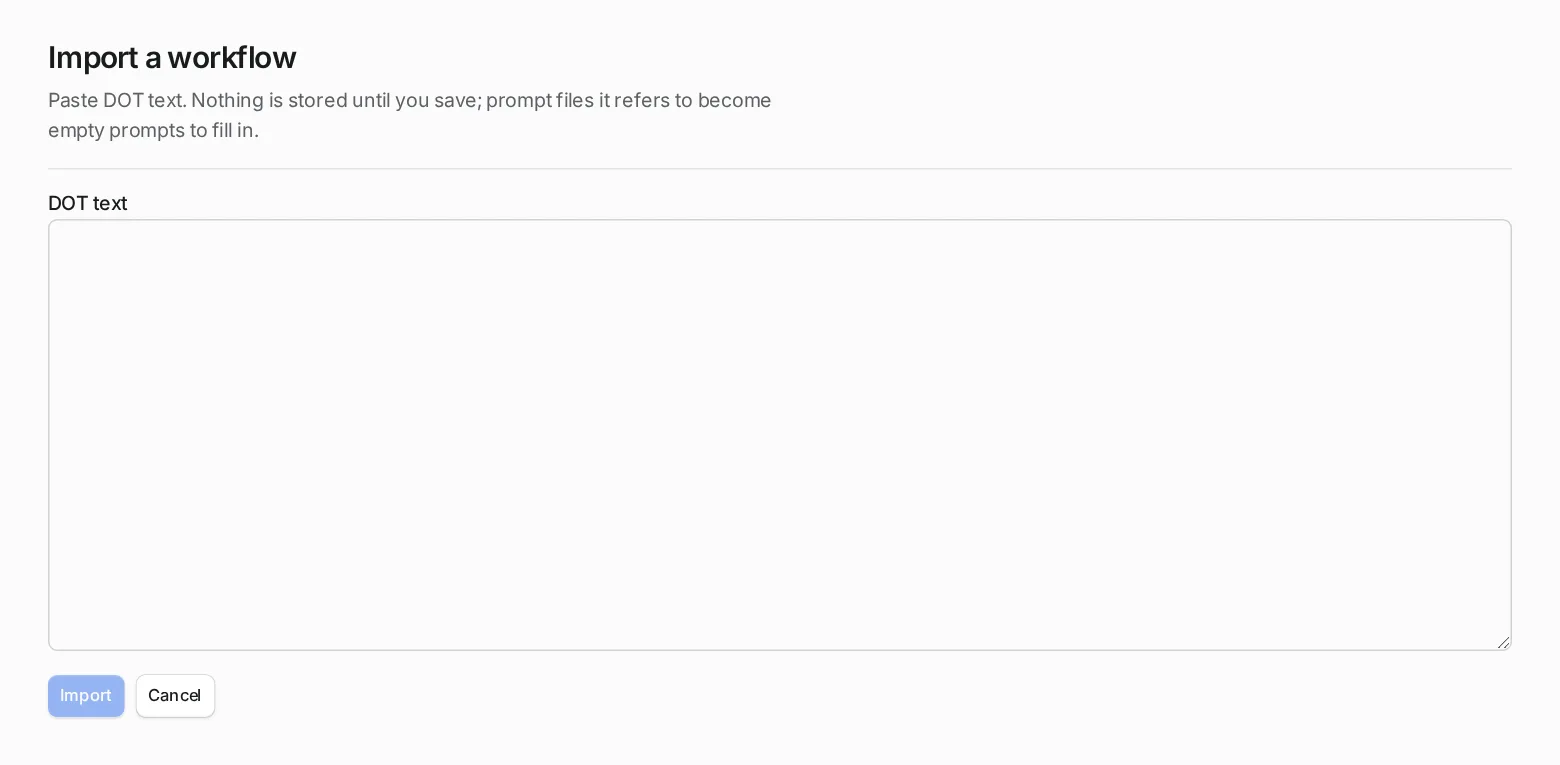
If someone pastes the parent into Import on the Workflows page instead, the prompt files it refers to become empty prompts to fill in.
Related
Section titled “Related”- Import placeholder: the rules for placeholders, names and exits.
- Ticket to merge: a parent with two sub workflows.
- Outer loop over an epic: the same parent and sub workflow, explained step by step.
- Give steps a role: set roles on imported steps.