

Make a trigger rule
Create a rule that acts on runs, test it, and follow what it does
You make a trigger rule in a project, test it against the last seven days, and save it. From then on it starts, stops, pauses or messages runs when GitHub, Linear or a schedule says so.
Before you start
Section titled “Before you start”- Turn on Triggers in Settings > Experimental features. See Turn triggers on.
- For a GitHub rule, save a GitHub token. See Settings.
- For a Linear rule, save a Linear key in Settings > Linear.
Make a rule
Section titled “Make a rule”-
Open the rules.
Open Triggers in the sidebar, or the trigger rules section of a project’s page.
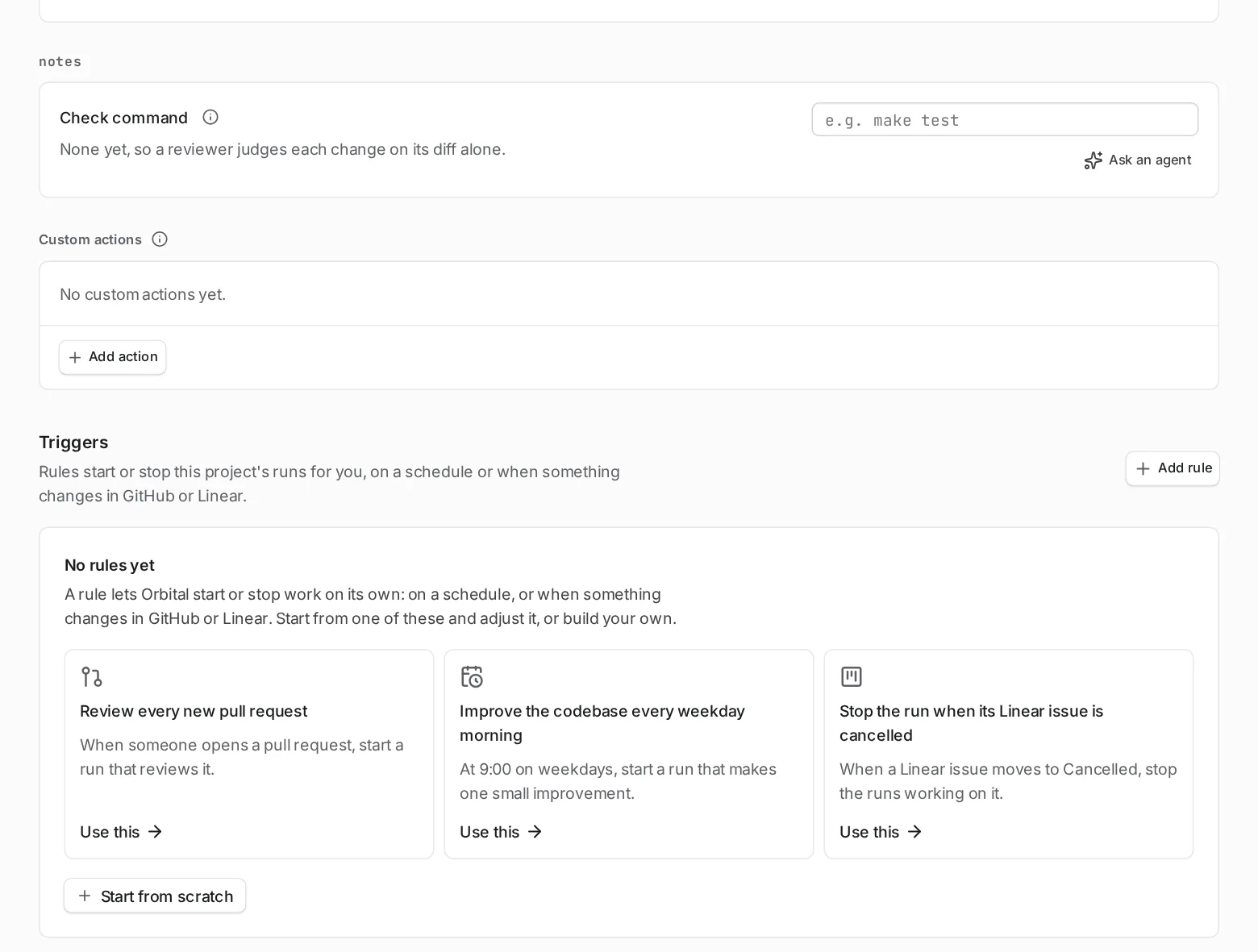
A project's page lists the rules that belong to it. -
Start a rule.
Choose New rule. Or start from a ready-made rule: “Review every new pull request”, “Improve the codebase every weekday morning” or “Stop the run when its Linear issue is cancelled”.
-
Name the rule and pick what sets it off.
Give the rule a name. Then pick its source and the event it waits for. Sources and events shows the events for each source.
-
Pick what the rule does.
Choose whether it starts a run, or stops, pauses or messages runs. To start a run, choose the workflow and write its goal. You can also pick the harness and model. What a rule does lists the values the goal can use.
-
Add conditions if you need them.
Under “Only if”, add the conditions that narrow the rule down. See Conditions.
-
Try it and save.
Choose Try it and save. Orbital looks back over the last seven days and reports what the rule would have done. Saving turns the rule on.
Sources and events
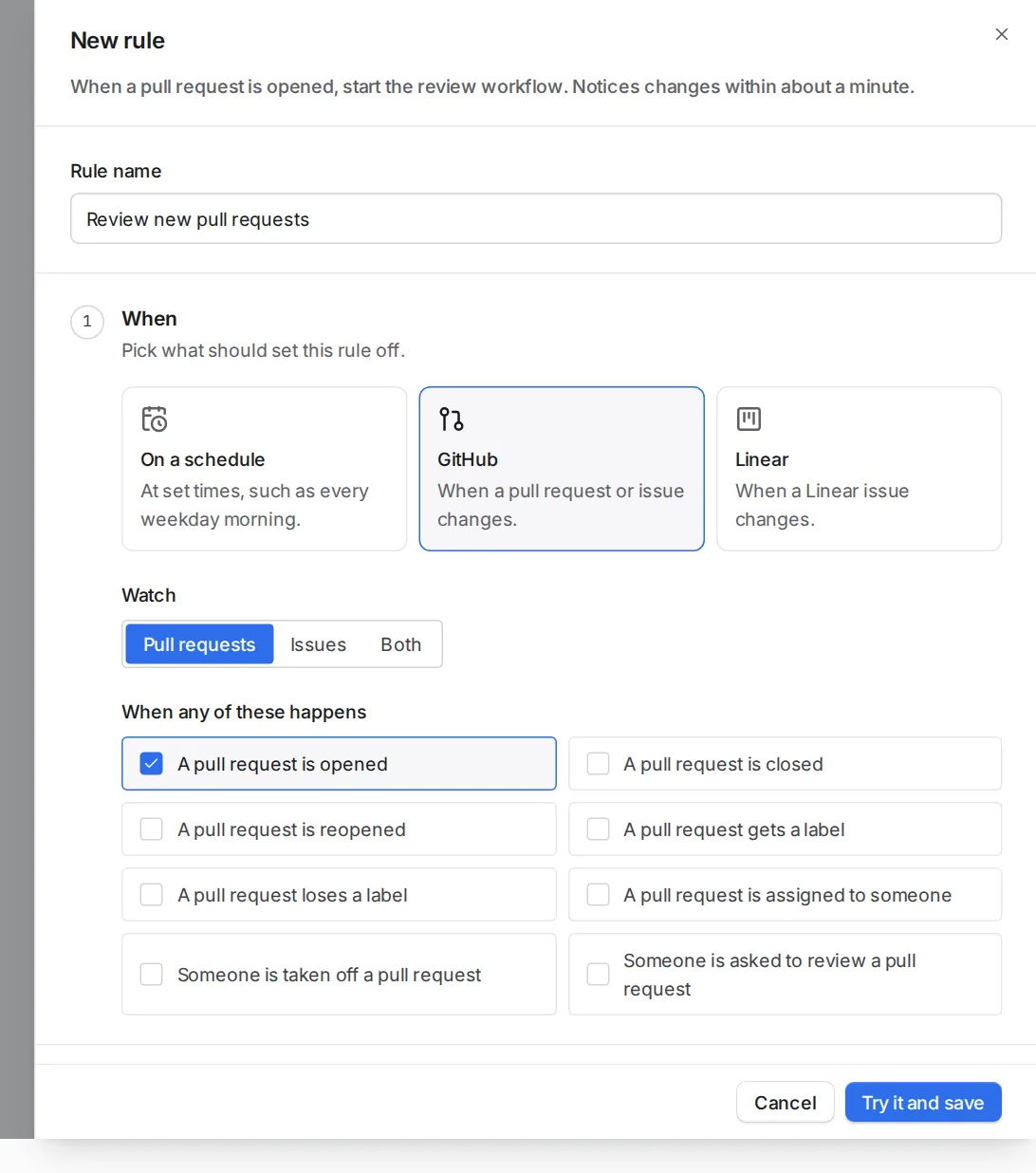
Section titled “Sources and events”A GitHub rule sets off “When a pull request or issue changes”. Choose issues, pull requests or both, and the event: opened, closed, reopened, labelled, unlabelled, assigned, unassigned, or a review requested.
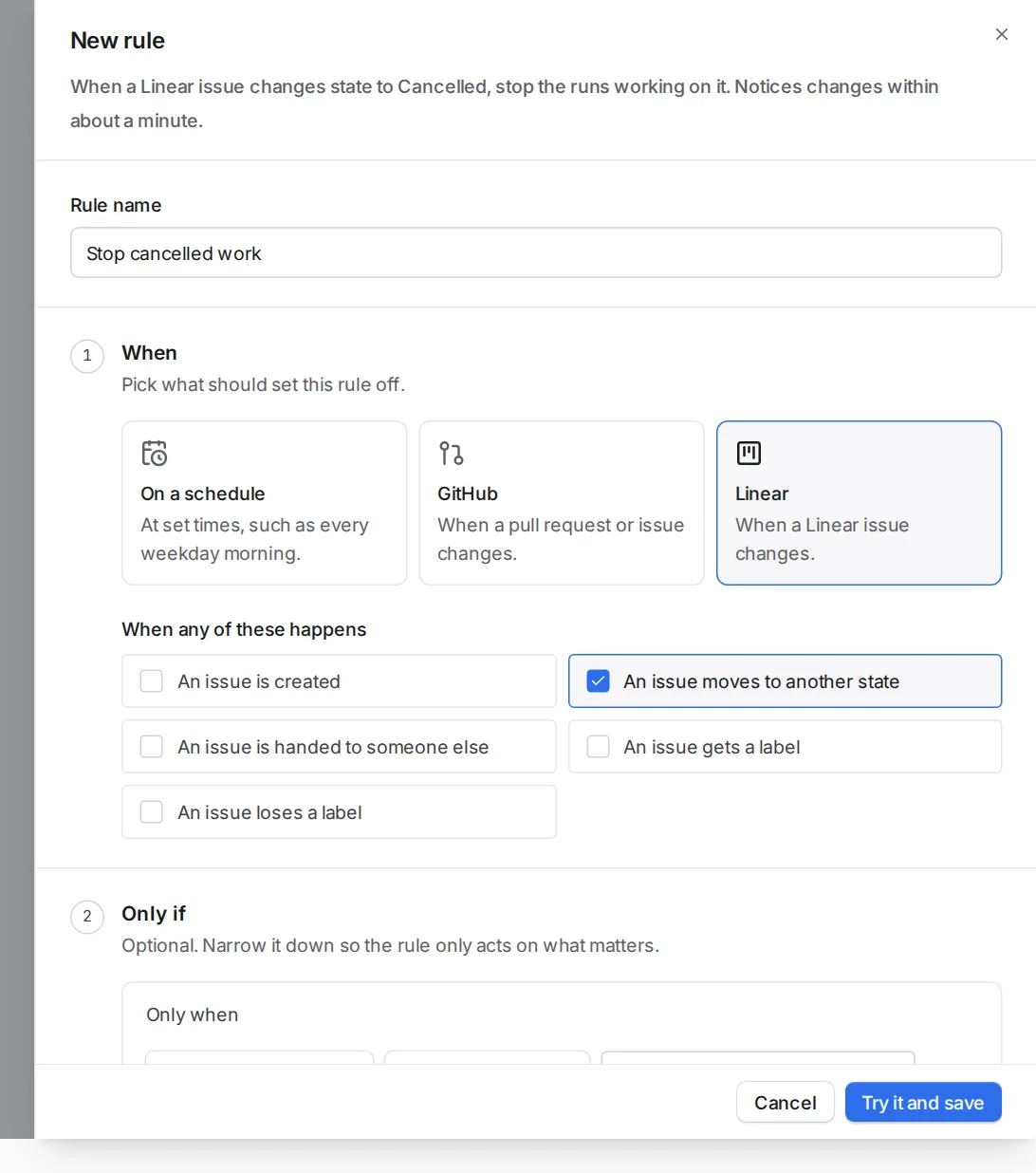
A Linear rule sets off “When a Linear issue changes”. Choose the event: created, moved to another state, handed to someone else, or a label added or removed.
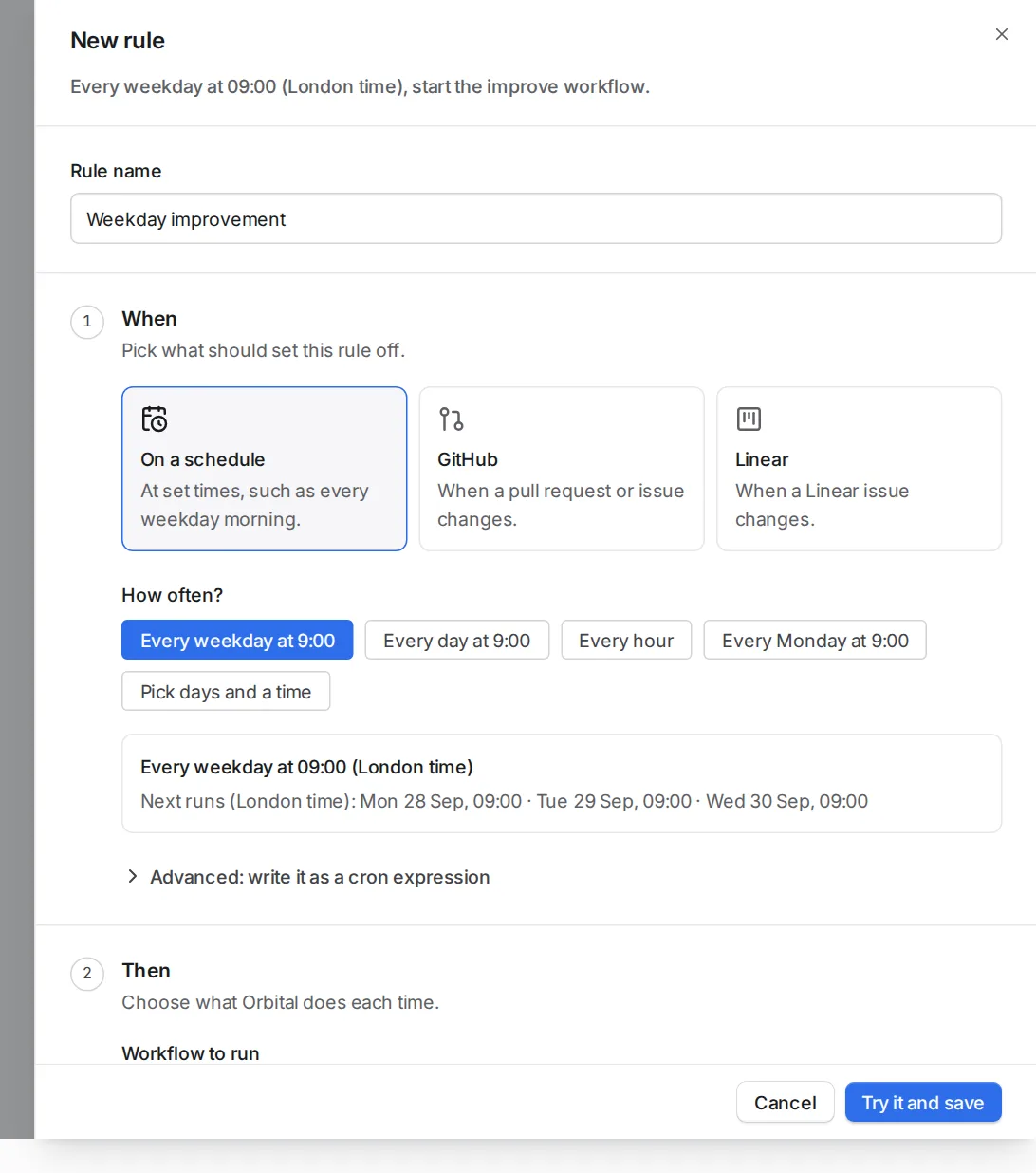
A schedule rule sets off “At set times, such as every weekday morning.” Under “How often?”, pick a preset, choose “Pick days and a time” and select the days and time, or write a cron expression. It uses the time zone of the machine that runs Orbital. A schedule can only start runs.
Follow a rule
Section titled “Follow a rule”The rules list shows whether each rule is on and when Orbital last checked. It also shows what the rule did, such as “Started a run” or “Fired 2 times in the last 7 days”.
A rule that cannot check its source says why, for example that GitHub or Linear refused the saved token.
Related
Section titled “Related”- Triggers: sources, actions, goal values and conditions.
- Review pull requests: a complete rule, from start to finish.
- Start a run: what a started run does.
- Permissions: what a run asks you before its agent acts, on each harness.
- Troubleshooting: fixes for a rule that does not fire.