

Watch a run
Find a run, see what it is doing and read its changes
You follow your runs in three places in the app. The Runs page lists them all, the Attention page lists the ones that wait for you, and a run’s own page shows it in full.
Find a run on the runs page
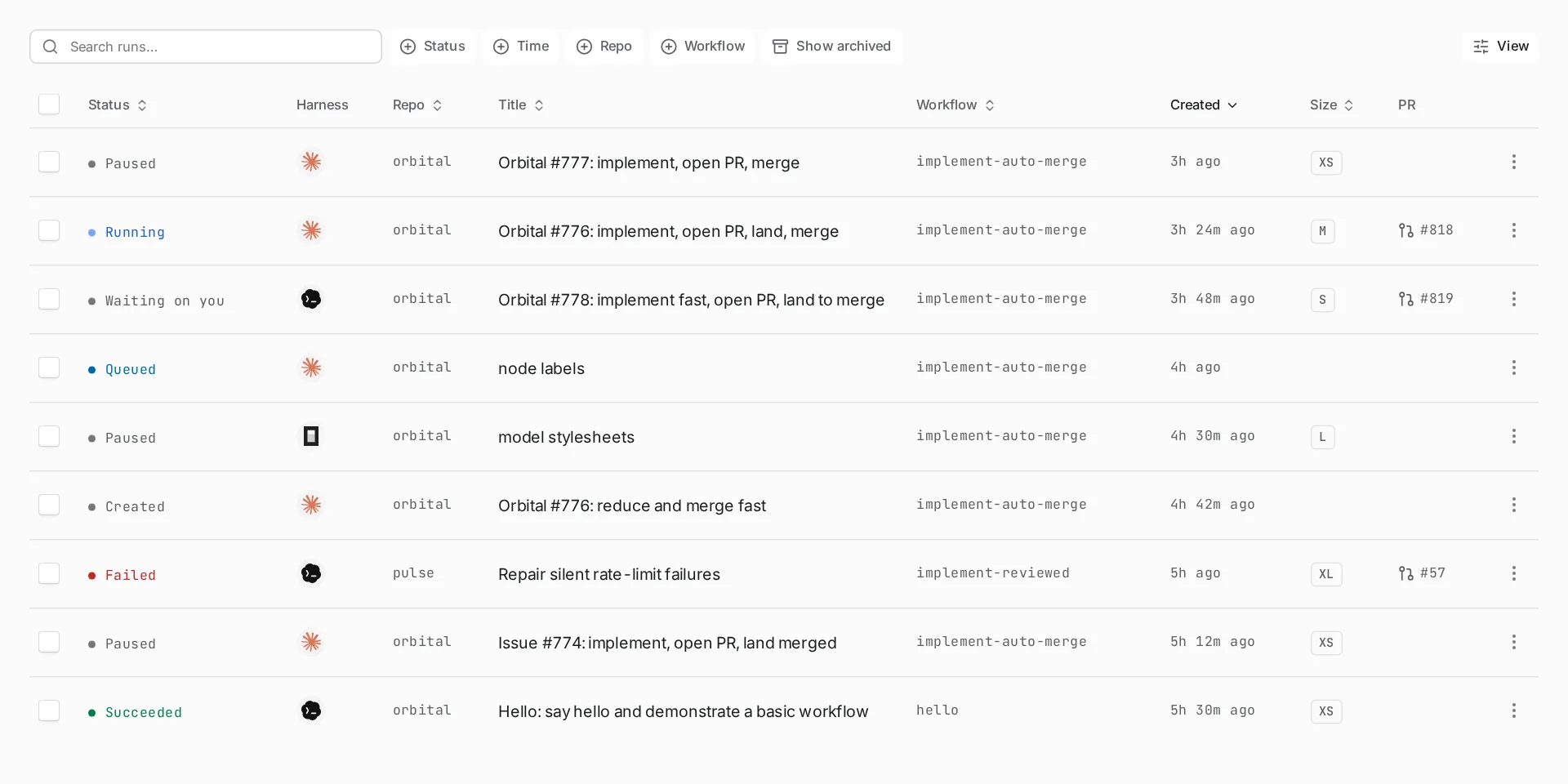
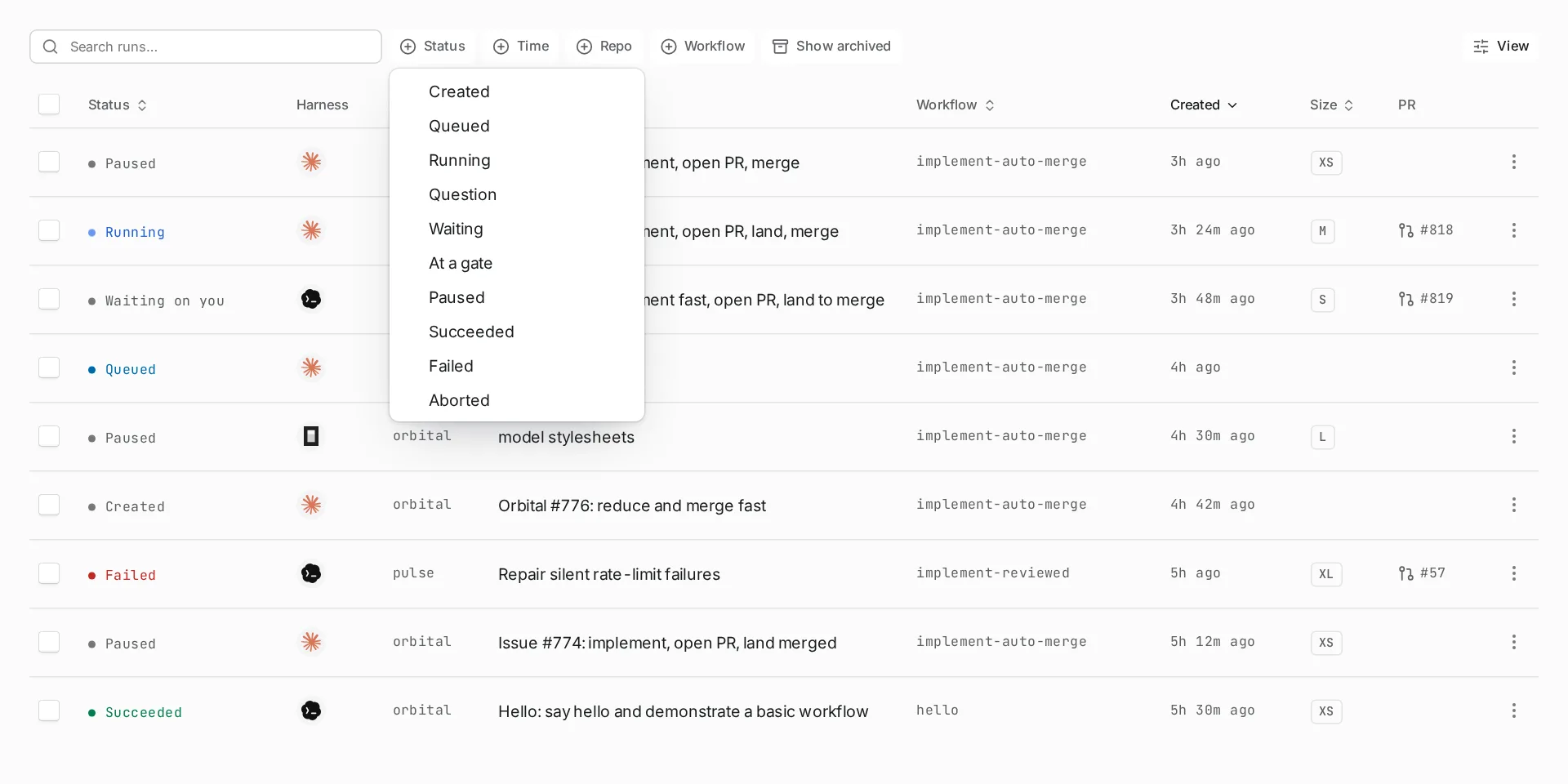
Section titled “Find a run on the runs page”Choose Runs in the sidebar to list every run. Search with “Search runs…”, and filter by Status, Time, Repo and Workflow. Turn on Show archived to include archived runs.
Columns chooses what the list shows: Status, Harness, Repo, Title, Workflow, Created, Size and PR.
The sidebar also lists Recent runs and Recent chats. View all opens the runs page.
See the runs that need you
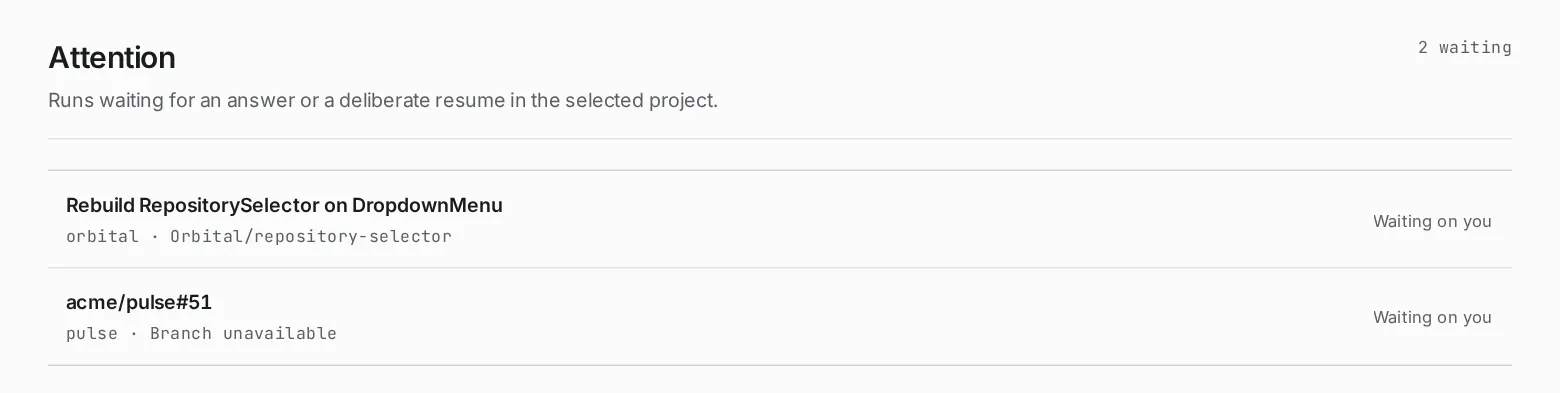
Section titled “See the runs that need you”The Attention page lists the runs in the selected project that wait for you: the runs with the standing Question or Paused. When nothing waits, the page says “Nothing needs attention”.
Read the run page
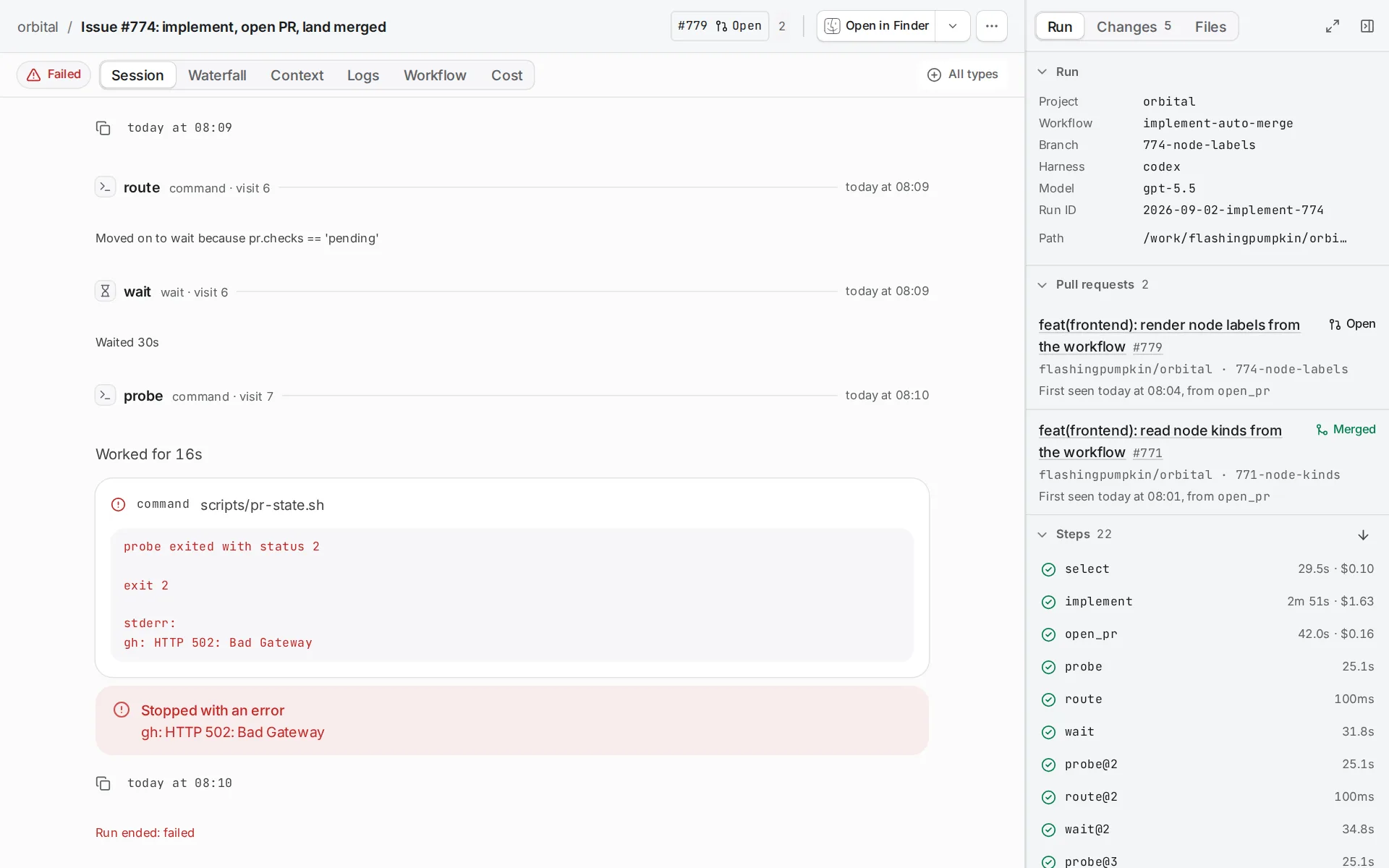
Section titled “Read the run page”Choose a run to open its page. The page has a header, six tabs and a dock.
The header shows the run’s title, workflow, branch and harness. The Run actions menu (⋯) holds the run controls. It also holds Copy run ID, Download run JSON and your project’s custom actions. Open in opens the run’s folder in another app, such as your editor.
| Tab | What it shows |
|---|---|
| Session | The conversation: the goal, each step, the agent’s messages and tool calls, questions and notices. |
| Waterfall | A timeline of the steps. Choose a step to see its status, input and output. |
| Context | The values steps have written, such as outputs and facts. |
| Logs | The run’s recorded events, with search. |
| Workflow | The workflow as a diagram and as source, frozen as the run started it. Open in editor opens it. |
| Cost | Two tables. Tokens by step gives each step’s model, tokens in and out, run time and cost, with a total. Tokens by model adds them up for each model. |
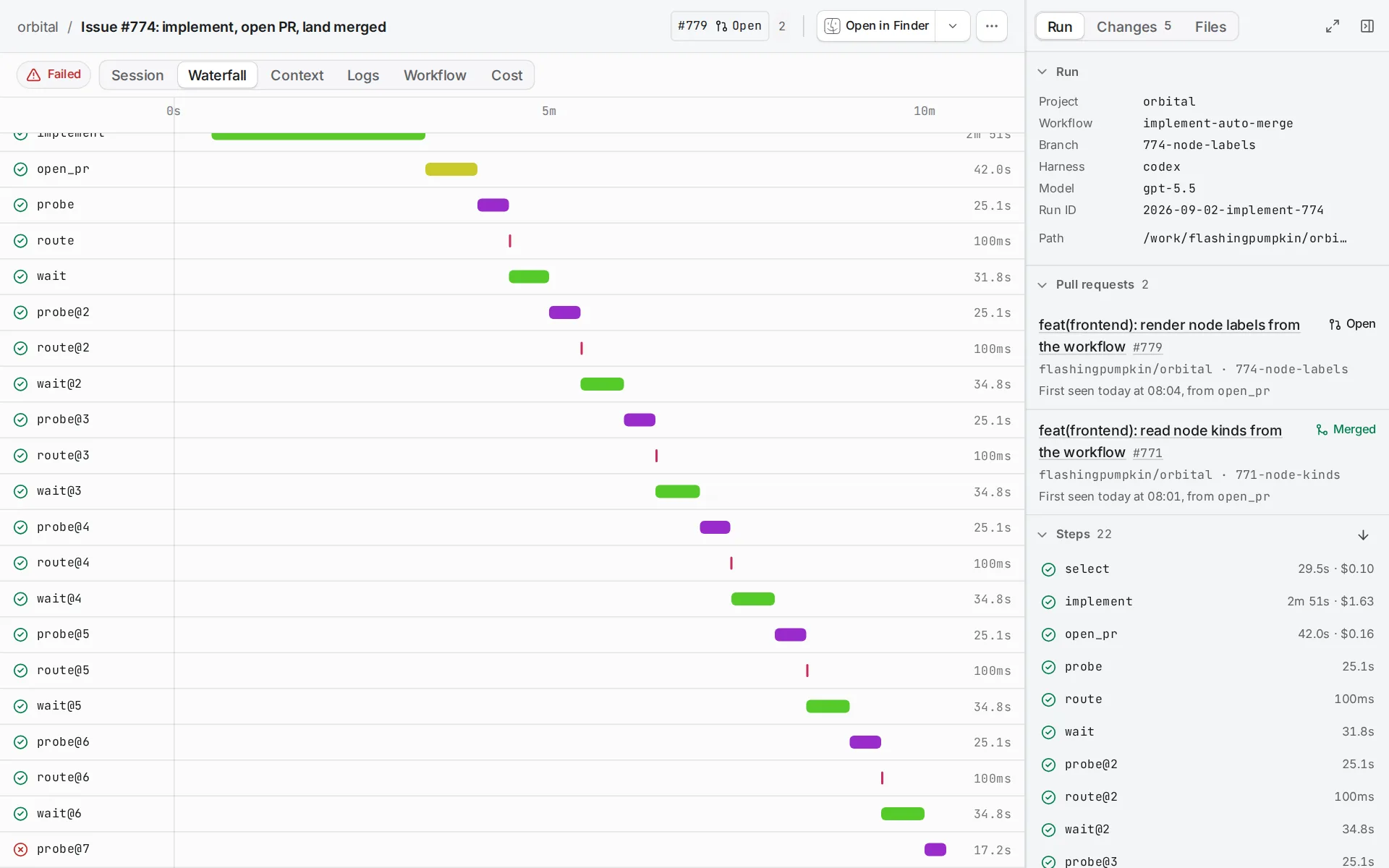
Use the dock
Section titled “Use the dock”The dock sits beside the tabs and has three tabs of its own.
| Dock tab | What it shows |
|---|---|
| Run | The run’s project, workflow, branch, harness, model, run ID and path; its Pull requests; its Steps; and the Agent of the current turn, with its settings and tools. |
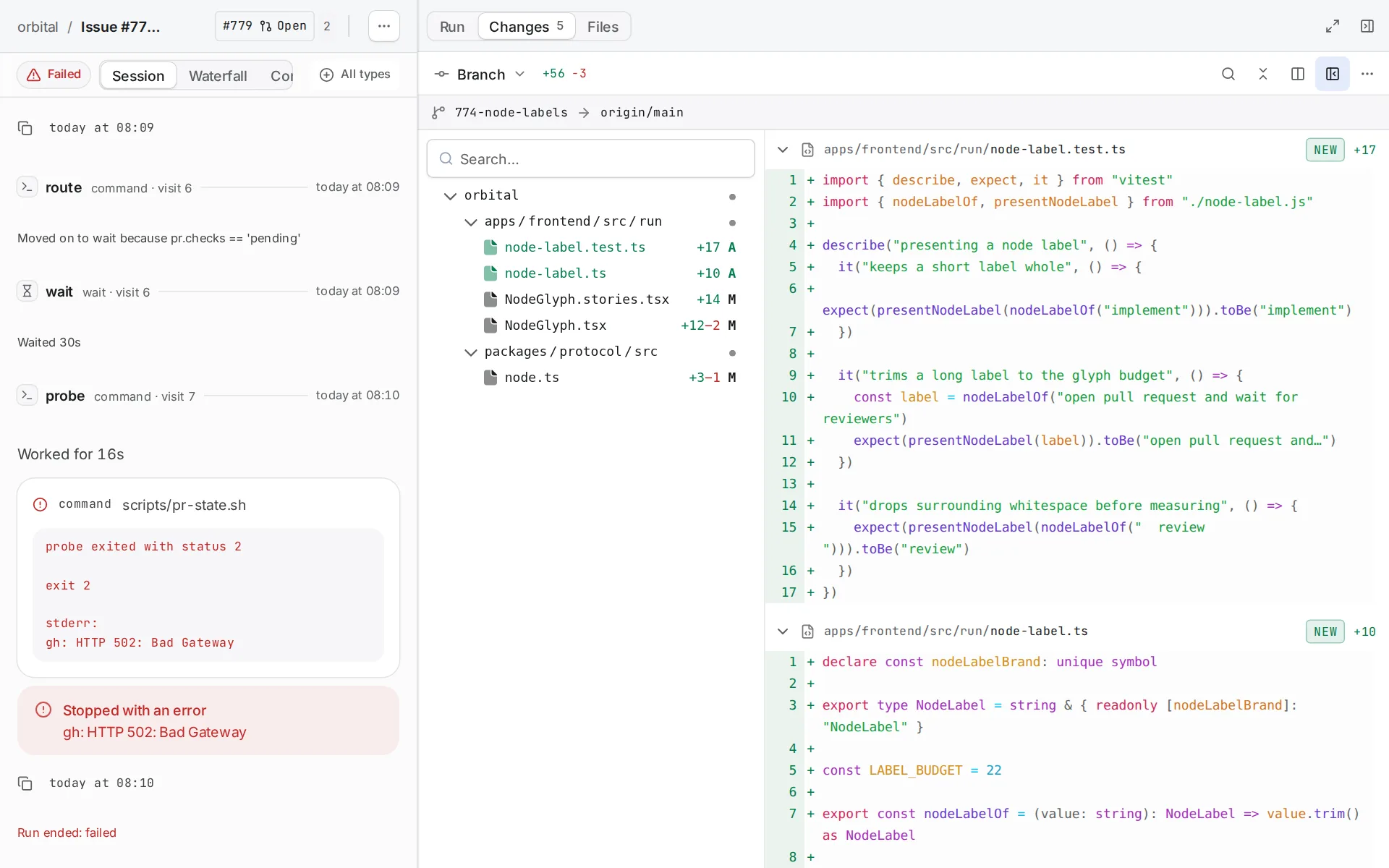
| Changes | The files the run changed. Choose Uncommitted, Staged or Branch. Show the diff side by side or with word wrap. |
| Files | The files in the run’s folder, with a viewer. Use Find a file to search. |
Choose Hide dock or Expand dock to change its size.
Related
Section titled “Related”- Runs: standings, the phase field and where the result appears.
- Message a run: steer the agent from the Session tab.
- Pause, stop or resolve a run: the controls in the Run actions menu.
- Pass context between steps: where the values on the Context tab come from.